Overview
The Google Threat Intelligence feed API service app ingests Collections via Threat Landscape and their associated Indicators of Compromise (IoCs) from Google® Threat Intelligence (Google TI) and creates corresponding objects in ThreatConnect® with select Google TI metadata:
- Reports are created as Report Groups in ThreatConnect. Where possible, ThreatConnect also adds ATT&CK Tags representing MITRE ATT&CK® techniques and sub-techniques to the Report Groups.
- Malware Families are created as Malware Groups in ThreatConnect.
- Software Toolkits are created as Tool Groups in ThreatConnect.
- Threat Actors are created as Intrusion Set Groups in ThreatConnect.
- Campaigns are created as Campaign Groups in ThreatConnect.
- Vulnerabilities are created as Vulnerability Groups in ThreatConnect.
- Indicators associated to Reports, Malware Families, Software Toolkits, Threat Actors, Campaigns, and Vulnerabilities are created as Address, File, Host, or URL Indicators and associated to the corresponding Group object in ThreatConnect.
Dependencies
ThreatConnect Dependencies
- ThreatConnect instance with version 7.11.2 or newer installed
Google Threat Intelligence Dependencies
- Enterprise or Enterprise+ subscription
- Service account for Google TI
- Active API key for Google TI service account
Application Setup and Configuration
The Google Threat Intelligence app leverages the Feed Deployer to create a Source for data ingestion from Google Threat Intelligence in an Organization and to configure the corresponding service’s ingestion and authentication parameters. After you install the Google Threat Intelligence app on your ThreatConnect instance, you can deploy it to any Organization. It must be deployed separately for each Organization in which you want to create a Source for data ingestion and a corresponding service.
Install the Google Threat Intelligence App
Follow these steps to install the Google Threat Intelligence app on your ThreatConnect instance:
- Log into ThreatConnect with a System Administrator account.
- From the Settings
 menu on the top navigation bar, select TC Exchange Settings.
 - Select the Catalog tab on the TC Exchange™ Settings screen.
- Locate the Google Threat Intelligence app on the Catalog tab.
- Click Install
 in the Options column for the app.
 - Click INSTALL in the app’s Release Notes window.
- After you install the Google Threat Intelligence app, the Feed Deployer opens automatically. Follow the procedure in the “Deploy the Google Threat Intelligence App to an Organization” section to deploy the Google Threat Intelligence app to a Source in an Organization and configure the corresponding service.
Deploy the Google Threat Intelligence App to an Organization
Follow these steps to deploy the Google Threat Intelligence app to an Organization:
- Log into ThreatConnect with a System Administrator account.
- From the Settingsmenu on the top navigation bar, select TC Exchange Settings.
- Locate the Google Threat Intelligence app on the Installed tab. Then select Deploy from the Options ⋮ dropdown.
- Follow the instructions in Table 1 to fill out the fields in the Feed Deployer window for a deployment of the Google Threat Intelligence app.
Name Description Required? Source Tab Sources to Create Enter the name of the Source for the feed. NoteUnless you are redeploying the feed to an existing Source in an Organization, the name of the Source must be unique on your ThreatConnect instance. It is recommended to add the Organization’s name to the end of the default Source name (e.g., Google Threat Intelligence – Demo Organization) for easy identification of the Source’s owner.Required Owner Select the Organization in which the Source will be created. Required Activate Deprecation Select this checkbox to allow confidence deprecation rules to be created and applied to Indicators in the Source. Optional Create Attributes Select this checkbox to allow custom attribute types for the Google Threat Intelligence app to be created on the System level of your ThreatConnect instance. ImportantIt is recommended that you keep this checkbox selected. If you deselect it, data from the Google Threat Intelligence app mapped to those attribute types will not be ingested.Optional Parameters Tab Launch Server Select tc-job as the launch server for the feed API service. Required Origin Select the origin(s) to ingest Threat Landscape data from. Available choices include the following: - Crowdsourced
- Partner
NoteBy default, the highly curated origin ofGoogle Threat Intelligenceis implicitly selected and is not included as an option in the dropdown.WarningSelecting options from this dropdown will allow ingestion of lower-fidelity intelligence into your ThreatConnect instance and create a higher volume of Groups and Indicators, which may impact system performance and increase API token utilization. It is recommended not to select either option unless there are specific requirements to include them.
In addition, when data from multiple origins are ingested, the Google Threat Intelligence app may create multiple copies of some Group objects to maintain integrity of the data provided by each origin and align with Google TI’s data model. Please see the “Google TI Origin Configuration” section for more information.Optional Indicator Threat Rating Select the threat rating to assign to all Indicators ingested from Google TI. You can select a specific threat rating (0–5 skulls) or Inherit from Google TI, which maps each Indicator’s Google TI score as described in the “Threat Rating Mapping” section.
NoteIt is recommended to retain the default selection of Inherit from Google TI, as this option assigns a customized threat rating to each Indicator based on Google TI analytics.Required Indicator Confidence Rating Select the confidence rating to assign to all Indicators ingested from Google TI. You can select a specific confidence rating (0–100) or Inherit from Google TI, which maps each Indicator’s Google TI confidence score to the same confidence rating in ThreatConnect. NoteIt is recommended to retain the default selection of Inherit from Google TI, as this option assigns a customized confidence rating to each Indicator based on Google TI analytics.Required Advanced Settings There are no advanced settings to configure. WarningLeave this field blank, as entering values may result in unintended consequences.Optional Notification Digest Interval Select the interval at which the Google Threat Intelligence app should send notifications about job failure outcomes to the Notifications Center for users who are members of the Source for the Google Threat Intelligence service. The dissemination of the notifications is determined by each user’s Notifications Center settings. Required Notification Types Select the notification types to include in the notification digest. Note- The App Startup notification is sent only once, when the app is started for the first time. Selection of this option determines whether the initial digest sent to the Notifications Center will include a notification about successful app startup.
- -All notifications about app functionality (startup, startup failure, and shutdown) and job failure outcomes (failure, retry, and recovery) are provided on the Notifications screen in the service UI.
Optional Variables Tab Google TI API Key Enter the API key for your organization’s service account in Google TI. Required Confirm Tab Run Feeds after deployment Select this checkbox to run the Google Threat Intelligence service immediately after you click DEPLOY on the Feed Deployer window. Optional Confirm Deployment Over Existing Source This checkbox and a warning message are displayed on the Confirm tab if the Source name entered on the Source tab is already used by a Source owned by the selected Organization. To confirm redeploying the app to the existing Source, select the checkbox. This will activate the DEPLOY button. Otherwise, you must return to the Source tab and either change the Source name or select a different Organization. WarningWhen you redeploy a feed API service to a Source, existing data in the Source may be overwritten. Redeployment will also create a new service for the feed API service app. It is recommended that you delete the previous service for the feed API service app after the new one is created.Optional - Click DEPLOY on the Confirm tab of the Feed Deployer window to deploy the Google Threat Intelligence app in the Organization, which will create a Source for the feed in the Organization and a corresponding feed API service.
Google Threat Intelligence UI
After installing the Google Threat Intelligence app and deploying it to an Organization, you can access the Google Threat Intelligence UI, where you can manage data ingestion from Google TI into the Source created in the Organization.
Follow these steps to access the Google Threat Intelligence UI:
- Log into ThreatConnect with a System Administrator account or a user account in the Organization with an Organization role of Organization Administrator.
- From the Automation & Feeds dropdown on the top navigation bar, select Services.
- Locate the row for the Google Threat Intelligence feed API service.HintSelect Feed Service from the Service Type dropdown at the upper right to filter the screen to show only feed API services. If there are multiple services for the Google Threat Intelligence app, you can identify the one configured for your Organization by clicking the row for a service to view its Details drawer, which includes an Organization field showing the Organization that owns the Source for that service.
- Turn on the toggle in the Enable column if the service is not already enabled.
- Click the link in the Service’s API Path field to open the Google Threat Intelligence UI.
The following screens are available in the Google Threat Intelligence service UI:
Dashboard
The Dashboard screen provides an overview of the total number of each object type ingested from Google TI.
Jobs
The Jobs screen breaks down the ingestion of Google TI data into manageable job-like tasks, displaying all processes that are pending, in progress, complete, and failed. The ⋯ menu in a job’s row provides the following options:
- Details: View details for the job, such as download, convert, and upload start and complete times and counts of downloaded and batched Groups and Indicators.
- Download Files: Download metadata files for all jobs and data (convert, download, and upload) files for completed jobs.
- Batch Errors: View errors that have occurred for the job on the Batch Errors screen.
You can filter Google Threat Intelligence service jobs by the following elements:
- Job ID: Enter text into this box to search for a job by its job ID.
- Job Type: Select job types to display on the Jobs screen.
- Status: Select job statuses to display on the Jobs screen.
Add a Job
You can add ad hoc jobs on the Jobs screen. Follow these steps to create a request for an ad hoc Job for the Google Threat Intelligence service:
- Click Add Job.
- Fill out the fields on the Add Job drawer as follows:
- Start Time: (Optional) Enter the time at which the job should start.
- End Time: (Optional) Enter the time by which the job should end.
- Click Submit to submit the request for the ad hoc job.
Tasks
The Tasks screen displays all tasks that may be part of a job, including each step of the download, convert, and upload processes, as well as tasks for the Google Threat Intelligence service, such as monitor, scheduler, and cleaner. The current status (Idle, Paused, or Running), name, description, and heartbeat timeout length, in minutes, are displayed for each task. The ⋯ menu in a task’s row provides the following options, depending on the task’s status:
- Run (idle and paused tasks only)
- Pause (idle and running tasks only)
- Resume (paused tasks only)
- Kill (running tasks only)
Under the table is a dashboard where you can view runtime analytics.
Download
The Download screen lets you download JavaScript® Object Notation (JSON) data for Google TI objects and then upload the data into ThreatConnect. Follow these steps to download JSON data for a Google TI object on the Download screen and then upload the data into ThreatConnect:
- Indicator Types: Select a Google TI intel type to download.NoteAlthough the dropdown’s label is Indicator Types, you can select all Collection object types that the Google Threat Intelligence app ingests, including Group types.
- External ID: Enter one or more Google TI IDs for the objects to download, separating each ID with a comma. For Group objects (Campaign, Malware Family, Report, Software Toolkit, Threat Actor, and Vulnerability), the Google TI ID can be found after the last slash (
/) in the object’s Google TI URL. For Indicators (IP Address, Domain, File, and URL), the Google TI ID is the Indicator itself. - Click Download. The JSON data will be displayed in two columns: Results (raw JSON data) and Converted (JSON data in ThreatConnect batch format).
- Click Upload to submit the converted threat intelligence data via the ThreatConnect Batch API.
Batch Errors
The Batch Errors screen displays an overview of the batch error types that have occurred for job requests. You can enter keywords to filter by job ID. Select an error type to open a drawer with details on all batch errors of that type.
Notifications
The Notifications screen displays a table with details on notifications regarding app functionality and job failure outcomes for the Google Threat Intelligence service.
Attachment Status
The Attachment Status screen displays a table with details on ThreatConnect's attempts to download Report Group attachments from Google TI. You can enter Google TI IDs for Groups to filter the table by Group ID, which can be useful if you do not see a Google TI attachment in ThreatConnect as expected, or by status.
Data Mappings
The data mappings in Table 2 through Table 11 illustrate how data are mapped from Google TI API endpoints to the ThreatConnect data model.
Campaign
ThreatConnect object type: Campaign Group
| Google TI API Field | ThreatConnect Field |
|---|---|
| id |
|
| attributes.alt_names_details[].value | Attribute: "Aliases" |
| attributes.description | Attribute: "Description" |
| attributes.targeted_industries_tree[].industry_group | Attribute: "Targeted Industry Sector" |
| attributes.motivations[].value | Attribute: "Adversary Motivation Type" |
| attributes.creation_date | External Date Added |
| attributes.last_modification_date | External Last Modified |
| attributes.last_seen | Attribute: "Last Seen" |
| attributes.name |
|
| attributes.autogenerated_tags[?starts_with(@, 'cve')] | Tag: "Vulnerability: <name>" |
| attributes.autogenerated_tags[?!starts_with(@, 'cve')] | Tag |
| attributes.alt_names_details[].value | Tag: "Intrusion Set: <name>" |
| attack_techniques[].id | ATT&CK Tags |
Domain
ThreatConnect object type: Host Indicator
| Google TI API Field | ThreatConnect Field |
|---|---|
| id |
|
| attributes.gti_assessment.threat_score.value |
|
| attributes.gti_assessment.severity.value | Attribute: "Threat Level" |
| attributes.gti_assessment.verdict.value | Attribute: "Verdict" |
| attributes.gti_assessment.description | Attribute: "Description" |
| attributes.last_https_certificate.thumbprint_sha256 | Attribute: "SSL Certificate Fingerprint" |
| attributes.whois | Attribute: "Whois Record" |
| attributes.gti_assessment.contributing_factors.gti_confidence_score | Confidence rating |
| attributes.creation_date | External Date Added |
| attributes.expiration_date | External Date Expires |
| attributes.last_modification_date | External Last Modified |
| attributes.mandiant_ic_score | Attribute: "Mscore" |
| attributes.tags[] | Tag |
| attributes.gti_assessment.contributing_factors.normalised_categories[] | Tag |
File
ThreatConnect object type: File Indicator
| Google TI API Field | ThreatConnect Field |
|---|---|
| id |
|
| attributes.gti_assessment.threat_score.value |
|
| attributes.ssdeep | Attribute: "ssdeep Hash" |
| attributes.mandiant_ic_score | Attribute: "Mscore" |
| attributes.names[] | Attribute: "File Name" |
| attributes.exiftool.FileType | Attribute: "File Type" |
| attributes.pe_info.entry_point | Attribute: "Entry Point" |
| attributes.packers | Attribute: "Packer" |
| attributes.last_analysis_date | Attribute: "AV Scan Timestamp" |
| attributes.malware_config.families[].family | Attribute: "Malware Family" |
| attributes.malware_config.families[].configs[].net_info.connections[].port | Attribute: "Port" |
| attributes.gti_assessment.verdict.value | Attribute: "Verdict" |
| attributes.gti_assessment.contributing_factors.gti_confidence_score | Confidence rating |
| attributes.creation_date | External Date Added |
| attributes.last_modification_date | External Last Modified |
| attributes.first_seen_itw_date | First Seen |
| attributes.last_seen_itw_date | Last Seen |
| attributes.tags[?starts_with(@, 'cve') || starts_with(@, 'CVE')] | Tag: "Vulnerability: <name>" |
| attributes.tags[?!starts_with(@, 'cve') || starts_with(@, 'CVE')] | Tag |
| attributes.malware_config.families[].family | Tag: "Malware families: <name>" |
IP Address
ThreatConnect object type: Address Indicator
| Google TI API Field | ThreatConnect Field |
|---|---|
| id |
|
| attributes.gti_assessment.threat_score.value |
|
| attributes.last_https_certificate.thumbprint_sha256 | Attribute: "SSL Certificate Fingerprint" |
| attributes.gti_assessment.description | Attribute: "Description" |
| attributes.gti_assessment.verdict.value | Attribute: "Verdict" |
| attributes.gti_assessment.severity.value | Attribute: "Threat Level" |
| attributes.whois | Attribute: "Whois Record" |
| attributes.gti_assessment.contributing_factors.gti_confidence_score | Confidence rating |
| attributes.first_seen_itw_date | External Date Added |
| attributes.last_modification_date | External Last Modified |
| attributes.mandiant_ic_score | Attribute: "Mscore" |
| attributes.tags[] | Tag |
| attributes.gti_assessment.contributing_factors.normalised_categories[] | Tag |
Malware Family
ThreatConnect object type: Malware Group
| Google TI API Field | ThreatConnect Field |
|---|---|
| id |
|
| attributes.alt_names_details[].value | Attribute: "Aliases" |
| attributes.description | Attribute: "Description" |
| attributes.operating_systems[].value | Attribute: "Operating System" |
| attributes.malware_roles[].value | Attribute: "Malware Type" |
| attributes.targeted_industries_tree[].industry_group | Attribute: "Targeted Industry Sector" |
| attributes.creation_date | External Date Added |
| attributes.last_modification_date | External Last Modified |
| attributes.last_seen | Last Seen |
| attributes.name | Name/summary |
| attributes.autogenerated_tags[?starts_with(@, 'cve')] | Tag: "Vulnerability: <name>" |
| attributes.autogenerated_tags[?!starts_with(@, 'cve')] | Tag |
| attributes.alt_names_details[].value | Tag: "Intrusion Set: <name>" |
| attack_techniques[].id | ATT&CK Tags |
Report
ThreatConnect object type: Report Group
| Google TI API Field | ThreatConnect Field |
|---|---|
| id |
|
| attributes.targeted_industries_tree[].industry_group | Attribute: "Targeted Industry Sector" |
| attributes.targeted_regions_hierarchy[].region | Attribute: "Target Region" |
| attributes.targeted_regions_hierarchy[].sub_region | Attribute: "Target Sub-region" |
| attributes.targeted_regions_hierarchy[].country | Attribute: "Target Country" |
| attributes.targeted_regions_hierarchy[].country_iso2 | Attribute: "Target Country Code" |
| attributes.content | Attribute: "Description" |
| attributes.source_regions_hierarchy[].region | Attribute: "Source Region" |
| attributes.source_regions_hierarchy[].sub_region | Attribute: "Source Sub-region" |
| attributes.source_regions_hierarchy[].country | Attribute: "Source Country" |
| attributes.source_regions_hierarchy[].country_iso2 | Attribute: "Source Country Code" |
| attributes.executive_summary | Attribute: "Executive Summary" |
| attributes.link | Attribute: "Additional Analysis and Context" |
| attributes.report_type | Attribute: "Report Type" |
| attributes.motivations[].value | Attribute: "Adversary Motivation Type" |
| attributes.analyst_comment | Attribute: "Analyst Notes" |
| attributes.creation_date | External Date Added |
| attributes.last_modification_date | External Last Modified |
| attributes.name | Name/summary |
| attributes.autogenerated_tags[?starts_with(@, 'cve')] | Tag: "Vulnerability: <name>" |
| attributes.autogenerated_tags[?!starts_with(@, 'cve')] | Tag |
| attack_techniques[].id | ATT&CK Tags |
Software Toolkit
ThreatConnect object type: Tool Group
| Google TI API Field | ThreatConnect Field |
|---|---|
| id |
|
| attributes.alt_names_details[].value | Attribute: "Aliases" |
| attributes.description | Attribute: "Description" |
| attributes.operating_systems[].value | Attribute: "Operating System" |
| attributes.malware_roles[].value | Attribute: "Malware Type" |
| attributes.targeted_industries_tree[].industry_group | Attribute: "Targeted Industry Sector" |
| attributes.creation_date | External Date Added |
| attributes.last_modification_date | External Last Modified |
| attributes.last_seen | Last Seen |
| attributes.name | Name/summary |
| attributes.autogenerated_tags[?starts_with(@, 'cve')] | Tag: "Vulnerability: <name>" |
| attributes.autogenerated_tags[?!starts_with(@, 'cve')] | Tag |
| attributes.alt_names_details[].value | Tag: "Intrusion Set: <name>" |
| attack_techniques[].id | ATT&CK Tags |
Threat Actor
ThreatConnect object type: Intrusion Set Group
| Google TI API Field | ThreatConnect Field |
|---|---|
| id |
|
| attributes.alt_names_details[].value | Attribute: "Aliases" |
| attributes.targeted_industries_tree[].industry_group | Attribute: "Targeted Industry Sector" |
| attributes.targeted_regions_hierarchy[].region | Attribute: "Target Region" |
| attributes.targeted_regions_hierarchy[].sub_region | Attribute: "Target Sub-region" |
| attributes.targeted_regions_hierarchy[].country | Attribute: "Target Country" |
| attributes.targeted_regions_hierarchy[].country_iso2 | Attribute: "Target Country Code" |
| attributes.description | Attribute: "Description" |
| attributes.source_regions_hierarchy[].region | Attribute: "Source Region" |
| attributes.source_regions_hierarchy[].sub_region | Attribute: "Source Sub-region" |
| attributes.source_regions_hierarchy[].country | Attribute: "Source Country" |
| attributes.source_regions_hierarchy[].country_iso2 | Attribute: "Source Country Code" |
| attributes.first_seen | First Seen |
| attributes.last_seen | Last Seen |
| attributes.name | Name/summary |
| attributes.alt_names_details[].value | Tag: "Intrusion Set: <name>" |
| attack_techniques[].id | ATT&CK Tags |
URL
ThreatConnect object type: URL Indicator
| Google TI API Field | ThreatConnect Field |
|---|---|
| id |
|
| attributes.gti_assessment.threat_score.value |
|
| attributes.categories | Attribute: "Category" |
| attributes.gti_assessment.severity.value | Attribute: "Threat Level" |
| attributes.gti_assessment.verdict.value | Attribute: "Verdict" |
| attributes.gti_assessment.description | Attribute: "Description" |
| attributes.gti_assessment.contributing_factors.gti_confidence_score | Confidence rating |
| attributes.first_seen_itw_date | External Date Added |
| attributes.last_modification_date | External Last Modified |
| attributes.mandiant_ic_score | Attribute: "Mscore" |
| attributes.tags[] | ATT&CK Tags |
| attributes.threat_names[] | Tag: "Malware: <name>" |
Vulnerability
ThreatConnect object type: Vulnerability Group
| Google TI API Field | ThreatConnect Field |
|---|---|
| id |
|
| attributes.cvss.cvssv3_x.temporal_score | Attribute: "CVSS Temporal Score v3" |
| attributes.cvss.cvssv3_x.base_score | Attribute: "CVSS v3 Score" |
| attributes.cvss.cvssv3_x.vector | Attribute: "CVSS v3 Vector String" |
| attributes.predicted_risk_rating | Attribute: "Severity" |
| attributes.exploit_availability | Attribute: "Exploitation State" |
| attributes.priority | Attribute: "Vulnerability Priority" |
| attributes.description | Attribute: "Description" |
| attributes.sources[].url | Attribute: "Additional Analysis and Context" |
| attributes.cwe | Attribute: "CWE" |
| attributes.exploitation_consequence | Attribute: "Exploitation Consequence" |
| attributes.available_mitigation[] | Attribute: "Mitigations" |
| attributes.executive_summary | Attribute: "Executive Summary" |
| attributes.vendor_fix_references[].url | Attribute: "Vendor Fix URL" |
| attributes.cpes[] | Attribute: "Vulnerable Product" |
| attributes.cpes[].end_cpe.uri | Attribute: "CPE" |
| attributes.mve_id | Attribute: "MVE ID" |
| attributes.sources[].name | Attribute: "Data Source Name" |
| attributes.cpes[] | Attribute: "Vulnerable Vendor" |
| attributes.cpes[] | Attribute: "Product Version" |
| attributes.creation_date | External Date Added |
| attributes.last_modification_date | External Last Modified |
| attributes.name | Name/summary |
| attributes.autogenerated_tags[?!starts_with(@, 'cve')] | Tag |
| attributes.name | Tag: "Vulnerability: <name>" |
| attack_techniques[].id | ATT&CK Tags |
Threat Rating Mapping
If a Google Threat Intelligence service is configured to inherit Indicator threat rating from Google TI, then each ingested Indicator’s threat rating will be mapped to the Indicator’s Google TI score as shown in Table 12.
| Google TI Score | ThreatConnect Threat Rating |
|---|---|
| 0–20 | 1 skull |
| 21–40 | 2 skulls |
| 41–60 | 3 skulls |
| 61–80 | 4 skulls |
| 81–100 | 5 skulls |
Google TI Origin Configuration
When configuring the Origin parameter in the Feed Deployer, it is recommended to leave both checkboxes (Crowdsourced and Partner) unselected so that only data from the Google Threat Intelligence origin are ingested. This section provides information on what to expect if you select at least one of these additional origins.
API Rate Limits
Adding data ingestion sources will cause you to reach the API rate limit of your organization’s Google TI license more quickly and for longer periods of time. As a baseline, if you have the lowest-tier Enterprise license and you configure the Google Threat Intelligence app to ingest data only from the Google Threat Intelligence origin, you will exhaust the license’s API rate limit of 30,000 API calls per day for approximately one to two days as the app downloads historical data. After that, the API utilization should level out to nominal usage.
If you configure the Google Threat Intelligence app to ingest crowdsourced or partner data, you will exhaust your organization’s API rate limit for the first few days—or much longer if you select both origins—that the app runs.
Data ingested from the Google Threat Intelligence origin have the highest fidelity, followed by data from partners, followed by crowdsourced data. The amount of data ingested, as well as potential noise, increases as those additional origins are selected.
Ingestion of Duplicate Group Objects
If you configure the Google Threat Intelligence service to ingest data from the crowdsourced and/or partner origins, the app will create more than one version of some Group objects in the Source for which the service is configured, as in the example in Figure 1. This is because Google TI considers objects directly curated by Google TI research teams to be distinct from corresponding objects curated by other sources, as the origin of each object and the associated metadata are different.
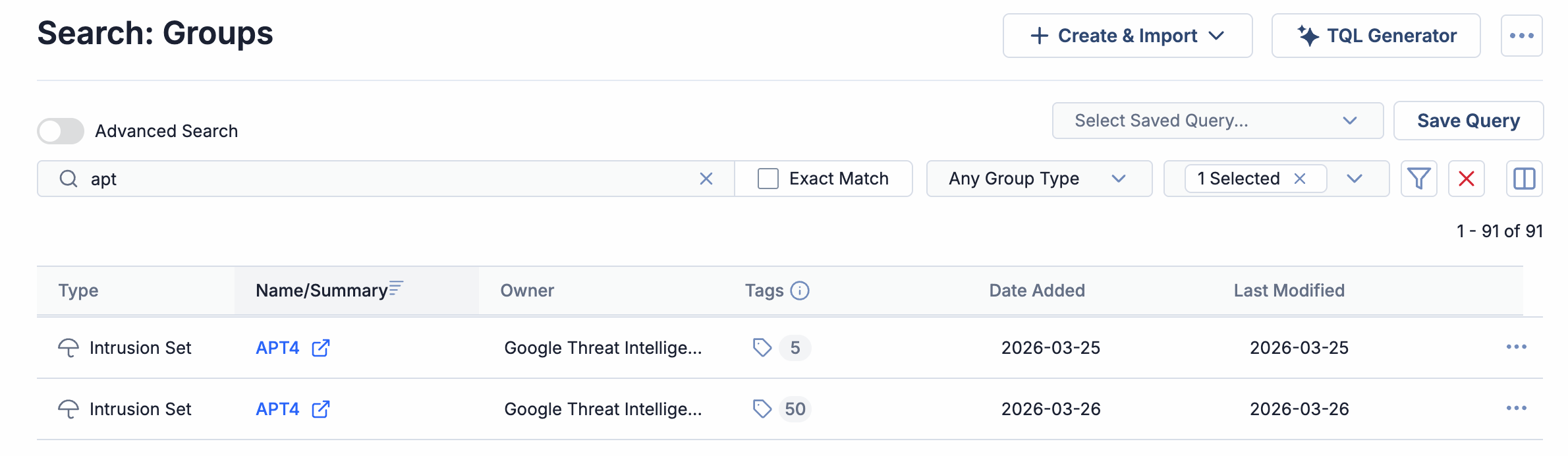
The origin of these duplicate Group objects is not currently available on the Details screen. However, you can use ThreatConnect Query Language (TQL) to filter on the origin (Google Threat Intelligence, Crowdsourced, or Partner), For example, the following query returns only Groups whose origin is Google Threat Intelligence:
hasAttribute(source = "Google Threat Intelligence")- Select only the Source for which the Google Threat Intelligence service is configured from the owners dropdown on the Search: Groups screen or in My Intel Sources on the Legacy Browse screen.
- Add the following to the TQL query, replacing
Google Threat Intelligence Sourcewith the name of the Source for which the Google Threat Intelligence service is configured:and (ownerName in ("Google Threat Intelligence Source"))
Frequently Asked Questions (FAQ)
Why isn’t there an option to select the Google Threat Intelligence origin in the Feed Deployer?
By default, the Google Threat Intelligence origin is always selected and cannot be unselected. The Google Threat Intelligence app will always ingest data from the Google Threat Intelligence origin.
Can I download Google TI Reports as PDFs from my ThreatConnect instance?
You can! When viewing an ingested Report Group’s Details screen, click the Download button on the Report File card on the Overview tab to download the Report Group’s PDF file.
Why do Indicators ingested from the Google Threat Intelligence app have multiple scores (threat rating, External Score, and Mscore)?
Each of the Indicator scores provides information on a different scale or different source:
- Threat rating: This score ranges from 0 skulls to 5 skulls. It may be statically determined in the app’s configuration, or it may be mapped to the Indicator’s Google TI score.
- External Score: This score, provided in the "External Score" Attribute, represents the Indicator’s Google TI score and ranges from 0–100.
- Mscore: The Mscore, or Mandiant™ score, is a legacy value that ranges from 0–100. It will likely be discontinued in the future and should be used for reference purposes only.
These different options enable you to filter on your score of choice as you build automations and TQL queries.
Why are there multiple Group objects with the same name in the Source for the Google Threat Intelligence app?
See the “Ingestion of Duplicate Group Objects” section.
ThreatConnect® is a registered trademark, and TC Exchange™ is a trademark, of ThreatConnect, Inc.
Google® is a registered trademark, and Mandiant™ is a trademark, of Google LLC.
MITRE ATT&CK® and ATT&CK® are registered trademarks of The MITRE Corporation.
JavaScript® is a registered trademark of Oracle Corporation.
30095-02 EN Rev. A