

TQL Generator
- 21 Dec 2025
- 9 Minutes to read
-
Print
-
DarkLight
-
PDF
TQL Generator
- Updated on 21 Dec 2025
- 9 Minutes to read
-
Print
-
DarkLight
-
PDF
Article summary
Did you find this summary helpful?
Thank you for your feedback!
Overview
The ThreatConnect® Query Language (TQL) Generator is an artificial intelligence (AI) tool that translates plain-English prompts into TQL, making it quick and easy to retrieve targeted data sets in ThreatConnect and eliminating the need to have deep knowledge of TQL to construct advanced queries. Integrated directly into ThreatConnect, the TQL Generator understands the ThreatConnect data model and user interface intuitively. While using the TQL Generator, you can share feedback about it and the results it provides to help ThreatConnect improve this feature.
Important
The TQL Generator is currently a beta feature.
Before You Start
User Roles
- To generate a TQL query with the TQL Generator, your user account can have any Organization role.
- To copy, run, and save TQL queries generated with the TQL Generator, your user account can have any Organization role.
Prerequisites
- If your instance is running ThreatConnect 7.8.0, contact your Customer Success Manager to opt in to the beta use of the TQL Generator and have the TQL Generator enabled for your instance.
- If your instance is running ThreatConnect 7.8.1 or later, navigate to the System Settings screen, click Feature Flags in the sidebar, and select the aiTqlGenerationEnabled checkbox to enable the TQL Generator for your instance (must be a System Administrator to perform this action).
Important
The TQL Generator is not enabled for ThreatConnect instances automatically. Users must explicitly opt in to the TQL Generator, either by contacting their Customer Success Manager to have it enabled (on instances running ThreatConnect 7.8.0) or by enabling the aiTqlGenerationEnabled system setting (on instances running ThreatConnect 7.8.1 or later).
Using the TQL Generator
The TQL Generator is an AI-based utility available on the following screens in ThreatConnect:
- Object-specific Search screens for Groups, Indicators, Intelligence Requirements, Tags, Victim Assets, and Victims
- Legacy Browse screen
After you submit an English prompt describing a subset of data you would like to retrieve in ThreatConnect, the TQL Generator’s AI model will translate your prompt into a TQL query, verify that the TQL used in the query is valid, and return the query to you. You can then copy, run, or save the query and submit feedback about the query and your experience with the TQL Generator.
Follow these steps to use the TQL Generator:
- From the Search & Create dropdown on the top navigation bar, select an object type (Groups, Indicators, Intelligence Requirements, Tags, Victim Assets, or Victims) or Legacy Browse.
- Click TQL Generator at the upper-right corner.NoteIf the TQL Generator button is not available, do one of the following:
- If your instance is running ThreatConnect 7.8.0, contact your Customer Success Manager to ensure you are opted in to the beta use of the TQL Generator.
- If your instance is running ThreatConnect 7.8.1 or later, verify that the aiTqlGenerationEnabled system setting is enabled for your instance.
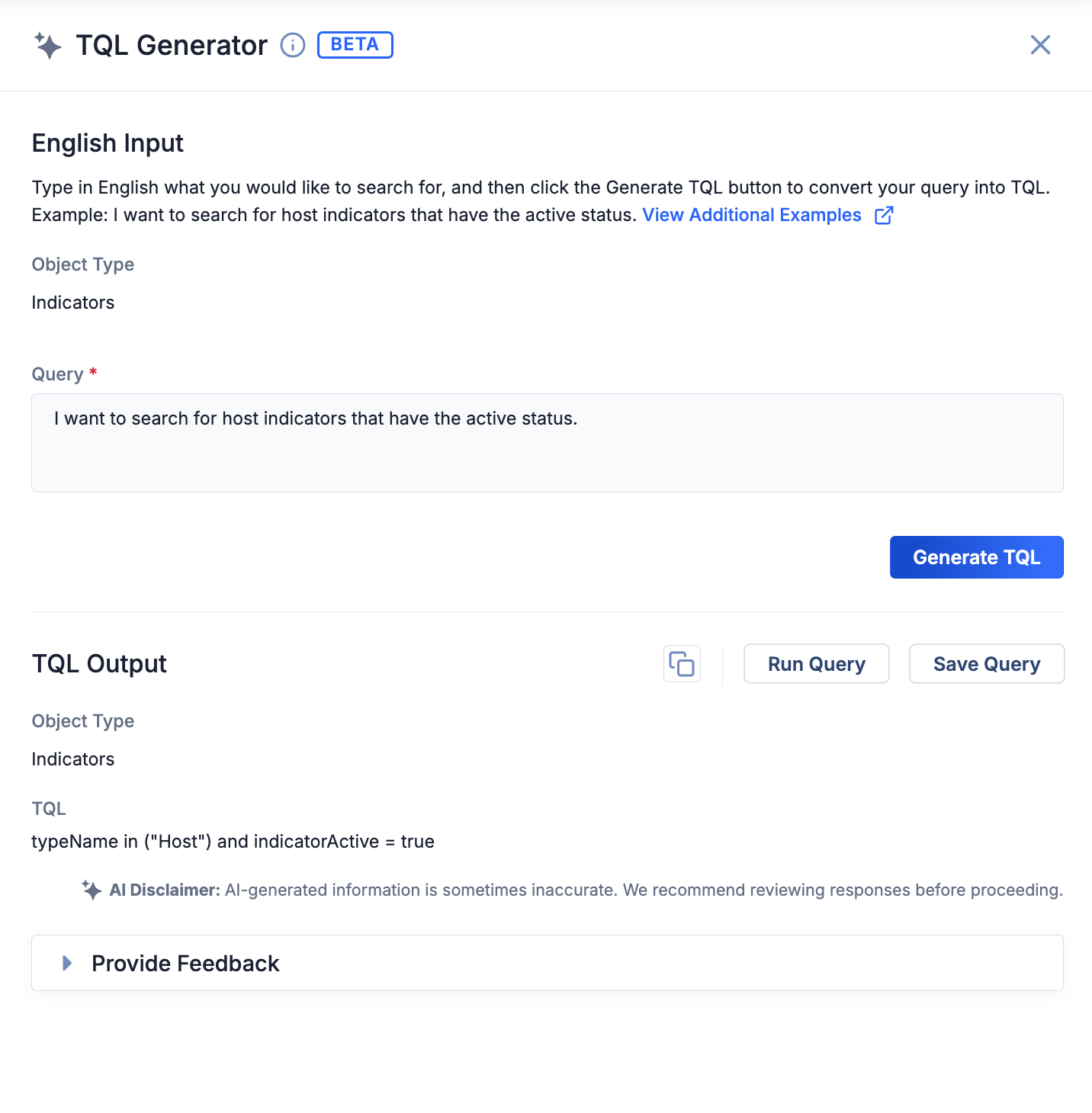
- On the TQL Generator drawer, enter an English prompt (e.g., I want to search for host indicators that have the active status) into the Query box, and then click Generate TQL. After a few moments, the TQL Generator will display a TQL query based on your prompt (Figure 1).
 Note
NoteIf you are using the TQL Generator on an object-specific Search screen, keep the following in mind:
- If you want to search for data in a specific owner or set of owners, specify each owner’s name in your prompt (e.g., I want to search for groups in CAL ATL that…).
- If you want to search for a specific Group or Indicator type, specify the Group or Indicator type in your prompt (e.g., I want to search for vulnerability groups that…).
ImportantThe TQL query applies to the object type specified in the TQL Generator’s TQL Output section. When constructing your prompt, the object type you request must match the object type you are currently viewing. - In the TQL Output section, do one or more of the following:
- To copy the TQL query to your computer’s clipboard, click Copy to clipboard
 . This is useful when you want to use the TQL query in other areas of ThreatConnect or in requests to the ThreatConnect v3 API.
 - To run an advanced search using the TQL query, click Run Query.
- To save the TQL query, click Save Query. Saving a query allows you to run the query at a later time, use the query in Query cards added to custom dashboards, and adding the query to an Intelligence Requirement (IR) or a Group to create associations to objects returned via the query.NoteThe queries you save belong only to your user account and are not shared with any other user accounts.
- To copy the TQL query to your computer’s clipboard, click Copy to clipboard
- (Optional) To submit feedback about the query and your experience with the TQL Generator, expand the Provide Feedback card. Sharing feedback is encouraged, as ThreatConnect evaluates feedback submissions to improve the TQL Generator.
Persisting Content in the TQL Generator
The TQL Generator is designed to be used as a side workspace to generate and save TQL queries while viewing data in ThreatConnect. As such, a query will persist in the TQL Generator, even if you close it, until you generate a new query, you navigate away from the screen where the TQL Generator is open, you log out of ThreatConnect, or your ThreatConnect session expires. This behavior allows you to return to the TQL Generator and make changes to the prompt used to generate the query; copy, run, or save the query; or submit feedback about the query.
Troubleshooting the TQL Generator
Submitting Prompts That TQL Does Not Support
The TQL Generator is designed to generate a valid TQL query based on an English prompt. If you provide a prompt that TQL does not support or cannot be used for searching data in ThreatConnect (e.g., I want to search for my account settings), the TQL Generator will display an error stating "Sorry, TQL does not support this request." In this scenario, change the prompt to something that TQL supports.
Understanding Object Type
Queries returned by the TQL Generator are scoped to the object type you are viewing. This ensures that the TQL Generator produces relevant queries and helps improve the results the TQL Generator receives from the AI model.
When the object type specified in your prompt does not match the object type you are viewing, the TQL Generator may fail to generate a query, display a warning to indicate that the query it returns may not apply to the object type you are viewing, or provide a query that does not return the data requested by your prompt.
Submitting Non-English Prompts
While the TQL Generator can accept requests in other languages besides English, this functionality is not fully supported. If you enter a prompt in another language besides English, review the TQL Generator’s results carefully for potential issues.
TQL Could Not Be Generated
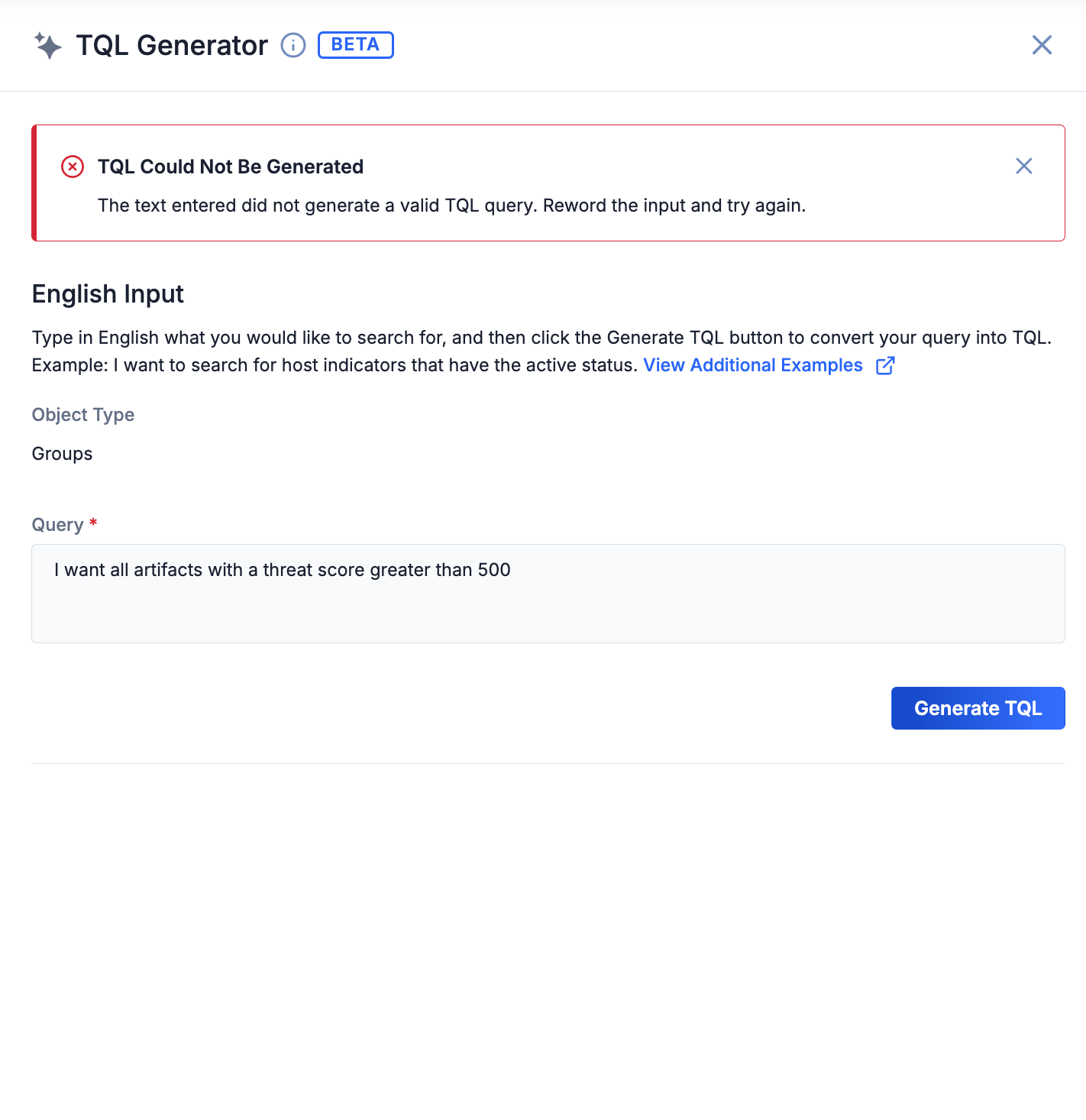
The TQL Generator is designed to generate valid TQL queries. Before the TQL Generator provides you with a TQL query based on your prompt, it attempts to validate that the response returned from the AI model contains valid TQL. If the AI model’s response cannot be validated, the TQL Generator displays a message stating “ The text entered did not generate a valid TQL query. Reword the input and try again.” (Figure 2). Requests that do not produce valid TQL queries are captured anonymously for evaluation so that ThreatConnect can improve the TQL Generator in future iterations.
Query Results Do Not Match Expectations
If you run a generated query on the Legacy Browse screen and the results do not match your expectations, double check all filters, including the owner selections in the My Intel Sources selector , to ensure that they are not excluding expected data. For example, if you enter a prompt such as “I want all reports in CAL ATL that have the apt28 tag,” but the CAL Automated Threat Library Source is not selected in the My Intel Sources selector, the prompt returned by the TQL Generator will yield no results when it runs on the Legacy Browse screen.
Submitting Feedback About the TQL Generator
You can submit feedback about your experience with the TQL Generator and the results it provided to help ThreatConnect identify ways to improve the feature. All feedback is anonymous and will be used to improve the quality of results provided by the TQL Generator.
Follow these steps to submit feedback within the TQL Generator:
- Use the TQL Generator to generate a TQL query.
- In the TQL Output section on the TQL Generator drawer, expand the Provide Feedback card, and then fill out the following fields on the card (Figure 3):
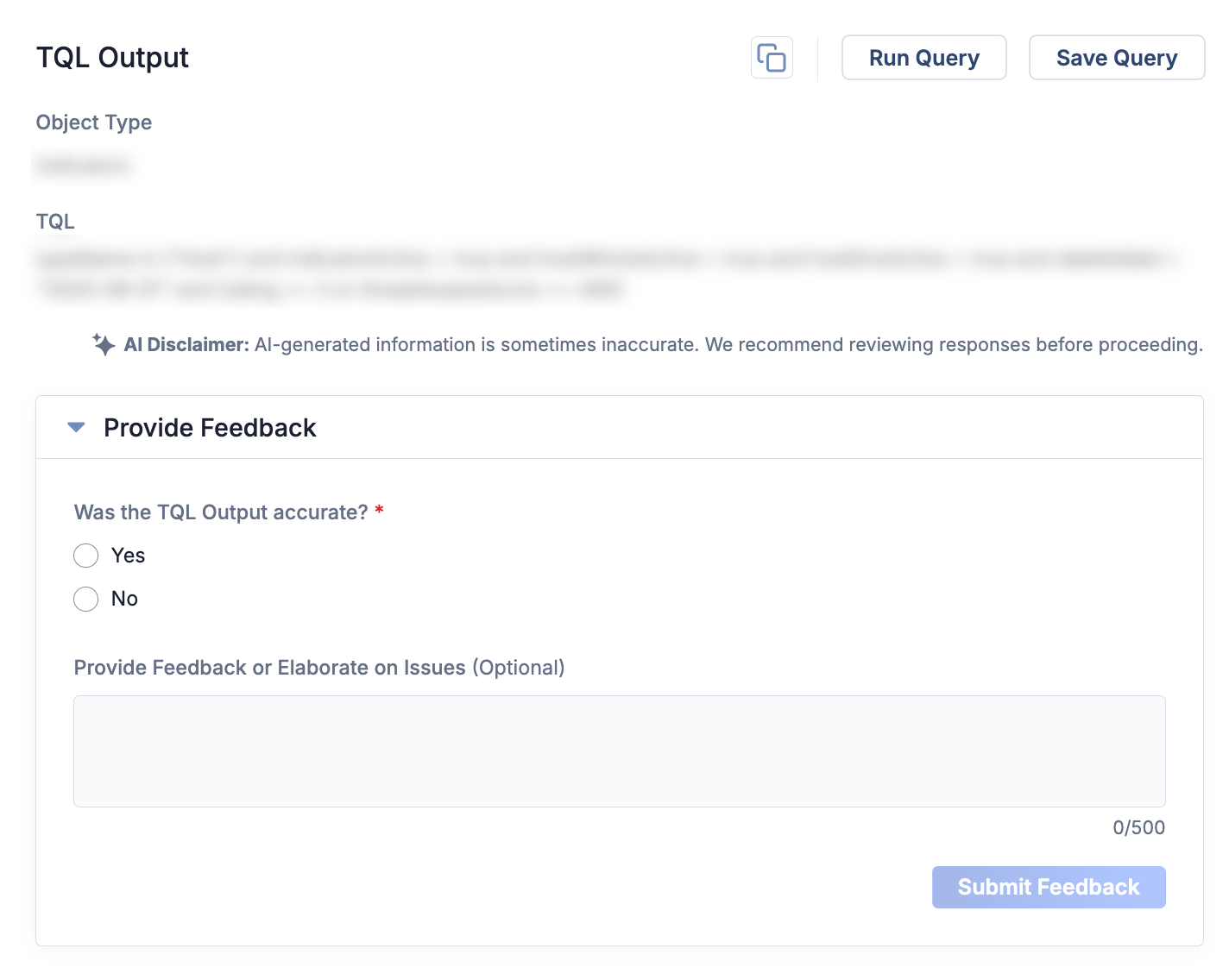
- Was the TQL Output accurate?: Specify whether the generated TQL query was accurate (Yes) or inaccurate (No).
- Provide Feedback or Elaborate on Issues (Optional): Enter additional feedback about the generated TQL query and share details about your experience with the TQL Generator.
- Click Submit Feedback.
TQL Generator Examples
The following sections contain example prompts that you can submit to the TQL Generator and the output that each example produces. You can use these examples to guide you as you write your own prompts.
Indicators
| English Input | TQL Output |
|---|---|
| I want host and address indicators with a score greater than 600 that are in the Automated Threat Library source and have been created since October 1, 2024 | typeName in ("Host", "Address") and threatAssessScore > 600 and ownerName = "CAL Automated Threat Library" and dateAdded > "2024-10-01" |
| ip addresses added this month with a threat assess score higher than 600 and have an active status | typeName in ("Address") and dateAdded >= "THISMONTH()" and threatAssessScore > 600 and indicatorActive = true |
| hosts with active dns monitoring that have been updated in the past 90 days | typeName in ("Host") and hostDnsActive = true and lastModified > "NOW() - 90 DAYS" |
| urls and hosts with a threat rating of 3 or more that have been updated in the last 90 days | typeName in ("URL", "Host") and rating >= 3 and lastModified > "NOW() - 90 DAYS" |
| all hosts in cal automated threat library that have been created today and have a tag | typeName in ("Host") and ownerName = "CAL Automated Threat Library" and dateAdded >= "TODAY()" and hasTag() |
| I want indicators with attack tags and 5 skulls | rating = 5 and hasTag(techniqueId is not null) |
Groups
| English Input | TQL Output |
|---|---|
| I want all reports in ATL that have a tag that contains finance created between Nov 1 2024 and today | typeName in ("Report") and ownerName = "CAL Automated Threat Library" and hasTag(name CONTAINS "finance") and dateAdded >= "2024-11-01" and dateAdded <= "TODAY()" |
| I need all vulnerabilities with relationships to CAL ATL reports created in the last 30 days | typeName = "Vulnerability" and hasGroup(typeName = "Report" and ownerName = "CAL Automated Threat Library" and dateAdded >= "NOW() - 30 DAYS") |
| groups with the tag apt29 created after October 15 2024 | hasTag(summary="apt29") and dateAdded > "2024-10-15" |
Tags
| English Input | TQL Output |
|---|---|
| Tags whose name starts with APT | name STARTSWITH "APT" |
| I need any tag that contains “CVE” in its name | name CONTAINS "CVE" |
Frequently Asked Questions (FAQ)
What data are captured while using the TQL Generator?
The TQL Generator is an external service used by a ThreatConnect instance. While using the TQL Generator, ThreatConnect captures the following minimal anonymous analytics for monitoring and improvement purposes:
- Anonymous API calls to the service
- Anonymous information about the request, corresponding object type, and generated TQL query when one of the following conditions are met:
- There is a failure to generate a valid TQL query
- You submit positive or negative feedback via the Provide Feedback card
- You save the query generated by the TQL Generator
- You copy the query generated by the TQL Generator
If you have questions or concerns about using the TQL Generator or the data it collects, contact your Customer Success Manager. Customer feedback during the TQL Generator’s beta period is important in helping ThreatConnect align the feature with your environment and needs.
ThreatConnect® is a registered trademark of ThreatConnect, Inc.
20052-05 v.01.C
Was this article helpful?
