Overview
This article is a user guide for the Dataminr CTTI Intelligence Engine integration with Dataminr Agentic Threat Intelligence Platform (ATIP). The Dataminr CTTI Intelligence Engine feed API service app ingests cyber threat intelligence alerts, and the cyber entities those alerts reference, from Dataminr Cyber Threat Intelligence (CTTI) and creates corresponding objects in Agentic TIP with select Dataminr metadata:
- Alerts are created as Event Groups in Agentic TIP.
- Malware entities are created as Malware Groups in Agentic TIP, associated back to the Event(s) or Malware Signatures that referenced them.
- Malware Detection entities are created as Signature Groups in Agentic TIP and associated with their parent Malware group and Event(s) that referenced them.
- Threat Actor entities are created as Intrusion Set Groups in Agentic TIP, associated back to the Event(s) that referenced them.
- Vulnerability entities are created as Vulnerability Groups in Agentic TIP, associated back to the Event(s) that referenced them.
- IP Address, URL's, ASN and File Hash entities are created as Indicator objects in Agentic TIP, associated back to the Event(s) and associated indicators that referenced them.
Dependencies
Agentic TIP Dependencies
- Active Agentic TIP API key
- Agentic TIP instance with 7.12.2 or newer installed
All Agentic TIP dependencies will be provided by default to subscribing Agentic TIP Cloud customers. Customers on Dedicated Cloud and On-Premises instances can enable these settings on the Account Settings screen within their Agentic TIP instance.
Dataminr CTTI Dependencies
- API token (Bearer token)
- Issued from the Dataminr CTTI admin console
- Requires an active Dataminr CTTI subscription with API access
Application Setup and Configuration
The Dataminr CTTI Intelligence Engine app leverages the Feed Deployer to create a Source for data ingestion from Dataminr CTTI in an Organization and to configure the corresponding service's ingestion and authentication parameters. After you install the Dataminr CTTI Intelligence Engine app on your Agentic TIP instance, you can deploy it to any Organization. It must be deployed separately for each Organization in which you want to create a Source for data ingestion and a corresponding service.
Install the Dataminr CTTI Intelligence Engine App
Follow these steps to install the Dataminr CTTI Intelligence Engine app on your Agentic TIP instance:
- Log into Agentic TIP with a System Administrator account.
- From the Organization Settings menu on the top navigation bar, select TC Exchange Settings.
- Select the Catalog tab on the TC Exchange Settings screen.
- Locate the Dataminr CTTI Intelligence Engine app on the Catalog tab.
- Click Install in the Options column for the app.
- Click INSTALL in the app's Release Notes window.
- After installation, the Feed Deployer opens automatically. Follow the procedure in Deploy the App to an Organization.
Deploy the Dataminr CTTI Intelligence Engine App to an Organization
Follow these steps to deploy the Dataminr CTTI Intelligence Engine app to an Organization:
Skip to step 4 if you just installed the app and are already viewing the Feed Deployer window.
- Log into Agentic TIP with a System Administrator account.
- From the Settings menu on the top navigation bar, select TC Exchange Settings.
- Locate the Dataminr CTTI Intelligence Engine app on the Installed tab. Then select Deploy from the Options dropdown.
- Fill out the fields in the Feed Deployer window as described below.
Feed Deployer Configuration
| Name | Description | Required? |
|---|---|---|
| Source Tab | ||
| Sources to Create | Enter the name of the Source for the feed. Must be unique unless redeploying. Recommended: append the Organization's name (e.g., Dataminr CTTI Intelligence Engine - Demo Organization). | Required |
| Owner | Select the Organization in which the Source will be created. | Required |
| Activate Deprecation | Enable [confidence deprecation](https://knowledge.Agentic TIP.com/docs/indicator-confidence-deprecation) rules for Indicators in the Source. | Optional |
| Create Attributes | Allow custom attribute types to be created at the System level. Recommended: keep this selected. If deselected, data mapped to those attribute types will not be ingested. | Optional |
| Parameters Tab | ||
| Launch Server | Select tc-job as the launch server for the feed API service. | Required |
| Dataminr CTTI API URL | Base URL for your Dataminr CTTI tenant (e.g. https://<your-tenant>.dmcd.<geo>.dataminr.com/api). |
Required |
| Variables Tab | ||
| Dataminr CTTI API Key | Bearer token API key from the Dataminr CTTI admin console. Stored as an encrypted credential. | Required |
| (everything else) | Every other setting — Saved Searches, Entity Enrichment, and Notifications — is configured after deployment. See Inputs. | |
| Confirm Tab | ||
| Run Feeds after deployment | Run the service immediately after clicking DEPLOY. | Optional |
| Confirm Deployment Over Existing Source | Shown if the Source name is already in use. Select to confirm redeployment. Warning: Existing data may be overwritten. A new Service will be created; delete the previous one afterward. | Optional |
- Click DEPLOY on the Confirm tab to deploy the app, creating a Source and corresponding feed API service in the Organization.
Inputs
After the Dataminr CTTI Intelligence Engine app is deployed, most of its configuration is completed and later adjusted from inside the service's own UI rather than by redeploying.
First-Time Setup
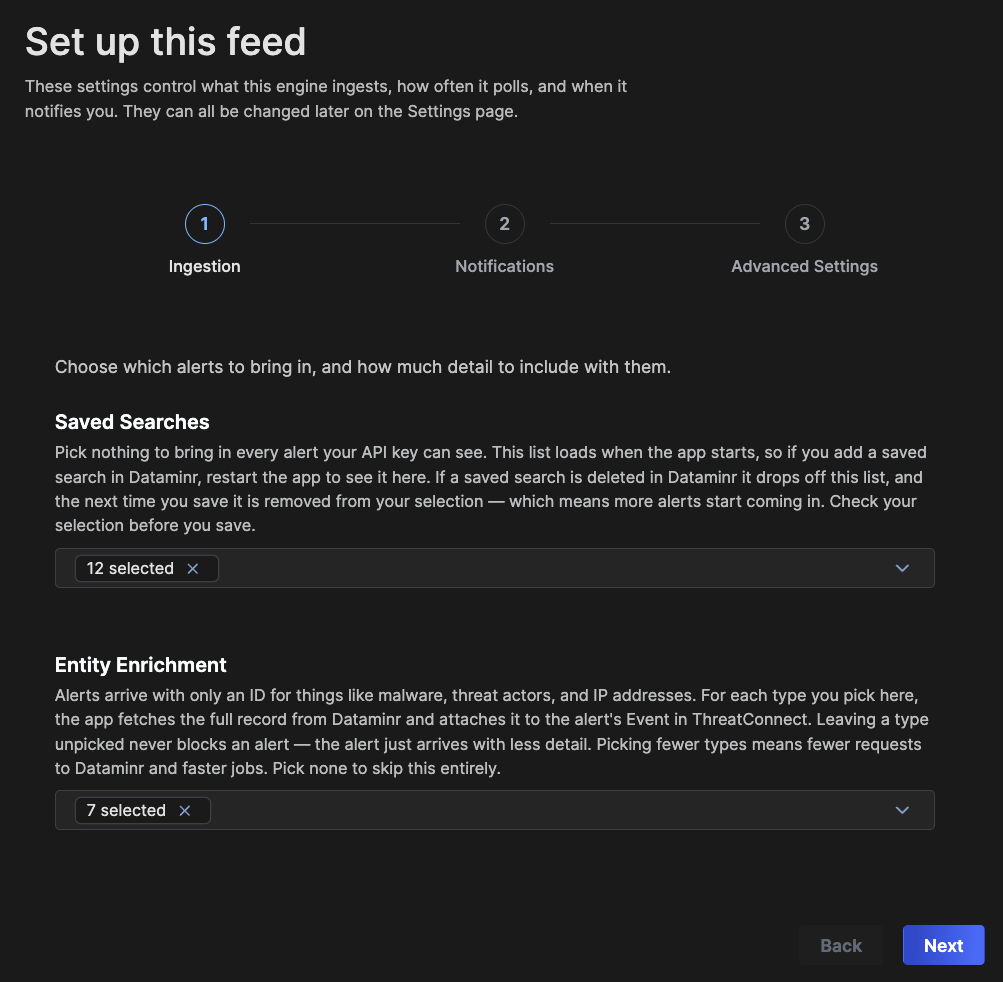
The first time you open the service's UI after deployment, a setup stepper walks you through Ingestion, Notifications, and Advanced Settings below, one group at a time.
This is a one-time flow used to validate connection details before moving on to the next configuration screens. There is no way to skip it or access the rest of the UI until it is complete. Every step must pass validation before you can continue to the next. Until then, no ingestion job is queued.
If you need to reconfigure, see Troubleshooting & FAQ.
The setup stepper can be accessed via Services> API Path.
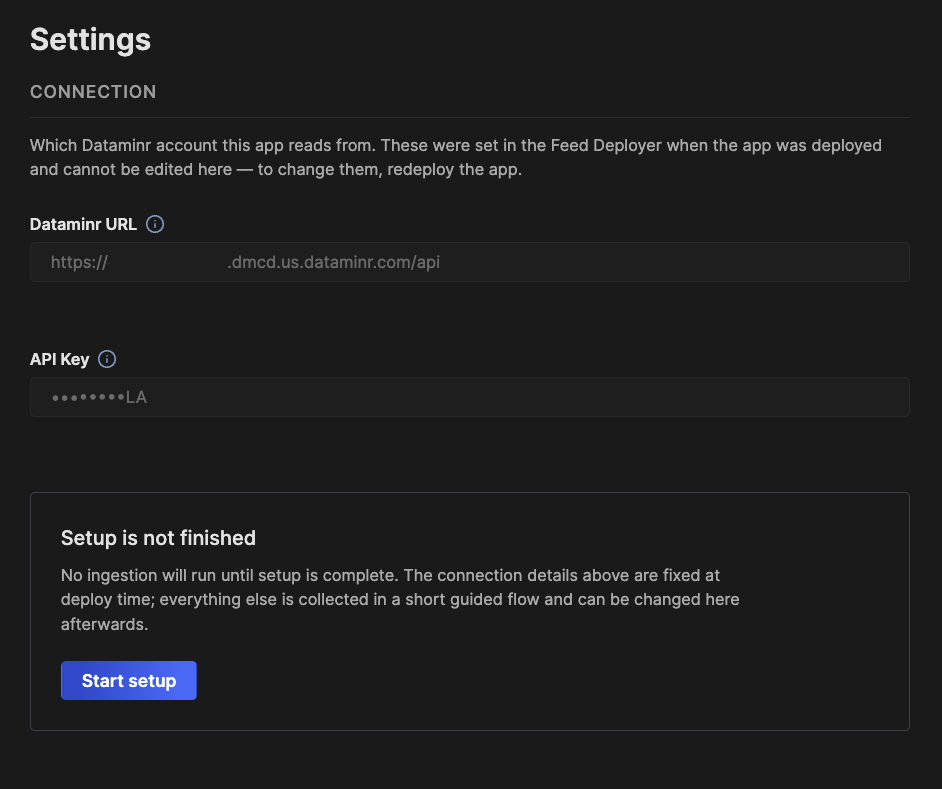
Connection Details
Dataminr CTTI's connection fields (Tenant URL, API Key — see Feed Deployer Configuration) are shown read-only on the Settings page for confirmation. To change them, redeploy the app with new values.
There are 3 steps to configure in the setup stepper: ingestion, notification, and advanced settings.
Ingestion
What this engine pulls from Dataminr CTTI, and how it is filtered.
| Field | Summary | Detail | Default |
|---|---|---|---|
| Saved Searches | Restrict ingestion to alerts matching these Dataminr saved searches. | Leave every option unselected to ingest all alerts this tenant can see. The list is read from the Dataminr CTTI console when the app starts. An entry marked as not found no longer exists in Dataminr — it is kept selected so an unrelated save does not silently drop it, but it matches nothing until it is removed or recreated. | None selected — every alert visible to the API key is ingested. |
| Entity Enrichment | Which entity types to resolve into full Agentic TIP objects. | Alerts arrive referencing entities by id. Enrichment is the extra API bulk call that turns those references into real objects, associated to the alert; without it the alert still ingests, but that entity type's context does not come with it. Select fewer types to reduce API calls against your rate limit and speed up jobs; leave none selected to skip enrichment entirely. | IP Address, URL, Threat Actor, Vulnerability, Malware, ASN, and File Hash — all selected. |
Notifications
Operational alerts about this engine are delivered to the Agentic TIP notification center. Everything is recorded on the Notifications page in this app either way.
| Field | Summary | Detail | Default |
|---|---|---|---|
| Notification Digest Interval | How often queued notifications are batched and sent. | Events are collected and delivered to the Agentic TIP notification center as a single digest on this interval, rather than as one message per event, so a burst of retries does not flood it. Recipients are the Agentic TIP users and groups configured on the job itself. A shorter interval means you hear about a problem sooner but receive more messages; a longer one batches a whole incident into one. Nothing is lost either way — every event is recorded on the Notifications page in this app regardless of when, or whether, a digest is sent. | 2 Hours |
| Notification Types | Which events are delivered to the notification center. | Selected event types are sent to the Agentic TIP notification center on the digest interval above. Unselected types are still recorded in full on the Notifications page in this app — they are simply not delivered, so deselecting one hides it from your inbox, not from the record. Options: App Startup, Job Retrying, Job Failed, Job Recovered. | App Startup, Job Retrying, Job Failed, and Job Recovered — all selected. |
Advanced Settings
Users will need to validate their configuration before clicking 'Finish setup'.
Data Mappings
The data mappings below illustrate how data are mapped from Dataminr CTTI API endpoints to the Agentic TIP data model.
Alerts
Agentic TIP object type: Event Group
Alerts are ingested from GET /alerts/stream during scheduled polling, or fetched individually by ID via POST /alerts/search from the Download screen.
| Dataminr CTTI API Field | Agentic TIP Field |
|---|---|
coreAlert.headline |
name |
alertId |
xid |
alertTimestamp |
event_date, external_date_added |
alertId |
Attribute: "External ID" |
appLinks.detail |
Attribute: "Source" |
coreAlert.source.expandedHref |
Attribute: "Data Source URL" |
coreAlert.source.href (Intel Agents analysis) |
Attribute: "Additional Analysis and Context" |
coreAlert.source.href (predictive intelligence report) |
Attribute: "Predictive Intel - Report" |
coreAlert.source.href (predictive intelligence mitigation summary) |
Attribute: "Predictive Intel - Summary" |
coreAlert.parentAlertId |
Attribute: "Parent Alert ID" |
coreAlert.severity.label |
Attribute: "Priority" |
classification.topics[*].name |
Attribute: "Alert Topic" |
classification.companies[*].name |
Attribute: "Company" |
coreAlert.source.channels[*] |
Attribute: "Source Channel" |
coreAlert.location.name |
Attribute: "Location Name" |
coreAlert.location.coordinates.lat |
Attribute: "Latitude" |
coreAlert.location.coordinates.lng |
Attribute: "Longitude" |
coreAlert.location.probabilityRadius |
Attribute: "Probability Radius" |
matchedSavedSearches[*].name |
Attribute: "Alert Rule" |
| (predictive intelligence report and summary, plus Intel Agents analysis) | Attribute: "Description" (pinned) |
classification.topics[*].name |
Tags |
coreAlert.source.name |
Tag: "Source: {name}" |
Note: The Additional Analysis and Context, Predictive Intel - Report, Predictive Intel - Summary, and pinned Description attributes carry AI-generated analysis produced by Dataminr, not raw vendor fields.
Malware
Agentic TIP object type: Malware Group
Malware entities are fetched via POST /entity/bulk (type malware), when Entity Enrichment includes Malware, for entities referenced by ingested alerts.
| Dataminr CTTI API Field | Agentic TIP Field |
|---|---|
payload.name |
name |
entity |
xid |
entity |
Attribute: "External ID" |
payload.attackVector |
Attribute: "Targeted Platforms" |
| (description and YARA rules) | Attribute: "Description" (pinned) |
| (static) | Attribute: "Source" = "Dataminr CTTI" |
| Referencing alert(s) | Associated Event Group |
Malware Detections
Each Dataminr YARA signature is created as a separate Agentic TIP Signature Group and associated with the Dataminr Alert and Malware Group that supplied it. The signature data is sourced from payload.yaraRules; payload.yara is supported as a fallback when payload.yaraRules is absent.
| Dataminr CTTI API Field | Agentic TIP Field |
|---|---|
YARA signature name from payload.yaraRules[*] (or payload.yara[*]) |
name |
YARA rule body from payload.yaraRules[*] (or payload.yara[*]) |
Attribute: "Description" (pinned) |
payload.affectedOperatingSystems[*] |
Attribute: "Operating System" |
| (static) | Attribute: "Source" = "Dataminr CTTI" |
| Parent malware entity | Associated Malware Group |
| Referencing alert(s) | Associated Event Group |
The payload.yaraRules field is URL-encoded and may contain large rule bodies. Only the first five rules are included in the generated output.
Threat Actors
Agentic TIP object type: Intrusion Set Group
Threat actor entities are fetched via POST /entity/bulk (type threatActor), when Entity Enrichment includes Threat Actor, for entities referenced by ingested alerts.
| Dataminr CTTI API Field | Agentic TIP Field |
|---|---|
payload.name |
name |
entity |
xid |
entity |
Attribute: "External ID" |
payload.aliases[*] |
Attribute: "Aliases" |
| (description and MITRE ATT&CK TTPs) | Attribute: "Description" (pinned) |
payload.ttps[*].techniqueId |
Tags (MITRE ATT&CK technique) |
| (static) | Attribute: "Source" = "Dataminr CTTI" |
| Referencing alert(s) | Associated Event Group |
Vulnerabilities
Agentic TIP object type: Vulnerability Group
Vulnerability entities are fetched via POST /entity/bulk (type vulnerability), when Entity Enrichment includes Vulnerability, for entities referenced by ingested alerts.
| Dataminr CTTI API Field | Agentic TIP Field |
|---|---|
entity (CVE identifier) |
name, xid |
payload.publishedDate |
external_date_added |
entity |
Attribute: "External ID" |
| (description, risk metrics, affected products, weaknesses, and PoC links) | Attribute: "Description" (pinned) |
payload.cvss |
Attribute: "CVSS Base Score" |
payload.epssScore |
Attribute: "EPSS Score" |
payload.exploitable |
Attribute: "Has Exploit" |
payload.knownExploitedDate |
Attribute: "Known Exploited Date" |
payload.exploitPocLinks[*] |
Attribute: "Exploit PoC Link" |
payload.cpes[*] |
Attribute: "CPE" |
payload.products[*].productName |
Attribute: "Vulnerable Product" |
| (static) | Attribute: "Source" = "Dataminr CTTI" |
| Referencing alert(s) | Associated Event Group |
IP Addresses
Agentic TIP object type: Address Indicator
IP address entities are fetched via POST /entity/bulk (type ipAddress), when Entity Enrichment includes IP Address, for entities referenced by ingested alerts.
| Dataminr CTTI API Field | Agentic TIP Field |
|---|---|
entity |
summary (indicator value) |
entity |
Attribute: "External ID" |
| (static) | Attribute: "Source" = "Dataminr CTTI" |
| Referencing alert(s) | Associated Event Group |
URLs
Agentic TIP object type: URL Indicator
URL entities are fetched via POST /entity/bulk (type url), when Entity Enrichment includes URL, for entities referenced by ingested alerts.
| Dataminr CTTI API Field | Agentic TIP Field |
|---|---|
entity |
summary (indicator value) |
entity |
Attribute: "External ID" |
| (static) | Attribute: "Source" = "Dataminr CTTI" |
| Referencing alert(s) | Associated Event Group |
Autonomous System Numbers (ASNs)
Agentic TIP object type: ASN Indicator
ASN entities are ingested as indicators when Dataminr CTTI alerts reference them.
| Dataminr CTTI API Field | Agentic TIP Field |
|---|---|
entity (ASN value) |
summary (indicator value) |
entity |
Attribute: "External ID" |
asnOrganization |
Attribute: "Organization" |
| (static) | Attribute: "Source" = "Dataminr CTTI" |
| Referencing alert(s) | Associated Event Group |
File Hashes
Agentic TIP object type: File Indicator
File hash entities are ingested as file indicators when Dataminr CTTI alerts reference them.
| Dataminr CTTI API Field | Agentic TIP Field |
|---|---|
entity (file hash) |
summary (indicator value) |
entity |
Attribute: "External ID" |
hashType |
Attribute: "Hash Type" |
| (static) | Attribute: "Source" = "Dataminr CTTI" |
| Referencing alert(s) | Associated Event Group |
Workflow/Use Cases
The following workflows describe common ways to use the Dataminr CTTI Intelligence Engine integration.
Automated Continuous Alert Ingestion
This is the primary, hands-off workflow once setup is complete:
- Every few minutes, the engine automatically checks Dataminr CTTI for new and updated alerts — no manual action is required.
- On its very first run, the engine anchors to the current time and ingests alerts published from that point forward. It is possible to schedule a manual job should you wish to backfill alert data from a particular point in time.
- If Saved Searches are configured, only alerts matching one of those searches are ingested; otherwise every alert visible to the API key is ingested.
- For each alert, entities enabled under Entity Enrichment are resolved into full Agentic TIP Groups or Indicators and associated back to the alert's Event.
- Resulting Groups and Indicators appear in the Source you configured at deployment. Job status and counts are visible on the Jobs screen in the service UI.
It is possible to schedule a manual job to backfill Dataminr CTTI alerts. To do this, go to Services, select the API path for your Dataminr CTTI app instance, then choose Add Jobs and schedule a job for the time window you need.
On-Demand Alert Lookup
Use this workflow to pull a specific alert by ID — for example, to backfill an alert that predates the engine's start time, or to verify how an alert converts before it arrives through the automated pipeline:
- Open the service UI and select Download from the navigation.
- Enter the Dataminr CTTI Alert ID.
- Submit the request. The raw Dataminr alert and its converted Agentic TIP representation are both displayed.
- Confirm the upload to send the converted Groups and Indicators to Agentic TIP immediately.
Troubleshooting & FAQ
This section covers common failure scenarios and their resolutions, followed by frequently asked questions.
Service Fails to Start
Symptom: The service does not start after deployment, or immediately shows an error state.
Cause: The Dataminr CTTI API URL or API Key entered at deployment is incorrect, or the tenant is unreachable from the Agentic TIP server.
Resolution: Confirm the tenant URL and API key are correct and that the key has not been revoked, then redeploy the app with corrected values via the Feed Deployer.
A Settings Change or First-Time Setup Step Won't Save
Symptom: Saving a settings change, or advancing past a step in the first-time setup stepper, fails validation.
Cause: One of the following checks did not pass:
- The engine could not reach the Dataminr CTTI API — the tenant URL or API key is wrong, the key has been revoked, or the Agentic TIP server cannot reach the tenant.
- One or more configured Saved Searches entries could not be matched against the tenant's saved searches in Dataminr — names are matched case-insensitively, and UUIDs are also accepted.
Resolution: Resolve the specific check reported in the validation message: correct the connection details, or fix or remove the unresolved saved search entries.
Cannot Get Past the First-Time Setup Stepper
Symptom: The service UI opens on the setup stepper and there is no way to reach the rest of the UI.
Cause: This is intended behavior — first-time setup is a hard gate with no skip option, and no ingestion job is queued until it is completed.
Resolution: Complete each step; it must pass validation before the next becomes available (see the previous entry for common causes). If setup was already completed and needs to be redone — for example, it was completed with incorrect values, an administrator can reset it by sending a DELETE request to /api/onboarding on the service's API path. This does not delete your current settings; it only clears the "setup completed" record, so the stepper reopens pre-populated with the existing configuration.
Rate Limiting from the Dataminr CTTI API
Symptom: Jobs slow down or fail with rate-limit errors from Dataminr.
Cause: The app's own request pacing is more aggressive than what your Dataminr subscription tier allows.
Resolution: Reduce the number of entity types selected under Entity Enrichment to cut the number of API calls each job makes, or review your saved searches included as part of the configuration. Contact your Dataminr account representative to confirm the rate limit for your subscription tier.
Batch Errors During Upload
Symptom: Jobs complete, but the Batch Errors screen in the service UI shows errors for some objects.
Cause: Typically a Agentic TIP batch validation failure — most commonly a missing custom attribute type, which happens when Create Attributes was not selected at deployment.
Resolution: Review the error details on the Batch Errors screen. If the cause is a missing attribute type, redeploy the app with Create Attributes selected.
Alerts Are Ingesting, but Nothing Appears in Agentic TIP
Symptom: Jobs on the Jobs screen complete successfully, but no new Event Groups appear in the Source.
Cause: Because Saved Searches filtering happens on Dataminr's side, an overly narrow set of saved searches looks identical to "no alerts available" — jobs succeed with zero results.
Resolution: Check the alert count in the job's details on the Jobs screen. If it is zero, temporarily clear Saved Searches to confirm alerts are flowing at all, then narrow the filter back down once confirmed.
Event Groups Are Created, but No Associated Entities Appear
Symptom: Alerts ingest as Event Groups, but no Malware, Threat Actor, Vulnerability, Address, or URL objects appear.
Cause: The entity types those alerts reference are not selected under Entity Enrichment, or the alerts genuinely reference no cyber entities.
Resolution: Confirm the relevant entity types are selected under Entity Enrichment on the Settings page.
What subscription or licensing is required to use this integration?
An active Dataminr CTTI subscription with API access is required, along with a valid Bearer token API key issued from the Dataminr CTTI admin console.
How often does the integration pull new data?
Every 5 minutes. Alerts appear in Agentic TIP based on when Dataminr publishes or updates them.
How much data can this integration hold?
The Source created at deployment is configured to support up to 10,000,000 indicators and 10 GB of associated document storage.
What happens to existing data when I redeploy?
Redeploying over an existing Source name creates a new service; existing data in Agentic TIP is not deleted. Delete the previous service afterward to avoid running duplicate services against the same Source.
Can I run multiple instances for different Organizations?
Yes. Deploy the app separately, via the Feed Deployer, for each Organization that needs its own Source and service.
Where can I find logs for this service?
Failure notifications from this service include log files by default. For the service's own logs directly, go to the Agentic TIP Services screen, select this service's row, and open its Details drawer, which offers a log download option.
Technical Reference
This section is a brief technical pointer for readers who want to know where the data comes from. It intentionally stays high-level.
Vendor API base URL: https://api.your-tenant.dataminr.com/public/v1
| Endpoint | Used for |
|---|---|
GET /alerts/stream |
Cursor-based polling for new and updated alerts during scheduled ingestion. |
POST /alerts/search |
Looking up a specific alert by ID from the Download screen. |
POST /entity/bulk |
Resolving cyber entities (vulnerability, ipAddress, malware, threatActor, url, hashValue) referenced by alerts into full records. |
GET /searches |
Loading the tenant's saved searches, for the Saved Searches setting and its validation. |
GET /alerts/filters |
Verifying connectivity to the tenant during connection validation. |