

Bulk Searching Indicators
- 10 Jan 2026
- 8 Minutes to read
-
Print
-
DarkLight
-
PDF
Bulk Searching Indicators
- Updated on 10 Jan 2026
- 8 Minutes to read
-
Print
-
DarkLight
-
PDF
Article summary
Did you find this summary helpful?
Thank you for your feedback!
Overview
The ThreatConnect® search engine includes a bulk Indicator search feature that enables you to efficiently process and analyze large volumes of Indicator data from an uploaded file. The ThreatConnect search engine parses the file for Indicators and then searches for those Indicators across all your ThreatConnect owners, returning a results set of identified Indicators categorized as follows:
- Known Indicators: Indicators that exist in one of your owners.
- Unknown Indicators: Indicators that do not currently exist in one of your owners.
While viewing the results set, you can consolidate duplicate known Indicators into a single row for improved efficiency and focus. You can also perform bulk actions such as adding Indicators to your Organization, adding Tags to Indicators, and exporting Indicators to a comma-separated values (CSV) file.
Suggested Use Cases
The bulk Indicator search feature in ThreatConnect supports the following use cases, among others:
- SIEM Alert Enrichment: Analysts can search a set of Indicators surfaced by SIEM tools to cross-reference with their ThreatConnect data in a single step. This application of the feature supports faster enrichment of SIEM alerts and helps teams prioritize and act on potential threats more effectively.
- Incident Response: Security teams can upload a list of Indicators such as IP addresses, URLs, and file hashes from investigations into ThreatConnect and determine which ones are malicious. This application of the feature enables faster triage and a more efficient response to potential threats.
Before You Start
User Roles
- To run a bulk Indicator search, your user account can have any Organization role.
- To view and export known Indicators in an Organization, your user account can have any Organization role.
- To view and export known Indicators in a Community or Source, your user account must have a Community role of User, Commenter, Contributor, Editor, or Director for that Community or Source.
- To create copies of unknown Indicators and add them to an Organization, your user account must have an Organization role of Standard User, Sharing User, Organization Administrator, or App Developer.
- To delete known Indicators in an Organization, your user account must have an Organization role of Standard User, Sharing User, Organization Administrator, or App Developer.
- To delete known Indicators in a Community or Source, your user account must have a Community role of Editor or Director for that Community or Source.
- To apply Tags to known Indicators in an Organization, your user account must have an Organization role of Standard User, Sharing User, Organization Administrator, or App Developer.
- To apply Tags to known Indicators in a Community or Source, your user account must have a Community role of Contributor, Editor, or Director for that Community or Source.
Prerequisites
- To search your ThreatConnect data and view search results on the Search: All Object Types screen, turn on and configure OpenSearch® and initialize the search index for your ThreatConnect instance on the System Settings screen (must be a System Administrator to perform this action).
- To access the consolidated view for bulk Indicator search results, turn on the multiSourceViewEnabled system setting for your ThreatConnect instance on the System Settings screen (must be a System Administrator to perform this action).
Running a Bulk Indicator Search
Follow these steps to run a bulk Indicator search on the Search: All Object Types screen:
- From the Search & Create dropdown on the top navigation bar, select All Object Types.
- Turn on the Bulk Search Indicators toggle at the upper left of the Search: All Object Types screen.
- In the area under the Bulk Search Indicatorstoggle, upload a file that contains Indicator data. Supported file types include .doc, .txt, .pdf, .xls, .xlsx, .json, and .csv.ImportantThe file you upload should be under 5000 KB.
After the file is uploaded and processed, the Search: All Object Types screen displays the search results.
To run another bulk Indicator search with a different file, click Remove file and clear results next to the uploaded file’s size, and then upload another file that contains Indicator data.
Viewing Search Results
After you run a bulk Indicator search, the Search: All Object Types screen displays the Indicators parsed from the file in a paginated table with the following columns (Figure 1):
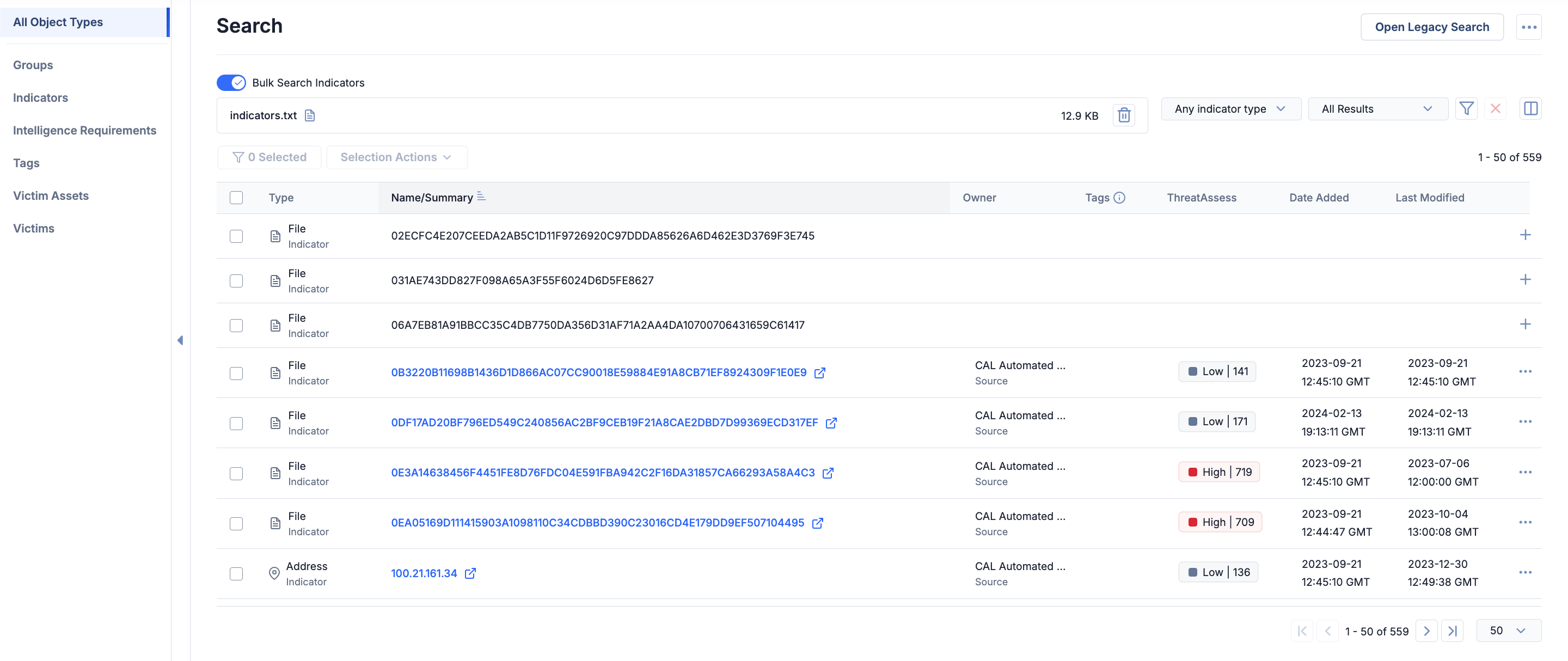
- Type: The Indicator’s type.
- Name/Summary: The Indicator’s name/summary. If the Indicator is known, the name/summary is a link to the Indicator’s Details screen.HintSearch results will not persist if you navigate to a different screen in the browser tab. Click View details in new tab
 next to a known result’s name/summary to retain your search results when viewing a known result’s Details screen.
 - Owner: (Known Indicators only) The Indicator’s owner.
- Tags: (Known Indicators only) The Tags applied to the Indicator.
- ThreatAssess: The Indicator’s ThreatAssess score. Some unknown Indicators may not have a ThreatAssess score.
- Date Added: (Known Indicators only) The date and time the Indicator was created in its owner.
- Last Modified: (Known Indicators only) The date and time the Indicator was last modified in its owner.
Hint
You can adjust the columns displayed in the table on the Search: All Object Types screen by clicking Select columns in the upper right, selecting the columns to display, and clicking Apply.
in the upper right, selecting the columns to display, and clicking Apply.Important
Parsed Indicators that are on a System- or Organization-level Exclusion List are excluded from the search results.
Viewing Details for a Known Indicator
If a search result is a known Indicator, you can click the result’s table row, or click the result’s ⋯ menu and select View Details, to open the Indicator’s Details drawer.
Viewing File Details
To view more information about the uploaded file, click the area under the Bulk Search Indicators toggle. The File Details drawer will open and display the following information:
- The file’s name
- The date and time the file was last modified
- The total number of Indicators parsed from the file
- The number of known Indicators parsed from the file
- The number of unknown Indicators parsed from the file
Consolidating Search Results
If a System Administrator turned on the multiSourceViewEnabled system setting for your ThreatConnect instance, the Options ⋯ menu at the upper right of the Search: All Object Types screen will include the Enable Deduplication of Indicators option. Select Enable Deduplication of Indicators to consolidate information on duplicate known Indicators into a single row in the results table.
Note
After you select Enable Deduplication of Indicators, future bulk Indicator searches will use the consolidated view as the default. To switch back to viewing each known Indicator in its own row in the results table, select Disable Deduplication of Indicators from the Options ⋯ menu at the upper right of the Search: All Object Types screen.
Managing Search Results
Selection Actions
You can select one or more search results and then use the Selection Actions dropdown to perform the following actions:
Hint
To view only selected results in the results table, click the <#> Selected filter next to the Selection Actions dropdown.
- Add Tags…: Enter and apply Tags to all selected Indicators.NoteTags are applied only to known Indicators in owners for which your user account has permission to create data. Tags are not applied to unknown Indicators, and the Add Tags… option is not available if all selected Indicators are unknown.
- Export…: Export all selected Indicators to a CSV file.NoteOnly known Indicators can be exported to a CSV file. Unknown Indicators are not exported, and the Export… option is not available if all selected Indicators are unknown. You can export all known Indicators in the results table, including those on other table pages, to a CSV file by clicking the Options ⋯ menu at the upper right of the Search: All Object Types screen and selecting Export Returned Objects….
- Add to Your Organization: Create copies of all selected Indicators and add them to your Organization.
Adding an Unknown Indicator to an Owner
If a search result is an unknown Indicator, you can click Add to your Organization on the right side of its row to create a copy of the Indicator and add it to your Organization.
Note
You can also use the Selection Actions menu on the Search: All Object Types screen to create copies of unknown Indicators and add them to your Organization.
Options for Known Indicators
If a search result is a known Indicator, you can click the ⋯ menu on the right side of its row to access a menu with the following options:
- Threat Graph: Open Threat Graph to visualize, explore, and analyze the Indicator's associations.
- View Details: Open the Indicator’s Details drawer. For consolidated Indicators, the Details drawer displays the unified view automatically.HintYou can also open the Indicator’s Details drawer by clicking on its table row.
- Delete…: Delete the Indicator from its owner. This option is available only if your user account has permission to delete Indicators in the Indicator’s owner.NoteThe Delete… option is not available for consolidated Indicators. To delete a known Indicator that has been consolidated, disable the consolidated view by selecting Disable Deduplication of Indicators from the Options ⋯ menu at the upper right of the Search: All Object Types screen. Then select Delete… from the Options ⋯ menu for the copy of the known Indicator you want to delete.
Sorting Search Results
You can sort search results by any of the table columns. By default, search results are sorted by the Name/Summary column in ascending order.
Filtering Search Results
The Search: All Object Types screen provides the following for filtering results of a bulk Indicator search:
- The Indicator type dropdown next to the file upload area lets you filter results by one or more Indicator types. Results are filtered automatically as you select options in the dropdown.
- The result type dropdown next to the Filters
 menu lets you filter results based on whether they are known Indicators, unknown Indicators, or both. Results are filtered automatically as you select options in the dropdown.
 - The Filtersmenu lets you filter results by Indicator metadata. After selecting and configuring filters, click Apply. Results may be filtered by the following metadata:
- Owner
- Date Added
- Last Modified
- ThreatAssess
Frequently Asked Questions (FAQ)
After uploading a file, I received a message stating “The file contained more Indicators than could be parsed.” Why am I seeing this message, and what does it mean?
When running a bulk Indicator search, the ThreatConnect search engine can parse up to 8000 Indicators from a single file. If a file contains more than 8000 Indicators, the ThreatConnect search engine will return search results for the first 8000 Indicators that it parsed from the file.
Note that, in some cases, the number of search results returned by the ThreatConnect search engine may exceed 8000. This is because the number of search results depends on the data available in the search cluster when you run the bulk Indicator search, as well as the data available in your owners for the searched items and whether a given Indicator exists in multiple owners.
ThreatConnect® is a registered trademark of ThreatConnect, Inc.
OpenSearch® is a registered trademark of Amazon Web Services.
20075-07 v.03.A
Was this article helpful?
