Overview
The Microsoft Defender Threat Intelligence Feed API Service App ingests Articles and their associated Indicators and Vulnerabilities, as well as Intel Profiles and their associated Indicators, from Microsoft® Defender™ Threat Intelligence (MDTI) and creates corresponding in objects in ThreatConnect® with select MDTI metadata:
- Articles are created as Report Groups in ThreatConnect.
- Indicators associated to Articles are created as Address, File, Host, or URL Indicators in ThreatConnect. These Indicators are associated with the ingested Report Groups representing their associated Articles in ThreatConnect.
- Common Vulnerabilities and Exposures (CVE®) tags associated to Articles in MDTI are created as Vulnerability Groups in ThreatConnect. These Vulnerability Groups are associated with the ingested Report Groups representing their associated Articles in ThreatConnect.
- Intel Profiles classified as Actors are created as Intrusion Set Groups. Intel Profiles classified as Tools are created as Tool Groups in ThreatConnect.
- Indicators associated to Intel Profiles are created as Address, File, Host, or URL Indicators in ThreatConnect.
Dependencies
ThreatConnect Dependencies
- ThreatConnect instance with version 7.6.2 or newer installed
Microsoft Defender Threat Intelligence Dependencies
- MDTI Premium license
- MDTI API license
- See this video for detailed prerequisites.
- Valid Microsoft Entra™ app registration with the following required permissions:
- App registration permission of ThreatIntelligence.Read.All
- Tenant and Application (Client) IDs; see Register an application in Microsoft Entra ID for more information.
- Client Secret; see Add and manage application credentials in Microsoft Entra ID for more information.
- See this video for detailed app registration setup information.
Application Setup and Configuration
The Microsoft Defender Threat Intelligence App leverages the Feed Deployer to create a Source for data ingestion from Microsoft Defender in an Organization and to configure the corresponding Service’s ingestion and authentication parameters. After you install the Microsoft Defender Threat Intelligence App on your ThreatConnect instance, you can deploy it to any Organization. It must be deployed separately for each Organization in which you want to create a Source for data ingestion and a corresponding Service.
Install the Microsoft Defender Threat Intelligence App
Follow these steps to install the Microsoft Defender Threat Intelligence App on your ThreatConnect instance:
- Log into ThreatConnect with a System Administrator account.
- From the Settings
 menu on the top navigation bar, select TC Exchange Settings.
 - Select the Catalog tab on the TC Exchange™ Settings screen.
- Locate the Microsoft Defender Threat Intelligence App on the Catalog tab.
- Click Install
 in the Options column to install the App.
 - Click INSTALL in the App’s Release Notes window.
- After you install the Microsoft Defender Threat Intelligence App, the Feed Deployer opens automatically. Follow the procedure in the “Deploy the Microsoft Defender Threat Intelligence App to an Organization” section to deploy the Microsoft Defender Threat Intelligence App to a Source in an Organization and configure the corresponding Service.
Deploy the Microsoft Defender Threat Intelligence App to an Organization
Follow these steps to deploy the Microsoft Defender Threat Intelligence App to an Organization:
- Log into ThreatConnect with a System Administrator account.
- From the Settingsmenu on the top navigation bar, select TC Exchange Settings.
- Locate the Microsoft Defender Threat Intelligence App on the Installed tab. Then select Deploy from the Options⋮ dropdown.
- Follow the instructions in Table 1 to fill out the fields in the Feed Deployer window for a deployment of the Microsoft Defender Threat Intelligence App.
Name Description Required? Source Tab Sources to Create Enter the name of the Source for the feed. NoteUnless you are redeploying the feed to an existing Source in an Organization, the name of the Source must be unique on your ThreatConnect instance. It is recommended to add the Organization’s name to the end of the default Source name (e.g., Microsoft Defender Threat Intelligence – Demo Organization) for easy identification of the Source’s owner.Required Owner Select the Organization in which the Source will be created. Required Activate Deprecation Select this checkbox to allow confidence deprecation rules to be created and applied to Indicators in the Source. Optional Create Attributes Select this checkbox to allow custom Attribute Types for the Microsoft Defender Threat Intelligence App to be created on the System level of your ThreatConnect instance. ImportantIt is recommended that you keep this checkbox selected. If you deselect it, data from the Microsoft Defender Threat Intelligence App mapped to those Attribute Types will not be ingested.Optional Parameters Tab Launch Server Select tc-job as the launch server for the Feed API Service. Required Variables Tab MS DTI Tenant ID Enter the Tenant ID for the MDTI account. Required MS DTI Client ID Enter the Client (Application) ID for the MDTI Entra App Registration. Required MS DTI Secret ID Enter the Client Secret for the MDTI Entra App Registration. Required Confirm Tab Run Feeds after deployment Select this checkbox to run the Microsoft Defender Threat Intelligence Service immediately after you click DEPLOY on the Feed Deployer window. Optional Confirm Deployment Over Existing Source This checkbox and a warning message are displayed on the Confirm tab if the Source name entered on the Source tab is already used by a Source owned by the selected Organization. To confirm redeploying the App to the existing Source, select the checkbox. This will activate the DEPLOY button. Otherwise, you must return to the Source tab and either change the Source name or select a different Organization. WarningWhen you redeploy a Feed API Service to a Source, existing data in the Source may be overwritten. Redeployment will also create a new Service for the Feed API Service App. It is recommended that you delete the previous Service for the Feed API Service App after the new one is created.Optional - Click DEPLOY on the Confirm tab of the Feed Deployer window to deploy the Microsoft Defender Threat Intelligence App in the Organization, which will create a Source for the feed in the Organization and a corresponding Feed API Service.
Microsoft Defender Threat Intelligence UI
After installing the Microsoft Defender Threat Intelligence App and deploying it to an Organization, you can access the Microsoft Defender Threat Intelligence user interface (UI), where you can manage data ingestion from MDTI into the Source created in the Organization.
Follow these steps to access the Microsoft Defender Threat Intelligence UI:
- Log into ThreatConnect with a System Administrator account or a user account in the Organization with an Organization role of Organization Administrator.
- From the Automation & Feeds dropdown on the top navigation bar, select Services.
- Locate the row for the Microsoft Defender Threat Intelligence Feed Service.HintSelect Feed Service from the Service Type dropdown at the upper right to filter the screen to show only Feed API Services. If there are multiple Services for the Microsoft Defender Threat Intelligence App, you can identify the one configured for your Organization by clicking the row for a Service to view its Details drawer, which includes an Organization field showing the Organization that owns the Source for that Service.
- Turn on the slider in the Enable column if the Service is not already enabled.
- Click the link in the Service’s API Path field to open the Microsoft Defender Threat Intelligence UI.
The following screens are available in the Microsoft Defender Threat Intelligence UI:
Dashboard
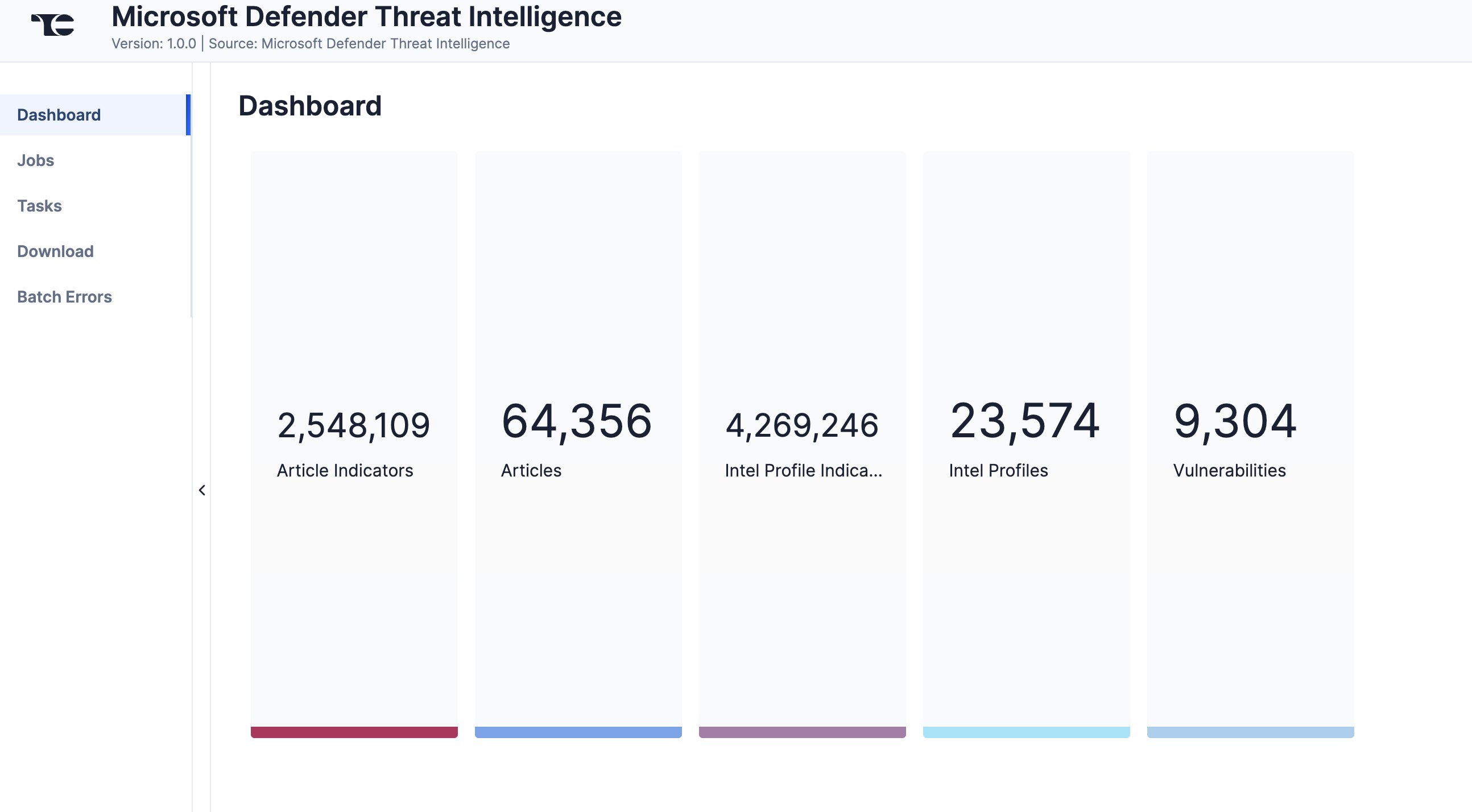
The Dashboard screen (Figure 1) provides an overview of the total number of Articles (Report), Article Indicators (Address, File, Host, URL), Intel Profiles (Intrusion Set, Tool), Intel Profile Indicators (Address, File, Host, URL), and Vulnerabilities (Vulnerability) ingested from MDTI.
Jobs
The Jobs screen (Figure 2) breaks down the ingestion of MDTI data into manageable Job-like tasks, displaying all processes that are pending, in progress, complete, and failed. The ⋯ menu in a Job’s row provides the following options:
- Details: View details for the Job, such as download, convert, and upload start and complete times and counts of downloaded and batched Groups and Indicators.
- Download Files: Download metadata files for all Jobs and data (convert, download, and upload) files for completed Jobs.
- Batch Errors: View errors that have occurred for the Job on the Batch Errors screen.
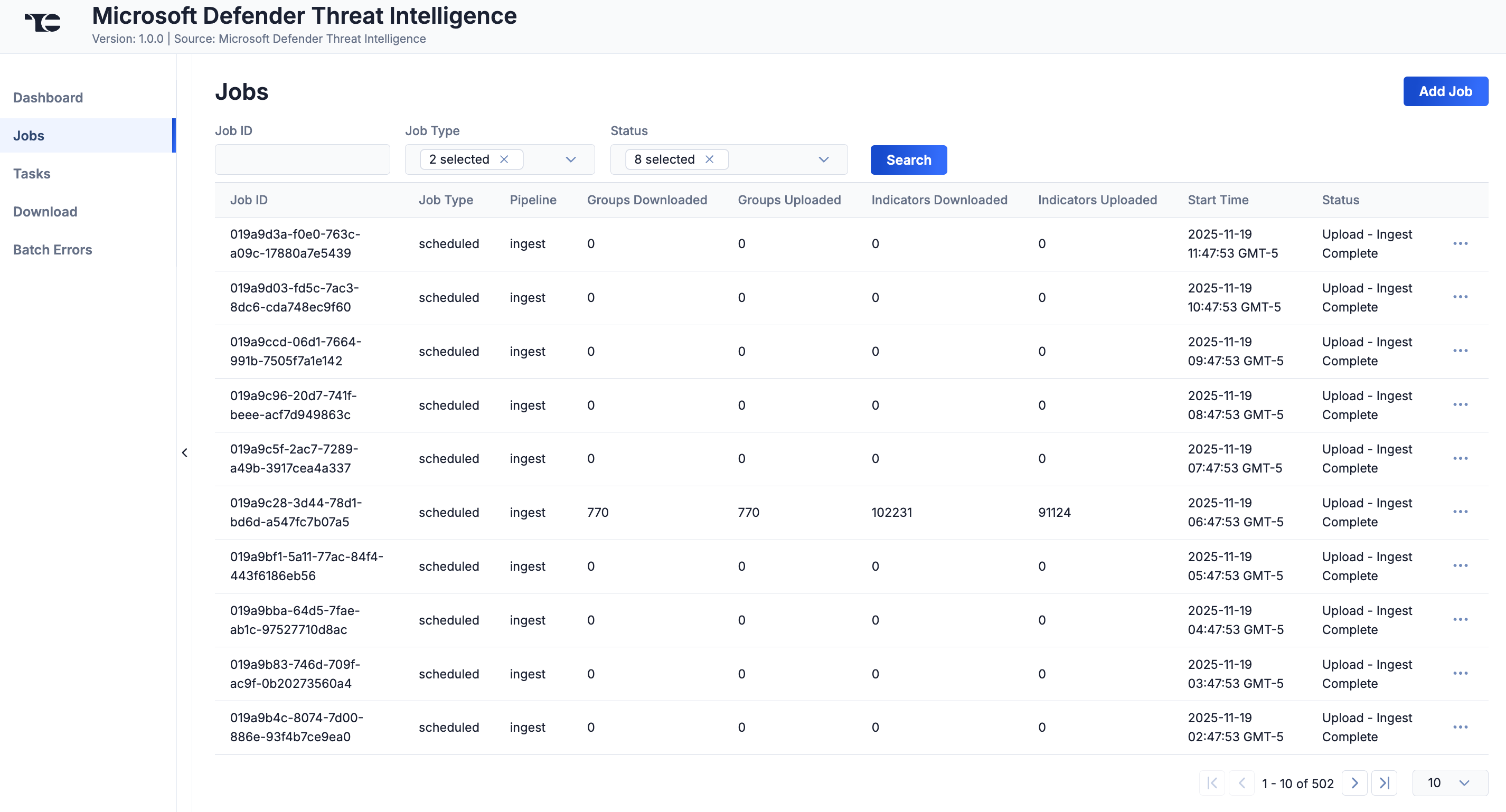
You can filter Microsoft Defender Threat Intelligence App Jobs by the following elements:
- Job ID: Enter text into this box to search for a Job by its Job ID.
- Job Type: Select Job types to display on the Jobs screen.
- Status: Select Job statuses to display on the Jobs screen.
Add a Job
You can add ad-hoc Jobs on the Jobs screen. Follow these steps to create a request for an ad-hoc Job for the Microsoft Defender Threat Intelligence Service:
- Click Add Job (Figure 2).
- Fill out the fields on the Add Job drawer (Figure 3) as follows:
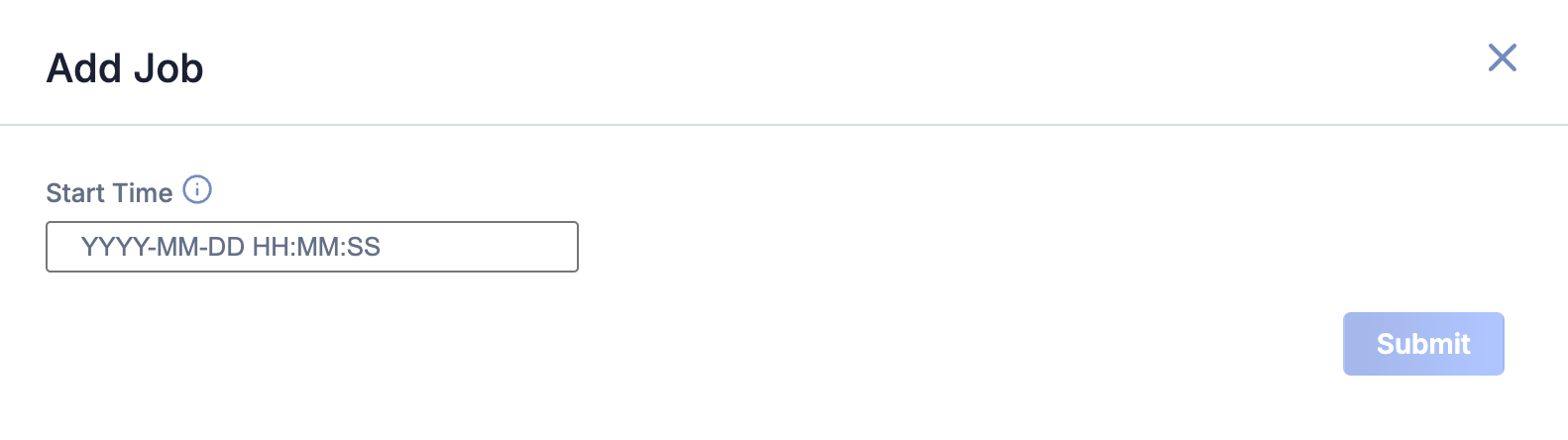
- Start Time: Enter the time at which the Job should start.
- Click Submit to submit the request for the ad-hoc Job.
Tasks
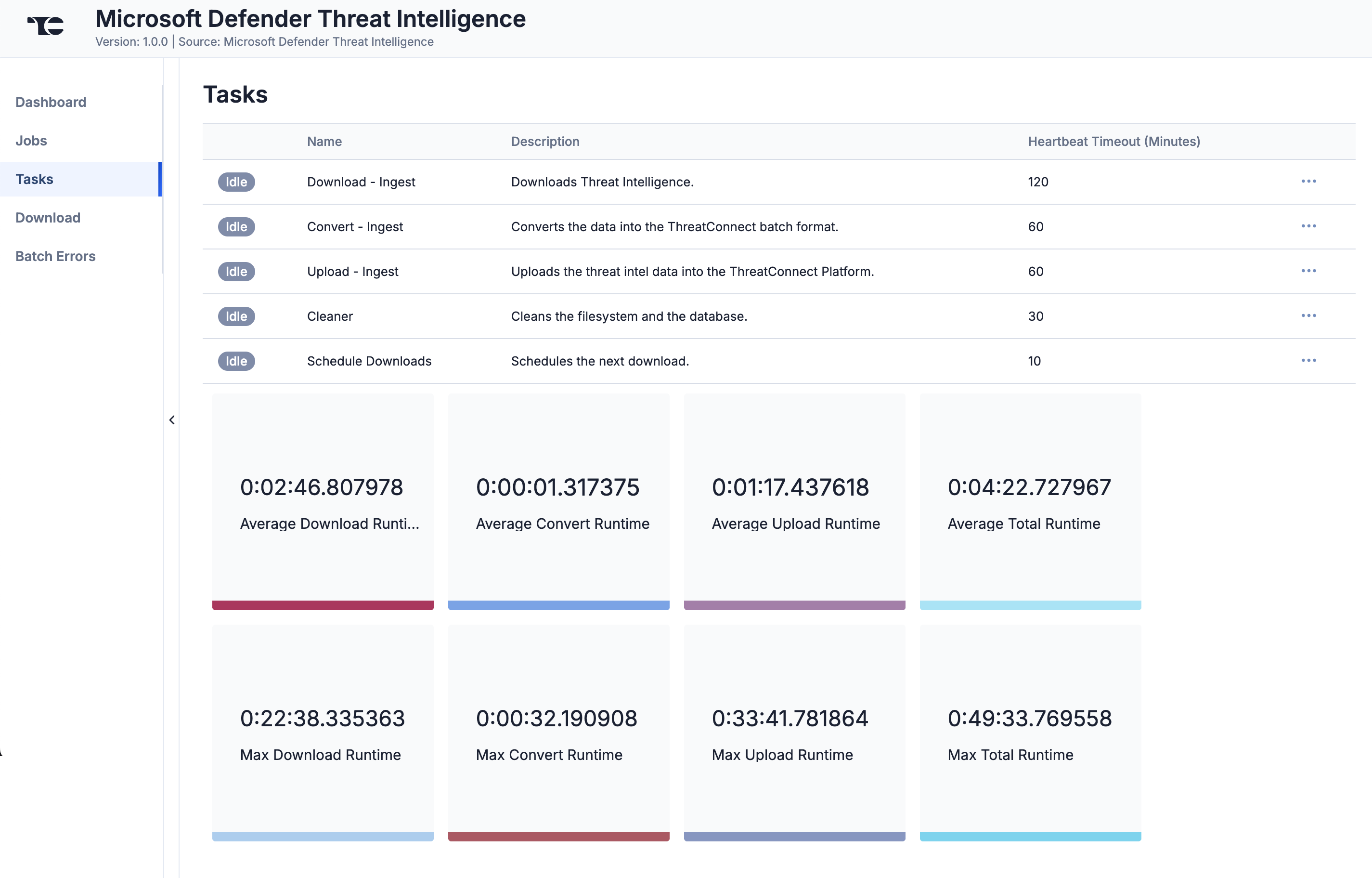
The Tasks screen (Figure 4) displays all Tasks that may be part of a Job, including each step of the download, convert, and upload processes, as well as Tasks for the Microsoft Defender Threat Intelligence Service, such as Monitor, Scheduler, and Cleaner. The current status (Idle, Paused, or Running), name, description, and heartbeat timeout length, in minutes, are displayed for each Task. The ⋯ menu in a Task’s row provides the following options, depending on the Task’s status:
- Run (idle and paused Tasks only)
- Pause (idle and running Tasks only)
- Resume (paused Tasks only)
- Kill (running Tasks only)
Under the table is a dashboard where you can view runtime analytics.
Download
The Download screen (Figure 5) lets you download JavaScript® Object Notation (JSON) data for MDTI objects and then upload the data into ThreatConnect.
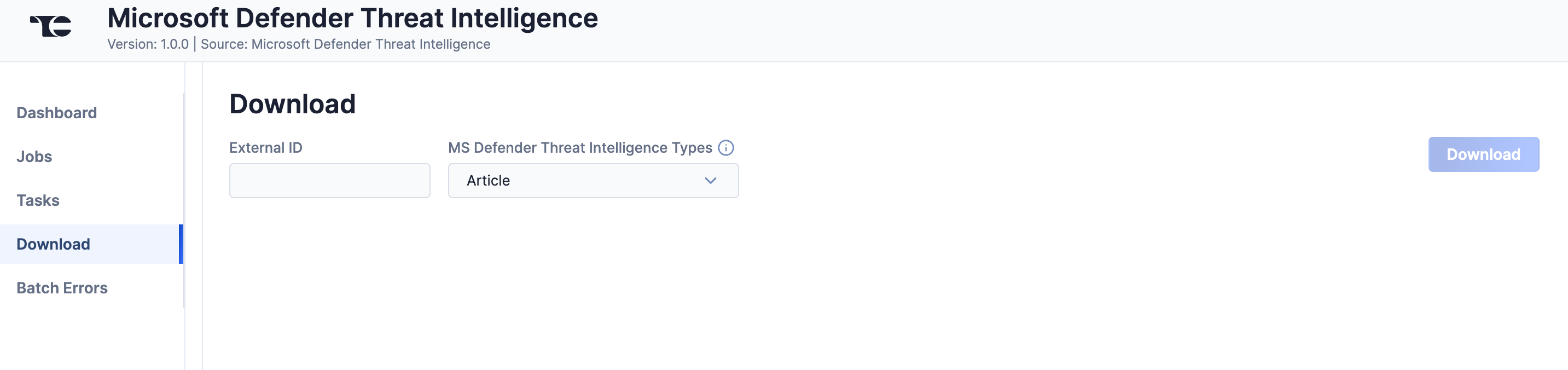
Follow these steps to download JSON data for an MDTI object on the Download screen and then upload the data into ThreatConnect:
- External ID: Enter the MDTI ID of the object to download.
- MS Defender Threat Intelligence Types: Select the MDTI object type to download:
- Article: Download an MDTI Article. If you upload the JSON data, a Report Group will be created in ThreatConnect. If the MDTI Article has indicator associations, then Address, File, Host, and/or URL Indicators will be created in ThreatConnect as well. If the MDTI Article has CVE tags, then the CVE tags will be created as Vulnerability Groups in ThreatConnect as well.
- Intel Profile: Download an MDTI Intel Profile. If you upload the JSON data, an Intrusion Set Group or a Tool Group will be created in ThreatConnect. If the MDTI Intel Profile has indicator associations, then Address, File, Host, and/or URL Indicators will be created in ThreatConnect as well.
- Vulnerability: Download an MDTI Vulnerability. If you upload the JSON data, a Vulnerability Group will be created in ThreatConnect.
- Click Download. The JSON data will be displayed in two columns: Results (raw JSON data) and Converted (JSON data in ThreatConnect batch format) (Figure 6).
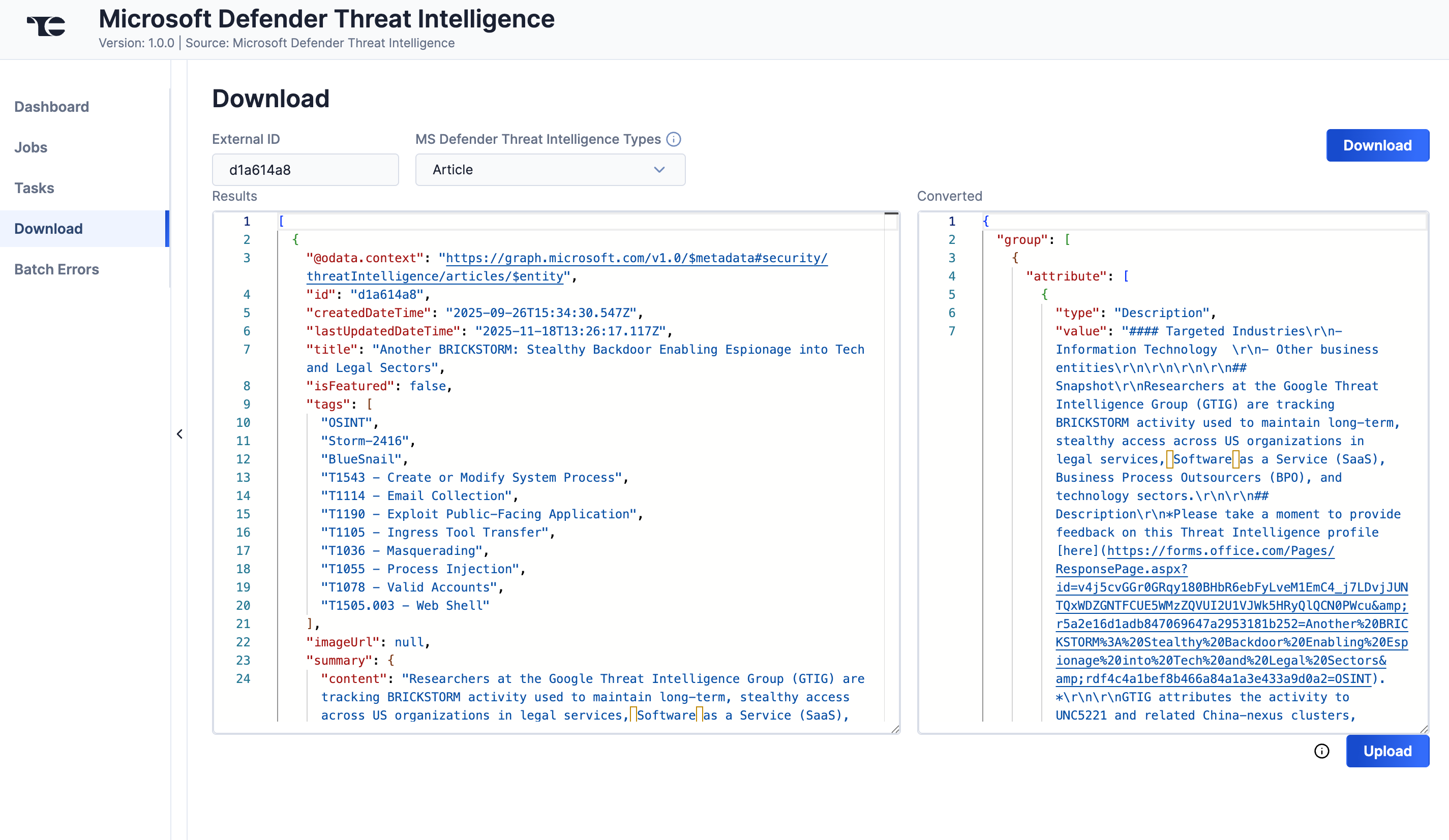
- Click Upload to submit the converted threat intelligence data via the ThreatConnect Batch API.
Batch Errors
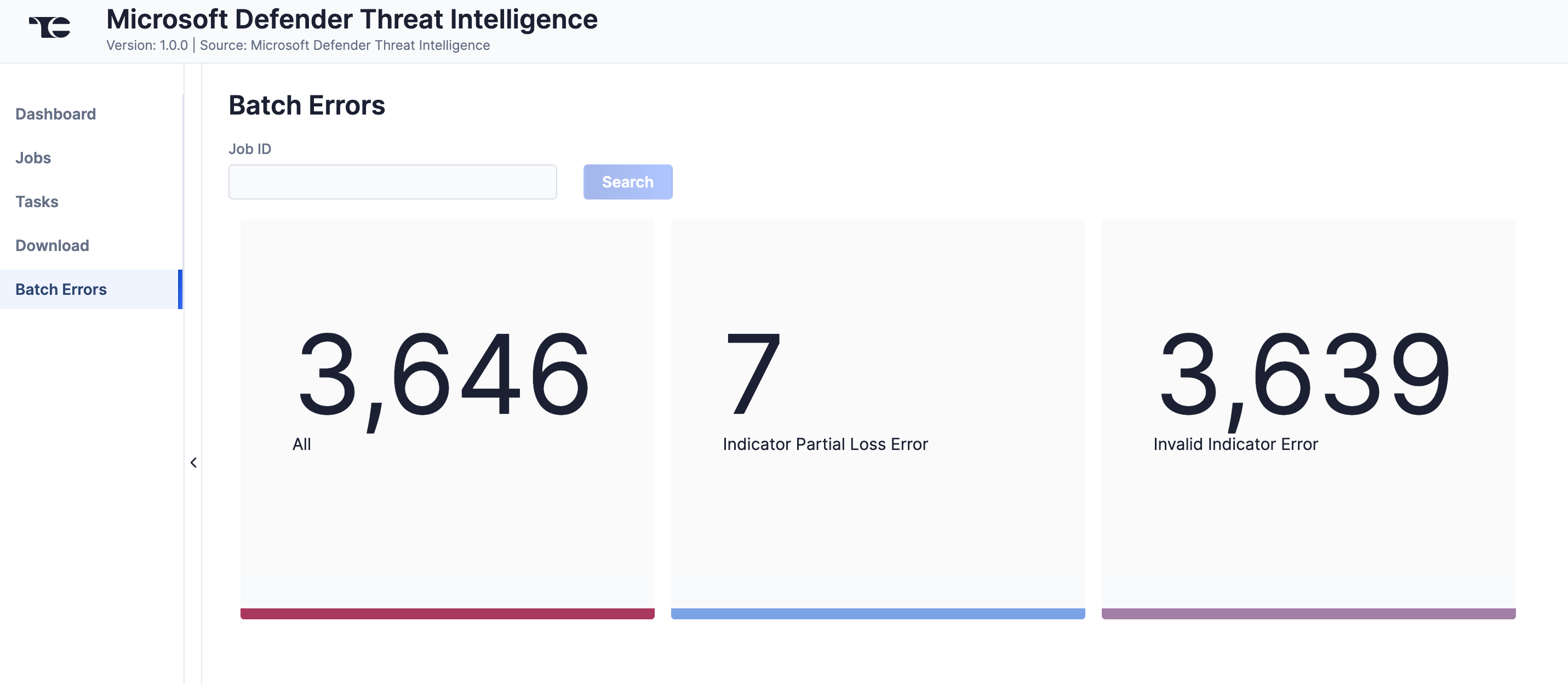
The Batch Errors screen (Figure 7) displays an overview of the batch error types that have occurred for Job requests. You can enter keywords to filter by Job ID.
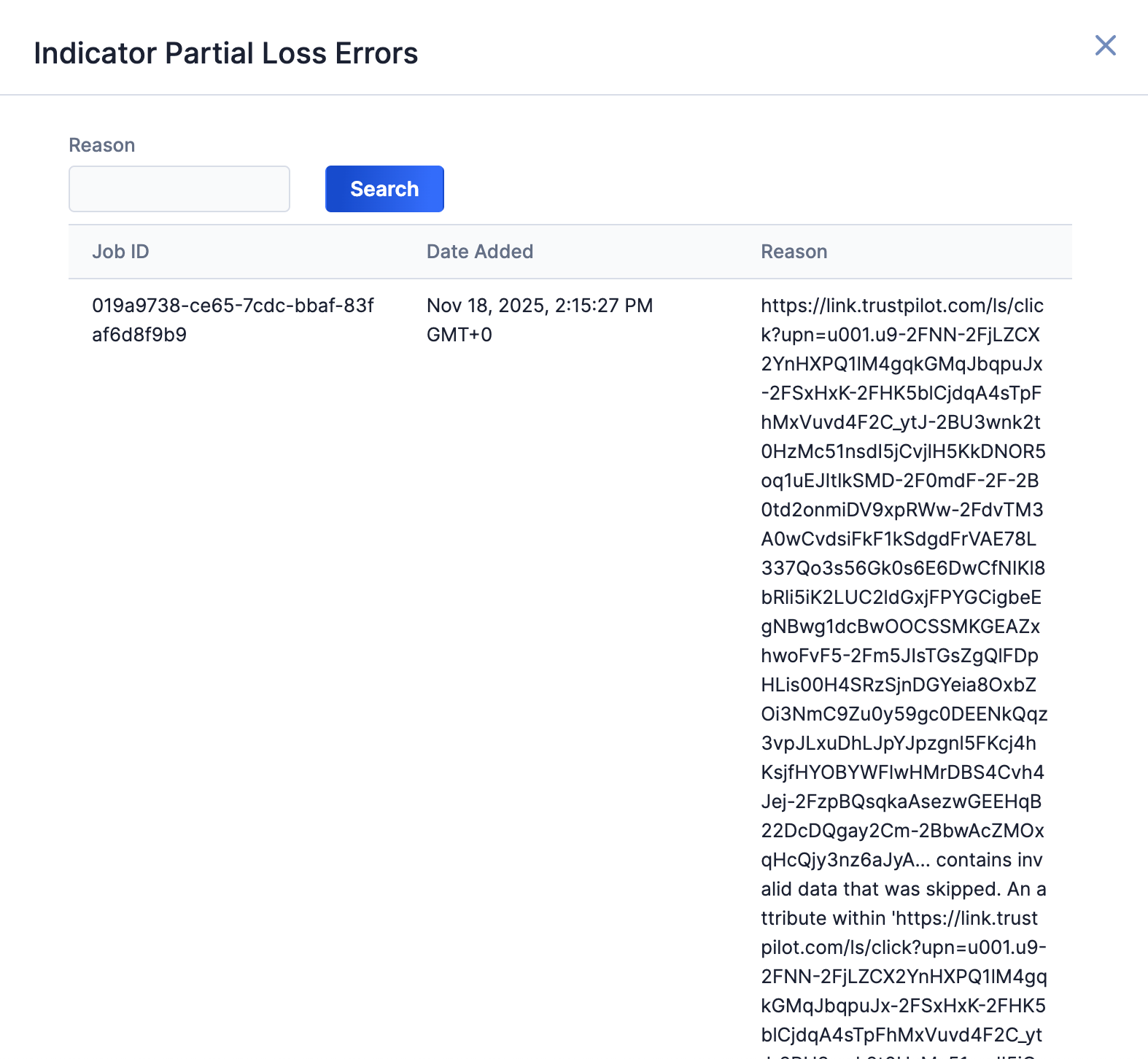
Select an error type to open a drawer containing a table with details on all batch errors of that type (Figure 8). You can enter keywords to filter by reason for error.
Data Mappings
The data mappings in Table 2 through Table 12 illustrate how data are mapped from MDTI API endpoints to the ThreatConnect data model.
Article
ThreatConnect object type: Report Group
| MDTI API Field | ThreatConnect Field |
|---|---|
| tags[?starts_with(@, 'CVE')] |
Note Vulnerability Association refers to the association between the Report Group created from an ingested Article in MDTI and the Vulnerability Group created from the Article’s CVE tag in MDTI. |
| body.content | Attribute: "Description" |
| id |
|
| createdDateTime |
|
| lastUpdatedDateTime | External Last Modified |
| title | Name/Summary |
| tags[?starts_with(@, 'T') && contains(@, ' - ')] | ATT&CK® Tags |
| tags[] | Tags |
Article Indicator: Domain
ThreatConnect object type: Host Indicator
| MDTI API Field | ThreatConnect Field |
|---|---|
| article_id | (Report Association) Note Report Association refers to the association between the Indicator created from an ingested indicator in MDTI and the Report Group created from the indicator’s associated Article in MDTI. |
| artifact.id |
|
| id | Attribute: "External ID" |
Article Indicator: IP Address
ThreatConnect object type: Address Indicator
| MDTI API Field | ThreatConnect Field |
|---|---|
| article_id | (Report Association) Note Report Association refers to the association between the Indicator created from an ingested indicator in MDTI and the Report Group created from the indicator’s associated Article in MDTI. |
| artifact.id |
|
| id | Attribute: "External ID" |
Article Indicator: URL
ThreatConnect object type: URL Indicator
| MDTI API Field | ThreatConnect Field |
|---|---|
| article_id | (Report Association) Note Report Association refers to the association between the Indicator created from an ingested indicator in MDTI and the Report Group created from the indicator’s associated Article in MDTI. |
| artifact.id |
|
| id | Attribute: "External ID" |
Article Indicator: File
ThreatConnect object type: File Indicator
| MDTI API Field | ThreatConnect Field |
|---|---|
| article_id | (Report Association) Note Report Association refers to the association between the Indicator created from an ingested indicator in MDTI and the Report Group created from the indicator’s associated Article in MDTI. |
| artifact.id |
|
| id | Attribute: "External ID" |
Article Tag: CVE
ThreatConnect object type: Vulnerability Group
Only CVE tags that are associated with an Article in MDTI are created as Vulnerability Groups in ThreatConnect during scheduled and ad-hoc Job runs. However, on the Download screen of the Microsoft Defender Threat Intelligence UI, you can enter the External ID for a CVE object in MDTI, download its JSON data, and upload those data into ThreatConnect.
In some cases, Vulnerability Groups may be ingested as “stub” objects in ThreatConnect—that is, a Vulnerability Group will be created, but will hold no additional details from MDTI. This happens when ThreatConnect identifies a Vulnerability association in MDTI, attempts to get more information, and gets an HTTP 404 error from MDTI. ThreatConnect will attempt to add additional details if it finds that Vulnerability association for other MDTI objects.
| MDTI API Field | ThreatConnect Field |
|---|---|
| id |
|
| cvss2Summary.severity | Attribute: "CVSS v2 Base Severity" |
| cvss3Summary.severity | Attribute: "CVSS v3 Base Severity" |
| cvss2Summary.score | Attribute: "CVSS v2 Score" |
| cvss3Summary.score | Attribute: "CVSS v3 Score" |
| cvss2Summary.vectorString | Attribute: "CVSS v2 Vector String" |
| cvss3Summary.vectorString | Attribute: "CVSS v3 Vector String" |
| severity | Attribute: "Severity" |
| exploitsAvailable | Attribute: "Has Exploit" |
| priorityScore | Attribute: "Vulnerability Priority Rating" |
| remediation.content | Attribute: "Remediation" |
| description.content | Attribute: "Description" |
| references[].url | Attribute: "Additional Analysis and Context" |
| commonWeaknessEnumerationIds[] | Attribute: "CWE" |
| exploits[].url | Attribute: "Exploits" |
| activeExploitsObserved | Attribute: "Observed in Wild" |
| createdDateTime | External Date Added |
| lastModifiedDateTime | External Last Modified |
| tags[] | Tags |
Intel Profile
ThreatConnect object type: Intrusion Set Group or Tool Group
The value of the kind MDTI API field for an Intel Profile determines whether ThreatConnect ingests the Intel Profile as an Intrusion Set Group (kind=actor) or Tool (kind=tool) Group.
| MDTI API Field | ThreatConnect Field |
|---|---|
| id |
|
| kind | The value of kind determines whether ThreatConnect ingests the Intel Profile as an Intrusion Set Group (kind=actor) or a Tool Group (kind=tool). |
| aliases[] |
|
| countriesOrRegionsOfOrigin[] | Attribute: "Origin Country" |
| description.content | Attribute: "Description" |
| targets[] | Attribute: "Targeted Industry Sector" |
| firstActiveDateTime |
|
| title |
|
Intel Profile Indicator: Domain
ThreatConnect object type: Host Indicator
| MDTI API Field | ThreatConnect Field |
|---|---|
| intel_profile_id | (Intrusion Set or Tool Association) Note Intrusion Set or Tool Association refers to the association between the Indicator created from an ingested indicator in MDTI and the Intrusion Set Group or Tool Group created from the indicator’s associated Intel Profile in MDTI. |
| artifact.id |
|
| id | Attribute: "External ID" |
| firstSeenDateTime | First Seen |
| lastSeenDateTime | Last Seen |
Intel Profile Indicator: IP Address
ThreatConnect object type: Address Indicator
| MDTI API Field | ThreatConnect Field |
|---|---|
| intel_profile_id | (Intrusion Set or Tool Association) Note Intrusion Set or Tool Association refers to the association between the Indicator created from an ingested indicator in MDTI and the Intrusion Set Group or Tool Group created from the indicator’s associated Intel Profile in MDTI. |
| artifact.id |
|
| id | Attribute: "External ID" |
| firstSeenDateTime | First Seen |
| lastSeenDateTime | Last Seen |
Intel Profile Indicator: URL
ThreatConnect object type: URL Indicator
| MDTI API Field | ThreatConnect Field |
|---|---|
| intel_profile_id | (Intrusion Set or Tool Association) Note Intrusion Set or Tool Association refers to the association between the Indicator created from an ingested indicator in MDTI and the Intrusion Set Group or Tool Group created from the indicator’s associated Intel Profile in MDTI. |
| artifact.id |
|
| id | Attribute: "External ID" |
| firstSeenDateTime | First Seen |
| lastSeenDateTime | Last Seen |
Intel Profile Indicator: File
ThreatConnect object type: File Indicator
| MDTI API Field | ThreatConnect Field |
|---|---|
| intel_profile_id | (Intrusion Set or Tool Association) Note Intrusion Set or Tool Association refers to the association between the Indicator created from an ingested indicator in MDTI and the Intrusion Set Group or Tool Group created from the indicator’s associated Intel Profile in MDTI. |
| artifact.id |
|
| id | Attribute: "External ID" |
| firstSeenDateTime | First Seen |
| lastSeenDateTime | Last Seen |
Frequently Asked Questions (FAQ)
Why did the Microsoft Defender Threat Intelligence App ingest only some of the CVEs in MDTI? Why didn’t it ingest all of them?
MDTI does not allow for iteration through CVE objects. The Microsoft Defender Threat Intelligence App ingests only CVEs that have a tag relationship with Article objects.
Why did the Microsoft Defender Threat Intelligence App ingest some of the CVEs in MDTI as “empty” Vulnerability Groups in ThreatConnect?
When polling for details for a CVE tag on an Article, the Microsoft Defender Threat Intelligence App will on occasion receive an HTTP 404 error from MDTI. When this happens, ThreatConnect creates an empty Vulnerability Group to represent that CVE and its association to the Report Group corresponding to the Article in MDTI. If the Microsoft Defender Threat Intelligence App encounters that CVE tag on another Article in MDTI, it will attempt to poll again for information. If MDTI returns details, ThreatConnect will update the empty Vulnerability Group with the returned information.
ThreatConnect® is a registered trademark, and TC Exchange™ is a trademark, of ThreatConnect, Inc.
MITRE ATT&CK® and ATT&CK® are registered trademarks of The MITRE Corporation.
Microsoft® is a registered trademark, and Defender™, Entra™, and Sentinel™ are trademarks, of Microsoft Corporation.
30096-01 EN Rev. B