New Features and Functionality
Threat Graph: Bulk Pivots and Enrichment
In version 7.12 of ThreatConnect, you can now select multiple nodes in Threat Graph and pivot on or enrich those nodes in a single operation. Being able to quickly expand your visible dataset allows you to spend more time evaluating the related information—which can include associated objects in your ThreatConnect owners, relationships that exist in CAL™, and data from supported third-party enrichment services—and less time clicking.
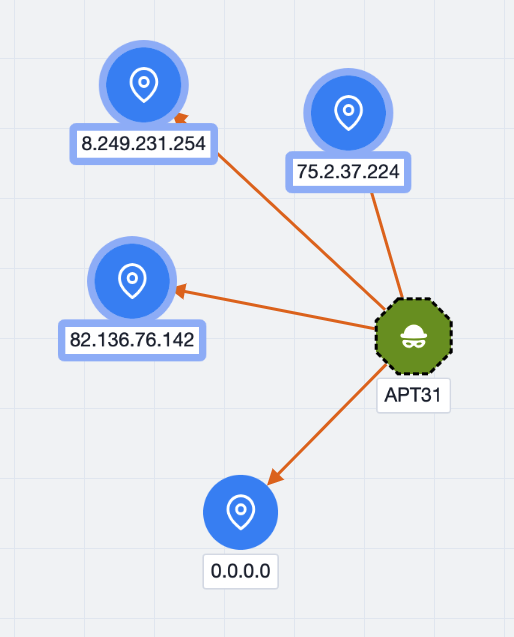
Selected nodes in Threat Graph are highlighted
After selecting a set of nodes, choose an option from the Selection Actions dropdown at the upper right of the graph.
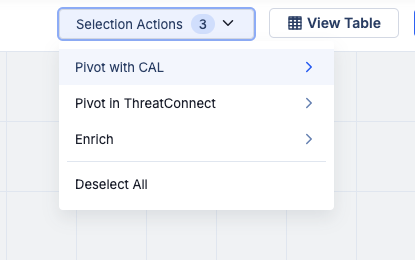
The Selection Actions menu provides available pivot and enrichment options
Only options that apply to at least one of the selected nodes will be provided in the Selection Actions menu. Available relationship types and enrichment options will vary between objects, and not all pivot and enrichment options will yield results. The results that are displayed after running a pivot or enrichment operation depend on the available data in your ThreatConnect owners, data present in CAL, or data provided by a third-party enrichment service.
Bulk Indicator Search: Bulk Actions on Consolidated Indicators
As you examine and investigate Indicators in a bulk Indicator search of an uploaded file, you can now select consolidated rows of deduplicated Indicators and take any of the following bulk actions available in the Selection Actions dropdown on those Indicators:
- Add the Indicators to your Organization
- Add Tags to the Indicators
- Export the Indicators to a CSV file
These actions make it easier for you to organize and manipulate your data so you can share key insights faster.
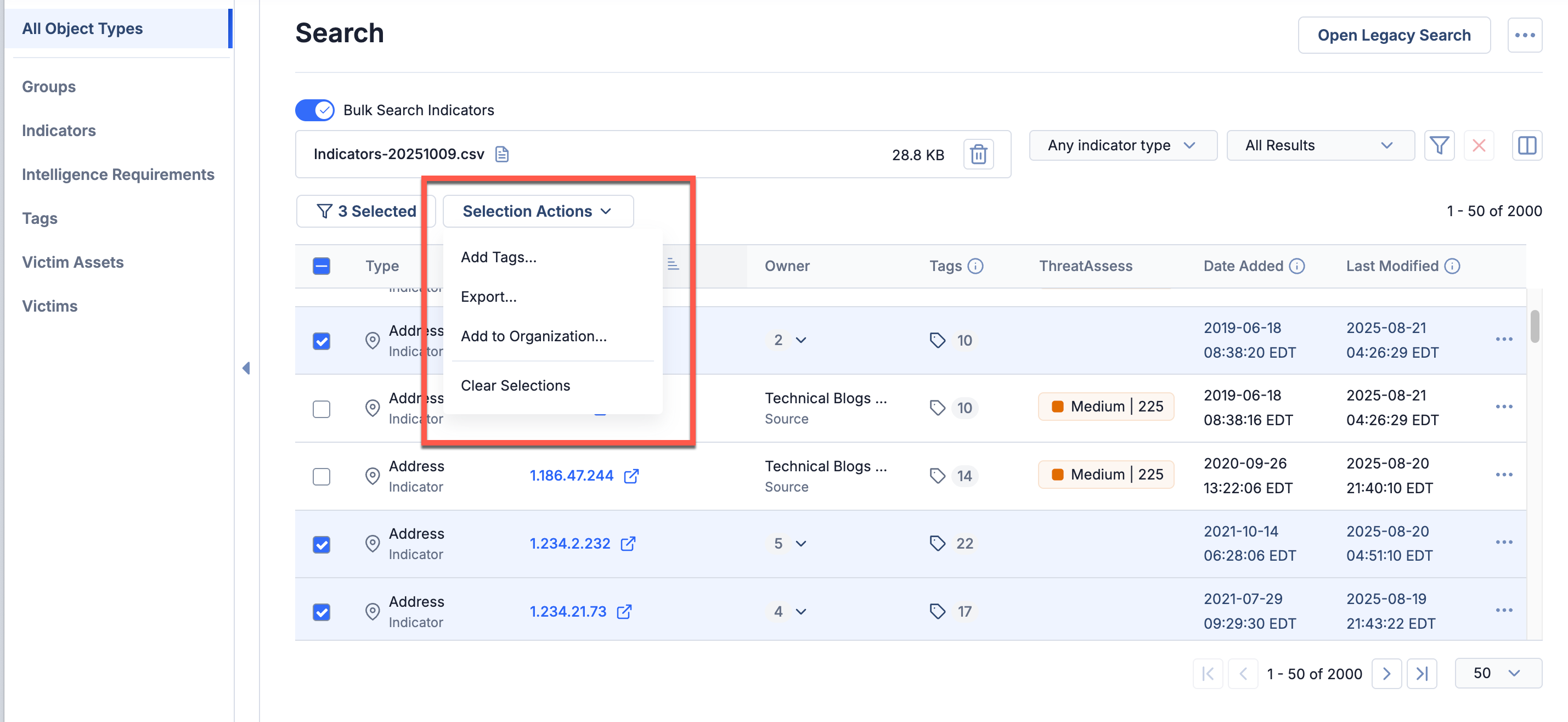
Take bulk actions on deduplicated Indicators in your ThreatConnect owners identified in an uploaded file
Intelligence Requirements: Query Date Range
It is best practice for threat intelligence teams to review their intelligence and collection requirements on a regular interval to ensure they are focused on the intelligence that is most valuable to their organization. To help you more effectively follow this best practice while using the ThreatConnect Intelligence Requirements (IR) feature, the 7.12 release lets you configure your IR keyword queries to return only information added to ThreatConnect within a defined time frame. By specifying that only results with Date Added or External Date Added values within your defined query date range should be returned, you reduce the likelihood that historical data matching an IR will surface in your IR results list.
Define Query Date Range
You can define a query date range for an IR in the new Additional Query Parameters step when creating a new IR or in the new Additional Query Parameters card on an existing IR’s Details screen. For new IRs, you can define a custom range or select from four pre-configured ranges (Today, Next 7 Days, Next 30 Days, or Next 60 Days). For existing IRs, you can define a custom range, including time specified to the minute.
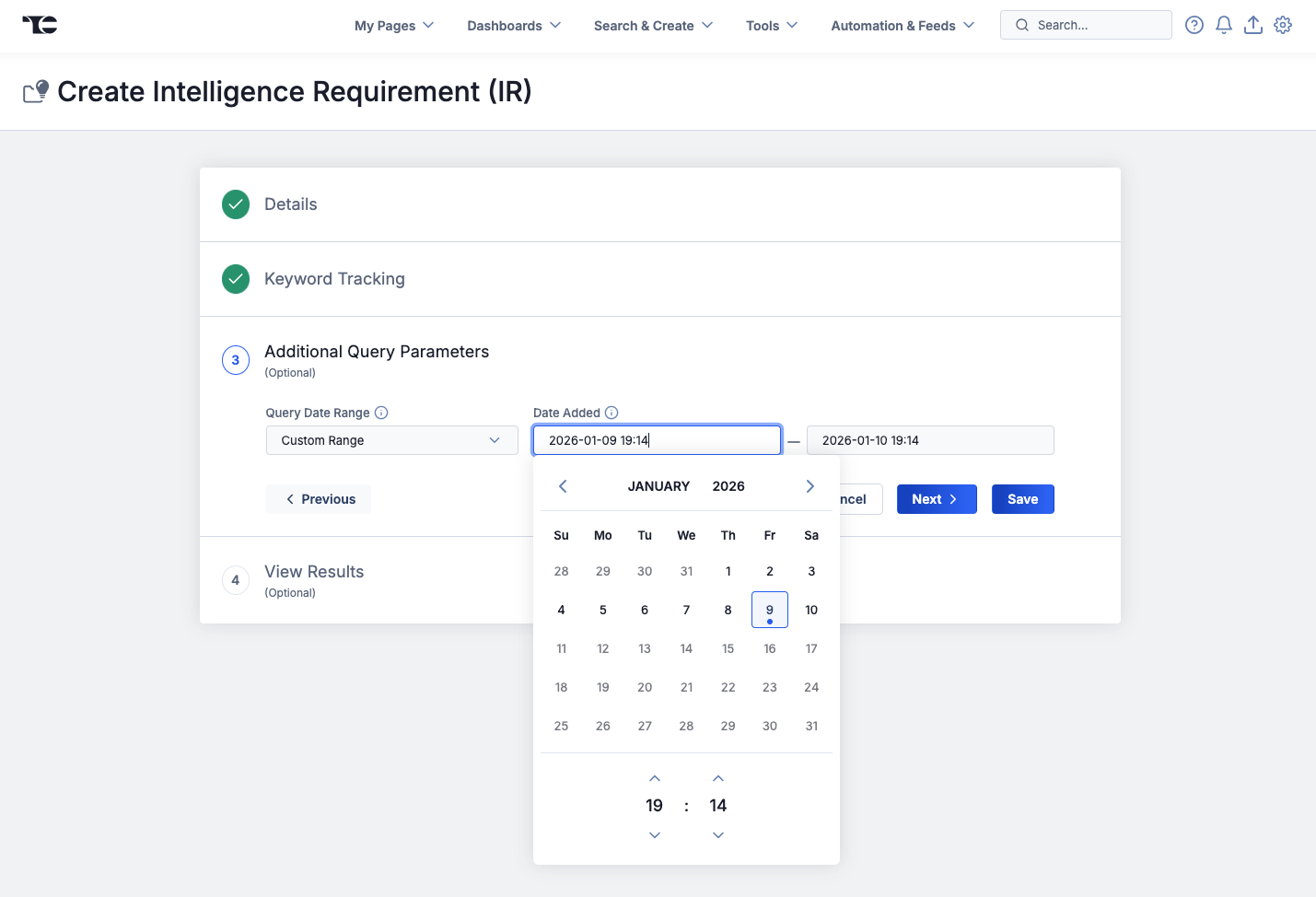
Define a query date range when creating a new IR
Query date ranges are optional. In addition, existing Intelligence Requirements will not have date ranges applied unless you choose to add those parameters on the IR’s Details screen.
If you leave the start or end date empty when configuring a query date range, the monitor that powers the IR will return data based on the single defined parameter. For example, if you set only a start date for Date Added, then the monitor will return results matching the query that have a Date Added or External Date Added value after the defined start date. If you set only an end date for Date Added, then the monitor will return results matching the query between the time the ThreatConnect instance was set up through the defined end date.
IR Status
IRs now have a status, which is displayed at the upper right of their Details screen. If the current date and time are before the end date of the IR’s query date range, the IR’s status is set to active, indicating that it is currently retrieving results or will retrieve results after its start date is reached. Once the end date for an IR’s query date range is reached, the IR’s status is set to inactive, indicating that it is no longer retrieving results.
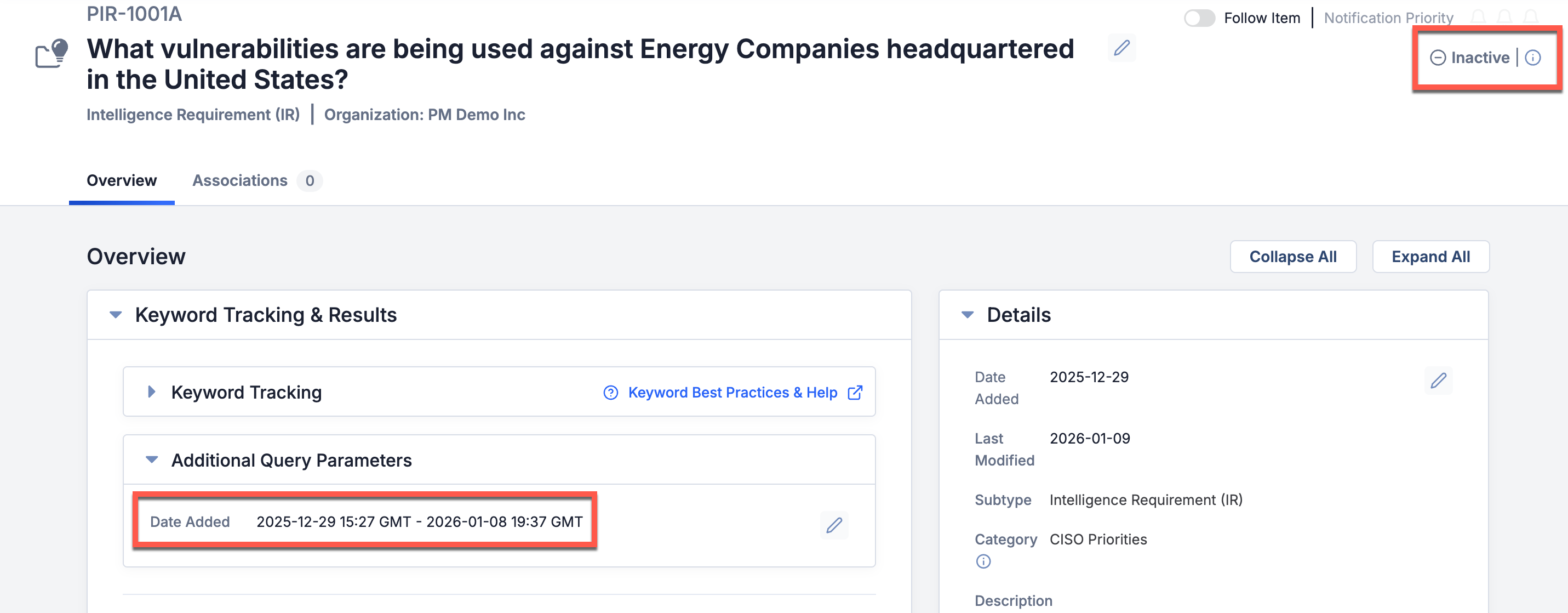
IRs are set to inactive once the current date and time match the end of the Date Added range (i.e., the query date range)
If you want to activate an inactive IR, you can remove the Date Added range in the Additional Query Parameters card on the IR’s Details screen. Alternatively, to set an IR to active and retrieve results added to ThreatConnect between the time the IR was set to inactive and the current time, simply update the end date of the range to a future date and time that includes the time period when the IR was inactive.
Indicator Score Displays
The past several ThreatConnect releases have included a variety of UI updates intended to highlight contextual data to help you get to action faster. Similarly, the 7.12 release includes one small, but impactful, change to how and where Indicator scores are displayed in ThreatConnect.
You can now see an Indicator’s ThreatAssess score at the upper left of the Indicator’s Details screen. If you click the ThreatAssess score, you can see the ThreatAssess impact factors contributing to the score, as well as the Indicator’s CAL score (now called the CAL Global Threat Score) at the top of the scoring graphic.
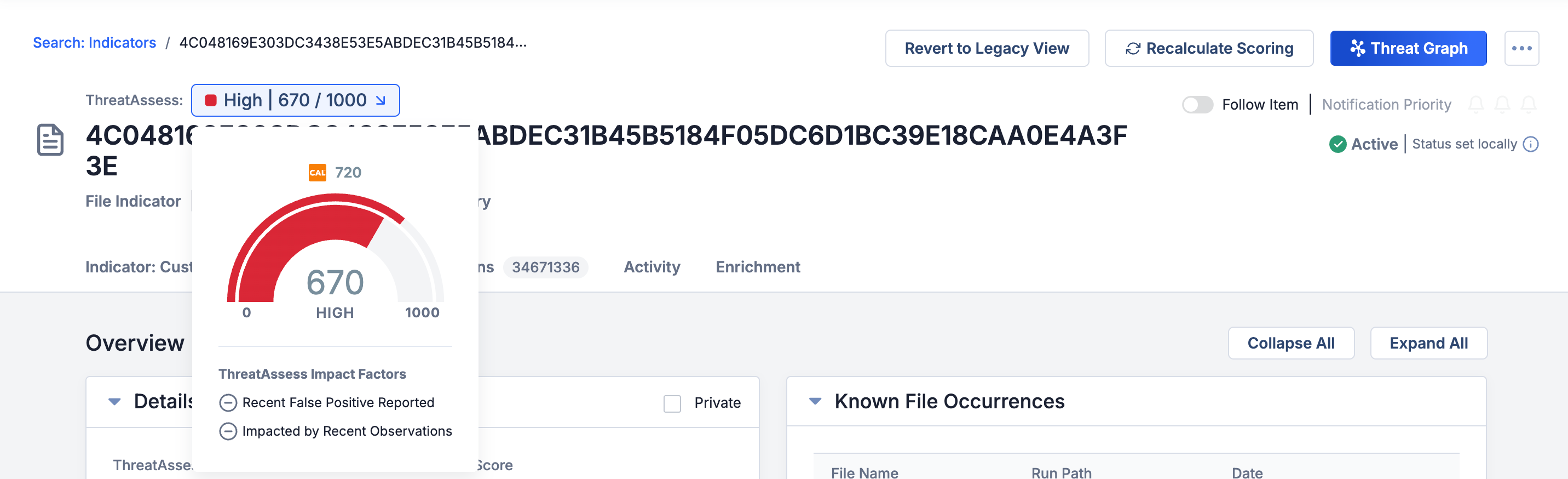
View an Indicator’s ThreatAssess score at the top of its Details screen
Both scores are still available on the Details card. If you click a score, you can see the impact factors contributing to it.
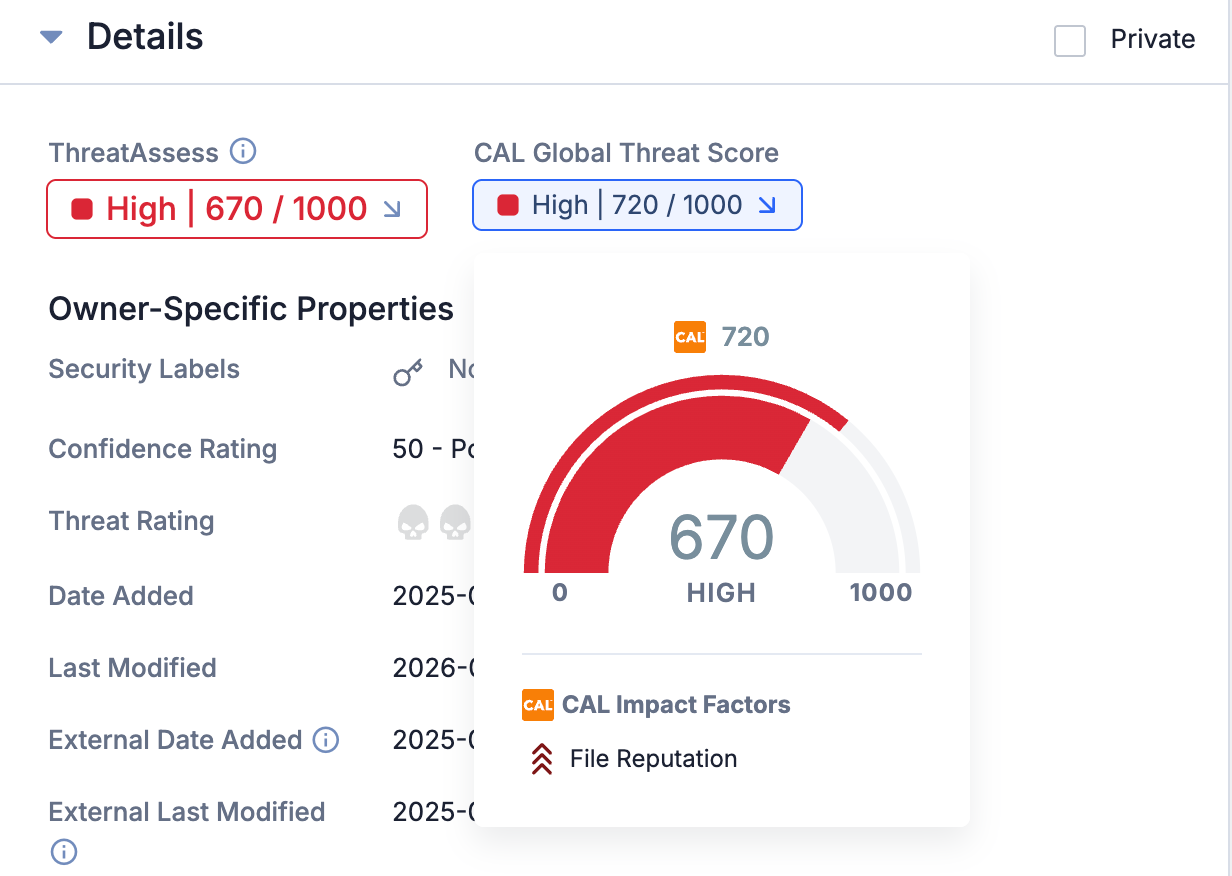
View an Indicator’s ThreatAssess and CAL Global Threat Score and the contributing impact factors on the Details card
This update was driven by customer feedback about making better use of space on the Indicator Details screen. Please continue to share feedback with us via your Customer Success Representative or our Customer Feedback Portal.
Improvements
Threat Intelligence
- AI insights containing Live Brief and Intel Agent data from Dataminr Pulse Alerts are now available for Event Groups imported into ThreatConnect from version 2.0.x of the Dataminr Pulse Alerts Engine App:
- AI insights from Dataminr Pulse Alerts display on the Details screen for relevant Events in Sources to which a feed for version 2.0.x of the Dataminr Pulse Alerts Engine App is deployed.
- When retrieving Event Groups with the v3 API, if you assign the
fieldsquery parameter a value ofinsightsin the API request, the API response will return the AI summary in theinsightsfield and the AI provider (Dataminr) in theaiProviderfield. - You can use the following ThreatConnect Query Language (TQL) parameters to filter Event Groups imported from the Dataminr Pulse Alerts Engine App by their AI insights:
insights: Filters Events Groups based on the contents of their AI insights.aiProvider: Filters Event Groups based on the provider of their AI insights.
- TQL now supports the
hasThreatActorProfile()nested query parameter for filtering on data in Threat Actor Profiles. You can use the following parameters in nested queries for Threat Actor Profiles:deprecated,mitre_id,mitre_link,externalDateAdded, andexternalLastModified. - Threat Actor Profiles and the unified view for Vulnerability Groups are now available in the Details drawer.
- The layout of the Details card on an Indicator’s Details screen now adjusts dynamically based on the card width in order to optimize the available space.
- The following new System-level Attribute Types have been added to all ThreatConnect instances to support the Hybrid Analysis feed:
- Extracted From: Provides the URL for the report a file was extracted from.
- Threat Level Description: Indicates the threat level (No specific threat, Suspicious, Malicious, or Unknown) provided on the feed during data ingestion.
Dashboards
- You can now query by Intelligence Requirements on dashboard Query cards.
- You can now configure Indicator Metric cards for Email Subject and Hashtag Indicator types by selecting Email Subject or Hashtag, respectively, from the Metric Types dropdown.
Threat Graph
- The following improvements were made to the undo/redo feature:
- You can now apply the Undo and Redo buttons in Threat Graph to layout changes, including selection of layout options (Cola, CoSE-Bilkent, etc.) and manual movement of nodes (individual or multiselected) around a graph.
- The limit on the number of actions you can undo or redo has been raised from 10 to 50.
Reporting
- When saving a new report template in the Reporting feature, the character limit for the template’s Name field is now 500.
- The Group Associations and Indicator Associations tables in reports now include hyperlinks on the object names in the Name column, providing quick access to each object’s Details screen in ThreatConnect.
- When creating a custom report from a Group template, you can now select whether to open the report in a new tab or the current tab.
ATT&CK
- The ATT&CK Tag Approximate Match conversion rule now converts formats supported by CrowdStrike® in addition to the previously supported formats for MITRE ATT&CK®.
Permissions
- Only users with a System role of Administrator, Operations Administrator, or Super User or an Organization role of Organization Administrator can edit their own logout interval on the My Account screen. This permission setting was updated for enhanced security and administrative control.
Apps & Services
- The Automation & Feeds dropdown on the top navigation bar now has a Jobs option that provides quick access to the Jobs screen, which provides the functionality previously located on the Apps tab of the Organization Settings screen, including management of Job Apps and generation of App Delivery Tokens and API Developer Tokens.
- On the Services screen, the Details drawer for a Feed API Service now has an Organization field that displays the Organization that owns the Source to which that Feed API Service is deployed. You can use this information to differentiate between Feed API Services deployed for the same App, particularly to ensure that you are viewing or editing the expected Service.
- When updating Apps with custom Attribute Types, you no longer need to upload JavaScript® Object Notation (JSON) files containing the updated Attribute Types. Instead, the Attribute Types will be updated automatically on the System level when you upgrade the App on the TC Exchange™ Settings screen.
System Settings
- The aiSummaryEnabled system setting has been updated to function as follows:
- If the aiSummaryEnabled checkbox is selected, AI insights will automatically be provided by participating feeds to relevant Group objects, and you will be able to generate AI summaries for relevant Group objects on the AI insights card on the Details screen.
- If the aiSummaryEnabled checkbox is cleared, AI insights will automatically be provided by participating feeds to relevant Group objects, but you will not be able to generate AI summaries on the Group Details screen.
API & Under the Hood
- The following endpoints have been added to the v3 API:
/v3/posts: Allows you to create, retrieve, and delete posts (Notes)./v3/posts/reply: Allows you to create and delete post (Note) replies.
- When using the
/v3/intelRequirementsv3 API endpoint to create or update IRs, you can now configure the following fields:earliestTimestamp: The start date in an IR query date range.latestTimestamp: The end date in an IR query date range.
- When using the V2 Batch API to create or update Event Groups, you can now assign values to the following fields:
insights: <String> An AI-generated summary of the Event that displays on the AI insights card on the Event’s Details screen.aiProvider: <String> The source of the AI-generated summary provided for the Event. If a value is assigned toinsights, you must assign a value to this field.
- Security improvements were made to session timeout protocol. When a user logs out of their ThreatConnect instance, they are now immediately redirected to the login page.
Bug Fixes
Dashboards
- Dashboard cards and other areas of that platform querying for Cases by Group association were not returning Cases with associated Groups in Communities and Sources. This issue was fixed.
Threat Intelligence
- An issue preventing the display of AI insights for Reports in the CAL Automated Threat Library Source was resolved.
- An issue causing an error to occur in ThreatAssess when analyzing an Indicator that exists only in an owner with a Credibility/Weight of 0 was fixed.
- An issue causing performance lags when loading areas of the Details screen for Groups was fixed.
Apps & Services
- An issue preventing Job Apps from being configured for Environment Servers on certain ThreatConnect instances was resolved.
Playbooks
- Playbooks with caching enabled in their Trigger were not capturing cache metrics. This issue was corrected.
API & Under the Hood
- An issue preventing Attributes created via the v3 API from being returned by v3 API GET requests was fixed.
- When sending a PUT request to the v3 API to update an Indicator, if you used the Indicator’s summary to identify it, there was a possibility that the request would update copies of the Indicator in owners other than the intended one or that the operation would result in an error. This issue has been corrected.
Dependencies & Library Changes
- There are no new dependencies or library changes for ThreatConnect version 7.12.0.
Maintenance Releases Changelog
2026-06-15 7.12.3-M0615R [Latest]
Bug Fixes
- Updates were made to improve product security.
- An issue causing an error to occur when reporting a recently imported Indicator as a false positive via the v3 API was fixed.
2026-05-28 7.12.3-M0528R
Bug Fixes
- A performance issue introduced in version 7.12.3 affecting the creation and updating of Groups via the v3 API has been resolved.
2026-05-25 7.12.3-M0525R
Bug Fixes
- An issue preventing IRs from being created on instances that aren't connected to CAL was fixed.
- An issue preventing installation of Content Packs on On Premises instances was resolved.
2026-05-01 7.12.3-M0501R
Bug Fixes
- When associating a Group to an array of Indicators in a PUT request to the
/v3/groupsendpoint, the Indicators’ Last Modified date was not being updated. This issue has been corrected.
2026-04-28 7.12.3-M0428R
Improvements
- Performance improvements were made to the Attributes card on the Details screen.
- A security vulnerability for scanner injection was remediated.
Bug Fixes
- An issue that was causing user-generated AI summarization to fail was fixed.
2026-04-08 7.12.3
Improvements
- Hardening and infrastructure updates were made to improve platform security and resilience. We recommend that customers promptly upgrade to version 7.12.3.
- The following new System-level Attribute Types have been added to all ThreatConnect instances to support data ingested from apps:
- CAL Classifier: Provides a CAL Classifier for an Indicator.
- CAL Impact Factor: Provides a CAL impact factor for an Indicator.
- CAL Score: Provides the Indicator’s CAL Global Threat Score.
- CAL Status: Provides the Indicator’s CAL status (active, inactive, or unassigned).
- Tag normalization rules were added to cover all Tag changes in the CAL 3.15 release. These Tag normalization rules are applied automatically to all 7.12.3 instances. If you do not want automated Tag normalization to occur on your ThreatConnect instance, please reach out to your Customer Support Manager to be excluded.
- Unified views for Vulnerability Groups and Threat Actor Profiles are now available for On Premises instances via Content Pack. Please contact your Customer Success representative for more information.
- Background processes that download and synchronize unified Vulnerability data and Threat Actor Profiles now run faster, handle more data per cycle, and are more resilient to malformed or oversized records.
- Threat Graphs with compound nodes for object name changes can now be saved accurately without performing a repair operation and without losing the ability to perform the repair option when the graph is reopened later.
- The text on the ATT&CK Tag Conversion screen of System Settings > Tags was updated to provide clearer and more accurate instruction, particularly around conversion of formats supported by CrowdStrike.
- ThreatConnect is now running OpenSearch® 3.5.0.
- Performance improvements were made in Attribute table lookups.
- Performance improvements were made for Indicator-to-Indicator association lookups made via the v3 API.
- A Server-Side Request Forgery (SSRF) vulnerability was fixed on ThreatConnect’s
/secureProxyendpoint.
Bug Fixes
- A bug was allowing the Max Length field for an Attribute Type to be changed from a length greater than 500 characters to a length less than 500 characters, causing the values of all Attributes of that Attribute Type to be inaccessible. This issue was corrected.
- Email addresses for mailboxes tied to Playbooks Mailbox Triggers are now case insensitive. This update resolves an issue that was preventing mailboxes from receiving emails sent to addresses whose case did not exactly match that of the mailbox configured in the Trigger.
- An issue causing the object-specific Search screens to display only the first 25 saved TQL queries in the Saved Queries drawer has been resolved.
- An issue preventing the export of dashboards with query cards that include the
falsePositiveCountorobservationCountparameter in the TQL query was resolved. - When retrieving custom associations for Indicators using the v3 API (e.g.,
GET /v3/indicators?fields=customAssociations), indirect associations are no longer returned. - An issue causing a “No Pivot Results” error to be displayed when navigating from the Details screen to the legacy Details screen was fixed.
- An issue preventing ThreatConnect from sending emails to users via Amazon® Simple Email Service (SES)™ when configured was fixed.
- IR result links returned via the v3 API were missing part of the URL path. This issue has been corrected.
- An issue causing Known Exploited Vulnerability (KEV) data to be removed from some Vulnerability Groups during data updates was resolved.
- A performance issue was resolved in the background process that links a version of a Group in its owner to its corresponding unified Vulnerability Group or Threat Actor Profile.
2026-04-02 7.12.2-M0402R
Bug Fixes
.jarfiles in ThreatConnect were updated to version 3.2.3 of Apache® Tika™.
2026-03-19 7.12.2-M0319R
Bug Fixes
- An issue preventing thumbnail previews of Document Group and Report Group files from being displayed on the Details screen was fixed.
- The version of CKEditor™ used to power features on the legacy Details screen and the deprecated Posts screen was updated to address vulnerabilities in CKEditor 4.14.1.
2026-03-16 7.12.2-M0316R
Bug Fixes
- A vulnerability in Apache Tika (CVE-2025-66516) that could be triggered via malformed PDF input was patched via upgrade to version 3.2.3 of Apache Tika.
2026-03-11 7.12.2
Improvements
- New options for the Event Status field on Event Group objects have been added. You can select these options from the Event Status dropdown on an Event Group’s Details screen, filter on them in TQL, and configure them in the v3 API and V2 Batch API.
- In Threat Graph, handling of Group nodes that have had name changes since a graph was last saved was updated. Now, when you open a saved graph that includes Group nodes which had the same name before the graph was saved, but now have different names, the Groups will be displayed as a compound node that includes all versions of the Group’s name. In addition, a message will be displayed at the lower left of the screen warning you that graph data may be displaying inaccurately due to object name changes and providing a link you can click to repair the graph. It is recommended that you initiate the repair, which will separate the compound node into single nodes and adjust associations and pivots to reflect the specific version of the Group to which they belong. If you do not repair the graph via the option in that message, you can select Repair Threat Graph from the Options⋯menu at the upper right. If you save the graph without performing the repair operation at all, it is possible that the pivots and associations in the graph will not be accurately matched to the correct versions of the node in the new saved version.NoteYou cannot undo a repair to a graph.
- JSON files downloaded from standard views in the ATT&CK Visualizer now include a
metadatasection for each technique and sub-technique that provides the URLs for the Groups corresponding to the analysis layers for that technique or sub-technique. - Updates were made to the data displayed on the Feeds tab of the TC Exchange Settings screen and on the Feed Explorer screen to ensure consistency and correctness:
- The Daily Indicators and Unique Indicators columns were updated to correct labeling and data inconsistencies.
- A new 90 Day Total column was added to both screens.
- The “total” number to the right of the Daily Indicators sparkline on a feed’s report card was removed.
- Support was added to allow apps to send app failure notifications to users in a Source. Only users with a Community role of User, Commenter, Contributor, Editor, or Director will be able to receive these notifications.
- When sending a POST request to the
/v2/notificationsAPI endpoint, you can now include theownerIdfield in the request body. This optional field allows you to specify the ID number of the owner to which the notification is being sent. - To correct an issue preventing very large data files from being processed by Playbook Apps, a new system setting, streamReadContraintsMaxStringLength, was added to the Advanced section to allow you to adjust the string-length size limit of those files within safe limits. Do not change the value of this system setting unless instructed by a ThreatConnect Customer Success or Support representative.
- Security headers were added to ThreatConnect web responses to fix vulnerabilities found in recent security web scans.
Bug Fixes
- The search bar on the top navigation bar was disabled when viewing an object’s legacy Details screen. This issue was fixed.
- An issue causing the browser scrollbar to become unresponsive after adding a new card to a dashboard was fixed.
- Metric charts formatted as number cards were showing inverted colors in generated PDFs for reports in the Reporting feature. This issue was fixed.
- Apps that take file variables as input were failing when deployed with remote execution. This issue has been corrected.
- To prevent rapid or frequent requests for bulk reports from impacting system stability, an update was made to ensure that only one bulk report at a time can be generated for a given owner.
2026-03-03 7.12.1-M0303R
Bug Fixes
- An issue causing errors when executing Playbooks with WebHook Triggers that have caching enabled was resolved.
- To improve performance, a new monitor was added that removes CommonIndicator records without corresponding Indicators or Artifacts. There are now two new system settings that allow you to set the hours during which the monitor can operate:
- orphanCommonIndicatorMonitorStartHour: The start hour for the time window in which the monitor can run. This setting takes a value between 0 and 23, where 0 is midnight and 23 is 11 pm. This setting's value must be less than the value of orphanCommonIndicatorMonitorEndHour.
- orphanCommonIndicatorMonitorEndHour: The end hour for the time window in which the monitor can run. This setting takes a value between 0 and 23, where 0 is midnight and 23 is 11 pm. This setting's value must be greater than the value of orphanCommonIndicatorMonitorStartHour.
2026-02-19 7.12.1-M0219R
Bug Fixes
- The None option was added back as an option for the Event Type field on Event Group objects.
2026-02-11 7.12.1
Improvements
- The Dataminr Cyber Pulse Limited feed is now available for all ThreatConnect customers on instances running version 7.12.1 or later. This feed delivers Dataminr Pulse Cyber Alerts with Urgent and Flash severity levels directly into ThreatConnect every five minutes, creating corresponding objects with select Dataminr Pulse metadata and AI-powered context. The Cyber Alerts delivered to ThreatConnect are from the Threat Actor Alerts, Vulnerability Alerts, and Malware Alerts Alert Lists in Dataminr Pulse. After your System Administrator has turned on this feed and added your Organization to the Dataminr Cyber Pulse Limited Source, you can use a new out-of-the-box System-level dashboard, Dataminr Dashboard - System, to track and analyze the Alert data delivered to ThreatConnect. When viewing this dashboard, make sure to select the Dataminr Cyber Pulse Limited Source (and/or the Source ingesting data for the Dataminr Pulse Alerts Engine App if you are an existing Dataminr Pulse customer and have installed and configured this App) in the Owners dropdown. Data from other owners are not displayed in this dashboard.
- The following new System-level Attribute Types have been added to all ThreatConnect instances to support the Dataminr Cyber Pulse Limited feed:NoteEach new Attribute Type with a maximum character length of 500 characters or fewer is available for selection in dashboard chart groupings (that is, the Enable in GroupBy checkbox is selected in its configuration).
- 3rd Party Asset
- Additional Analysis and Context
- Alert List
- Alert Reference Term
- Alert Rule
- Alert Topic
- Aliases
- ASN Host
- Company
- CVSS Base Score
- Description
- EPSS Score
- Exploit PoC Link
- External ID
- Has Exploit
- Industry
- Known Exploited Date
- Latitude
- Location Name
- Longitude
- Operating System
- Port
- Priority
- Probability Radius
- Source
- Source Channel
- Source Geography
- Vulnerable CPE
- Vulnerable Product
- Vulnerable Vendor
- When uploading a CSV or JSON file to add or update Attribute Types, you can now configure the Enable in GroupBy field. This improvement allows you to configure multiple Attribute Types for grouping in dashboard charts in bulk. Use the following instructions when formatting your file:
For a CSV file, use the following column order, using commas to delimit columns, double quotes enclosing column content if that content contains a comma, and pipes (|) to delimit multiple options in the Types column:
Name,Description,Error Message,Max Length,Types (Indicators and Groups),Allow Markdown (optional),Enable in GroupBy (optional)
ExamplePort,"A logical or physical endpoint in a network, facilitating communication between different processes or devices.",Enter a valid Port value.,100,Address|CIDR|File|Host| URL|Report|Vulnerability,true,trueIf you are including the Enable in GroupBy column in a CSV file, you must also include the Allow Markdown column, even if all entries are blank.
For a JSON file, use the following fields, where
indicators[]andgroups[]are string arrays:name,description,errorMessage,maxLength,indicators[],groups[],allowMarkdown(optional),groupByEnabled(optional)Note that the Enable in GroupBy (CSV) or
groupByEnabled(JSON) field can be set totrueonly for Attribute Types with a Max Length (maxLength) ≤ 500. If Max Length (maxLength) is more than 500, Enable in GroupBy (groupByEnabled) must be set tofalseor left blank.If you want to configure fields that are not included in the CSV or JSON file, such as Validation Rule, you can do so by editing an Attribute Type after the file has successfully uploaded.
- You can now select user groups as viewers for Workflow Cases. When you select a user group, the group members will be added individually as viewers.
- The default regex for the CIDR-IPv4 import rule was updated to prevent the ingestion of broad CIDR ranges as Indicators in ThreatConnect.
- When importing CIDR Indicators via Document Parsing Import, Structured Indicator Import, or Unstructured Indicator Import, a warning message will now be displayed on the Validate step to remind you to ensure that you are not importing a broad network range.
- New options for the Event Type field on Event Group objects have been added. You can select these options from the Event Type dropdown on an Event Group’s Details screen, filter on them in TQL, and configure them in the v3 API and V2 Batch API. To use the v3 API to retrieve the full list of options for this field, make a GET request to
/api/v3/groups/eventTypeCategories. - The following updates have been made to enable viewing and sorting by the Publish Date field for Report Groups:
- Publish Date has been added to the column selector on the Search: Groups screen. This column displays the Publish Date for Report Groups only.
- In TQL, the
eventDateparameter is no longer available for Report Groups. It has been replaced bypublishDate, which is available for Report Groups only.
- API users with a Community role of Contributor, Editor, or Director in a Source can now use the v3 API to write to the
insightsandaiProviderfields for Document, Event, and Report Groups in that Source. Note that when you add AI content to theinsightsfield, you must also add a value to theaiProviderfield. - You can now use the new
aiLastRetrievalDateTQL parameter to query on the last time theinsightsfield was updated for a Document, Event, or Report Group.
Bug Fixes
- When you view a saved Threat Graph that includes a Group node whose name has been changed since the Threat Graph was first saved, the Group node will be displayed as a compound node that includes all prior versions of the Group’s name. This update addresses an issue that was causing an error to occur, as well as discrepancies between the name versions in the Threat Graph.
- An issue causing ATT&CK Tags to be duplicated for some objects on certain newly installed ThreatConnect instances has been resolved.
- An issue preventing feeds from being deployed into manually created Sources was fixed.
- The Unstructured Indicator Import feature was truncating certain Host and URL Indicators that contained unicode hyphens characters. This issue has been resolved.
- TQL validation in v3 API endpoints was updated to ensure consistency with TQL validation in the ThreatConnect UI. This update fixes an issue that was causing a Playbook App to return no results without providing error messaging to indicate incorrect TQL syntax.
- POST and PUT requests to the v3 API to add an Attribute that exists in multiple Organizations to a Group were failing. This issue was corrected.
- Performance improvements were made for POST and PUT requests for Groups in the v3 API.
2026-01-22 7.12.0-M0122R
Improvements
- Performance improvements were made for GET requests to the v3 API for Security Labels attached to Indicators, Indicator Attributes, Groups, and Group Attributes.
ThreatConnect® is a registered trademark, and CAL™ and TC Exchange™ are trademarks, of ThreatConnect, Inc.
Amazon® and OpenSearch® are registered trademarks, and Amazon SES™ is a trademark, of Amazon Web Services, Inc.
CKEditor™ is a trademark of CKSource Holding sp. z o.o.
CrowdStrike® is a registered trademark of CrowdStrike, Inc.
JavaScript® is a registered trademark of Oracle Corporation.
Apache® is a registered trademark, and Apache Tika™ is a trademark, of The Apache Software Foundation.
MITRE ATT&CK® and ATT&CK® are registered trademarks of The MITRE Corporation.