Overview
ATT&CK® RQ Financial Impact, a feature powered by ThreatConnect Risk Quantifier (RQ), allows you to visualize the relative amount of potential financial loss from an attack that uses a particular MITRE ATT&CK® technique or set of techniques.
Organization Administrators can customize the ATT&CK RQ Financial Impact calculation by applying their company’s firmographics, such as industry sector and gross revenue. Within the ATT&CK Visualizer, you can apply the Financial Impact overlay to standard ATT&CK views to assess threats and mitigate their financial impact on your company. You can also use dashboards to monitor the risk levels for each technique.
Before You Start
User Roles
- To enable ATT&CK RQ Financial Impact on your ThreatConnect instance, your user account must have a System role of Administrator.
- To enable and configure ATT&CK RQ Financial Impact for your Organization, your user account must have an Organization role of Organization Administrator.
- To use the Financial Impact overlay in the ATT&CK Visualizer, your user account can have any Organization role.
- To configure a dashboard card that displays ATT&CK RQ Financial Impact data, your user account can have any Organization role except App Developer.
Suggested Use Cases
ATT&CK RQ Financial Impact supports the following use cases, among others:
- Data-driven prioritization and triage: Threat analysts and SOC teams can leverage RQ capabilities within ThreatConnect to ensure they focus on the ATT&CK techniques that pose significant financial risk to the organization.
- Technique impact analysis: Analysts can gather deeper context for specific ATT&CK techniques and identify which ones require immediate attention based on their potential for financial loss.
- Risk-based decision-making: Security leadership can translate technical security gaps into financial terms for stakeholders, enabling them to visualize the projected dollar amount of a potential attack.
Configuring ATT&CK RQ Financial Impact
To use ATT&CK RQ Financial Impact, it must be turned on for your ThreatConnect instance and configured for your Organization.
Step 1: System Configuration
Follow these steps to turn on ATT&CK RQ Financial Impact for your ThreatConnect instance:
- From the Settings
 menu on the top navigation bar, select System Settings.
 - From the left sidebar on the Settings tab, select Feature Flags.
- Select the financialImpactEstimates checkbox.
- Click SAVE.
Step 2: Organization Configuration
After ATT&CK RQ Financial Impact is enabled on your ThreatConnect Instance, follow these steps to enable and configure it for your Organization:
- From the Tools dropdown on the top navigation bar, select ATT&CK.
- Click Settings at the upper right of the ATT&CK screen.
- Fill out the fields on the ATT&CK Settingsdrawer (Figure 1) as follows:NoteThe information entered is unique to each Organization and is not shared across ThreatConnect or RQ instances.
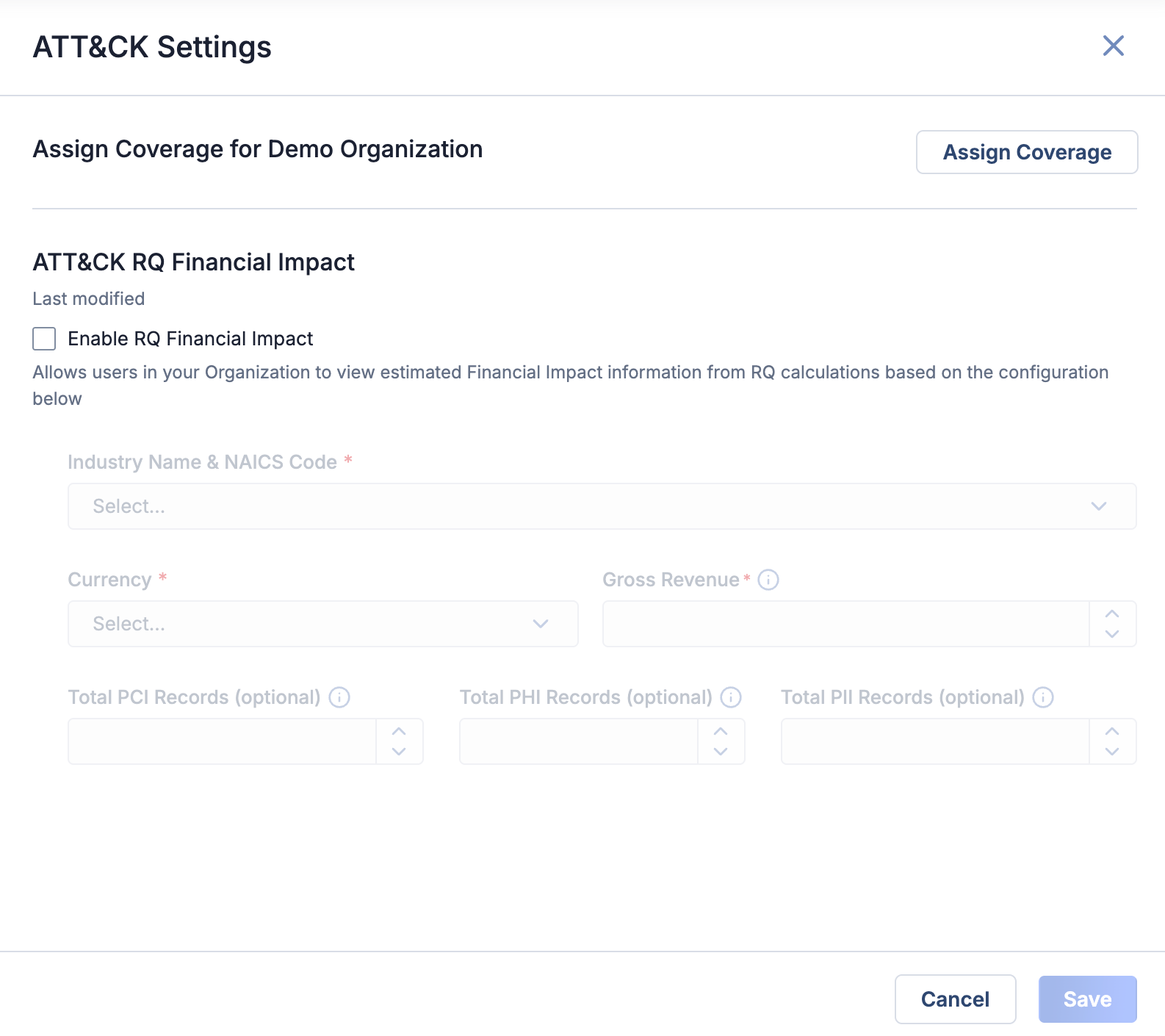
- Enable RQ Financial Impact: Select this checkbox to turn on ATT&CK RQ Financial Impact for your Organization.
- Industry Name & NAICS Code: Select the North American Industry Classification System (NAICS) name and code that most closely fits your company’s industry.
- Currency: Select the currency used to represent the Financial Impact data in the ATT&CK Visualizer.
- Gross Revenue: Enter your company’s gross annual revenue in the currency selected in the Currency dropdown.
- Total PCI Records: (Optional) Enter your company’s total number of payment card industry (PCI) records.
- Total PHI Records: (Optional) Enter your company’s total number of protected health information (PHI) records.
- Total PII Records: (Optional) Enter your company’s total number of personally identifiable information (PII) records.
- Click Save.
Financial Impact in ATT&CK Visualizer
When a standard ATT&CK view is open in the ATT&CK Visualizer, users in your Organization can use the Financial Impact overlay to view the relative amount of potential financial risk that each ATT&CK technique poses to your company. Users can also filter techniques by financial risk level, allowing them to highlight the techniques with low or high financial impact risk.
Financial Impact for Standard ATT&CK Views
Follow these steps to apply the Financial Impact overlay to a standard ATT&CK view in the ATT&CK Visualizer:
- From the Tools dropdown on the navigation bar, select ATT&CK.
- On the Standard Views tab, select an existing standard ATT&CK view or create a new one.
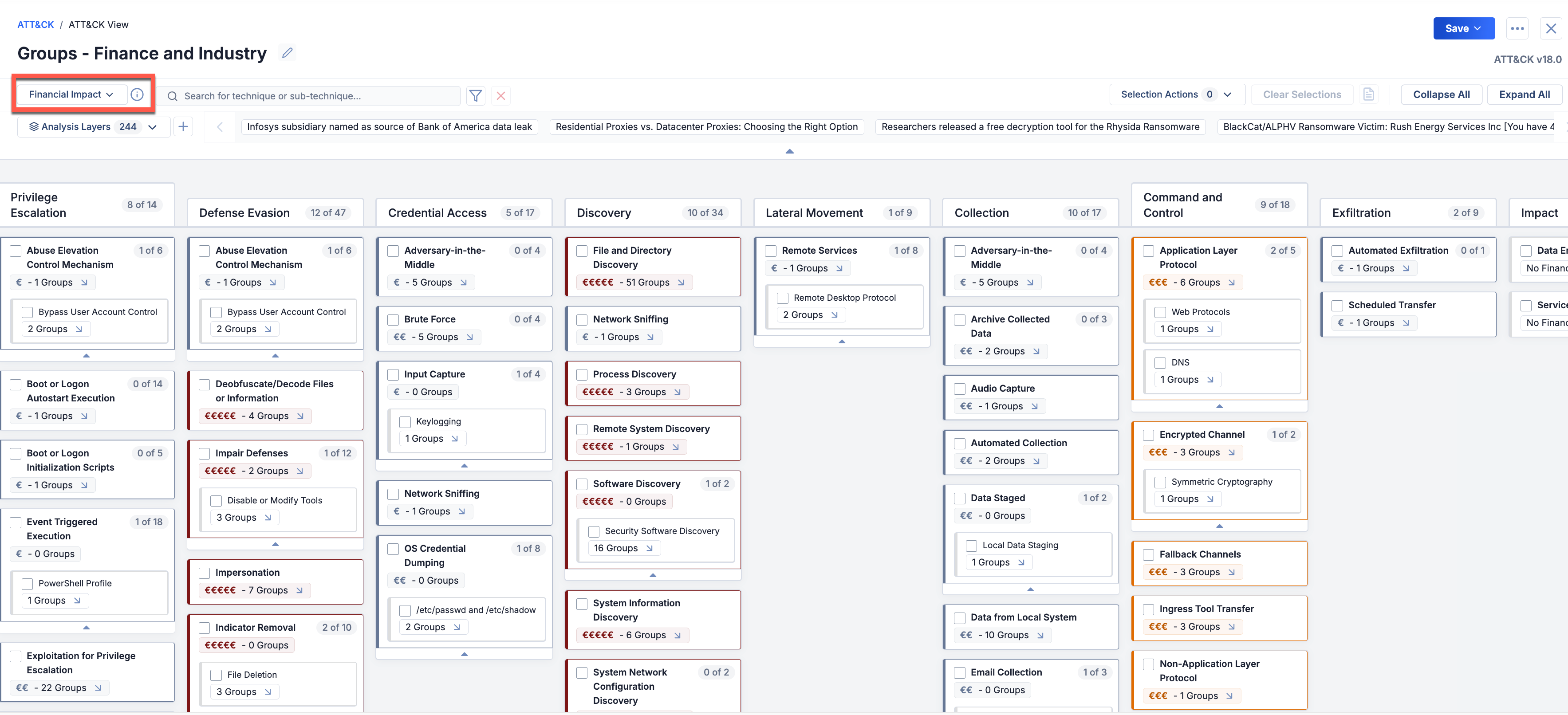
- From the overlay dropdown at the upper left of the ATT&CK Visualizer, select Financial Impact (Figure 2).
Understanding Financial Impact
The Financial Impact overlay uses color coding and currency symbols to represent the relative amount of potential financial risk that each technique poses to your company. Each technique is assigned one of the following financial risk levels:
- $ (Very Low Financial Risk)
- $$ (Low Financial Risk)
- $$$ (Medium Financial Risk)
- $$$$ (High Financial Risk)
- $$$$$ (Very High Financial Risk)
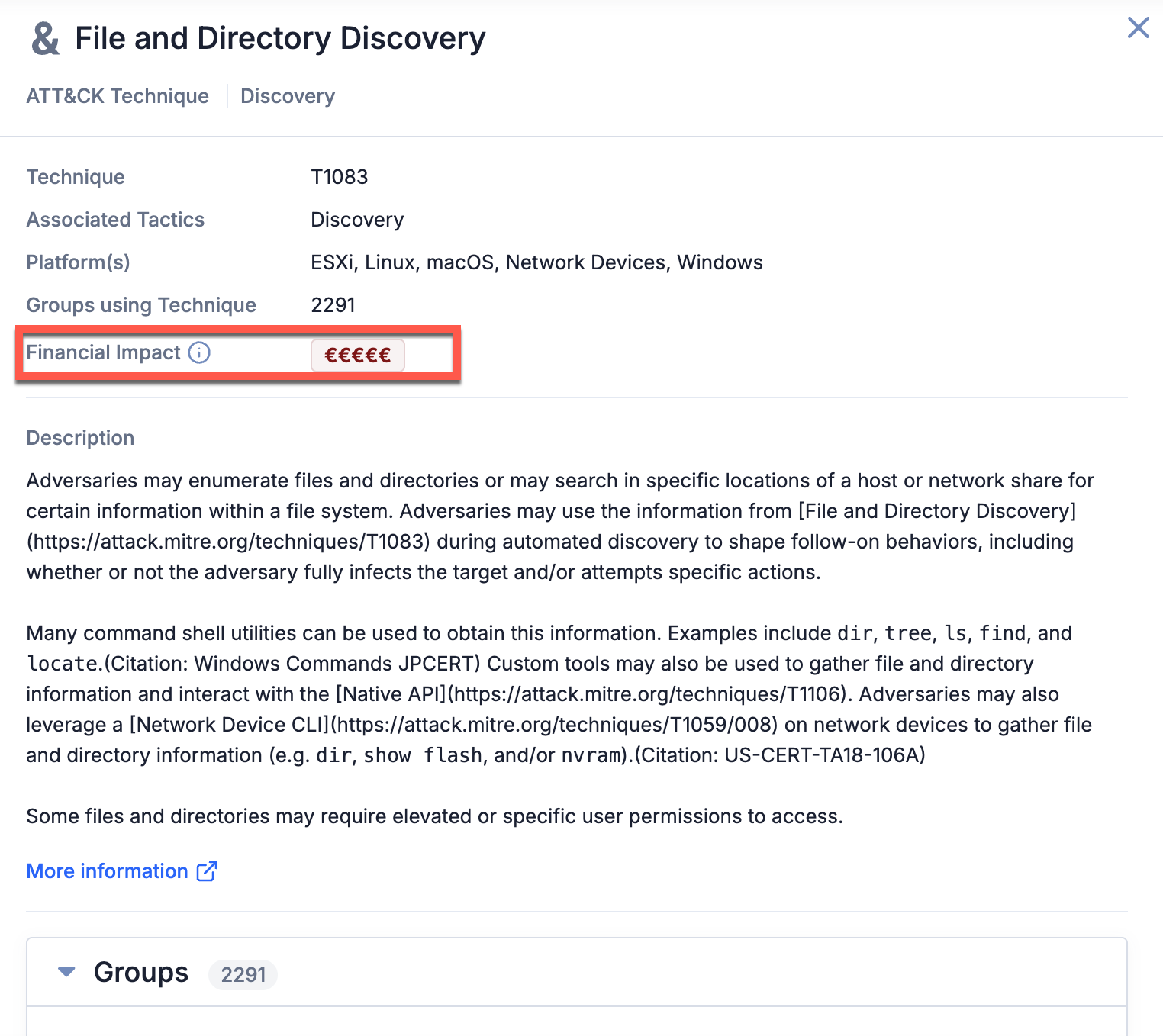
The financial risk level is displayed on each technique and the Selection Details drawer in the ATT&CK Visualizer (Figure 3).
- The currency symbol will match the one selected when ATT&CK RQ Financial Impact was configured for your Organization.
To filter techniques by financial risk level in the ATT&CK Visualizer, click the Filters menu next to the search bar, configure the Financial Risk filter, and click Apply.
Monitoring ATT&CK RQ Financial Impact in Dashboards
Using dashboards, you can track the number of techniques in each risk level with a Query card (Figure 4).
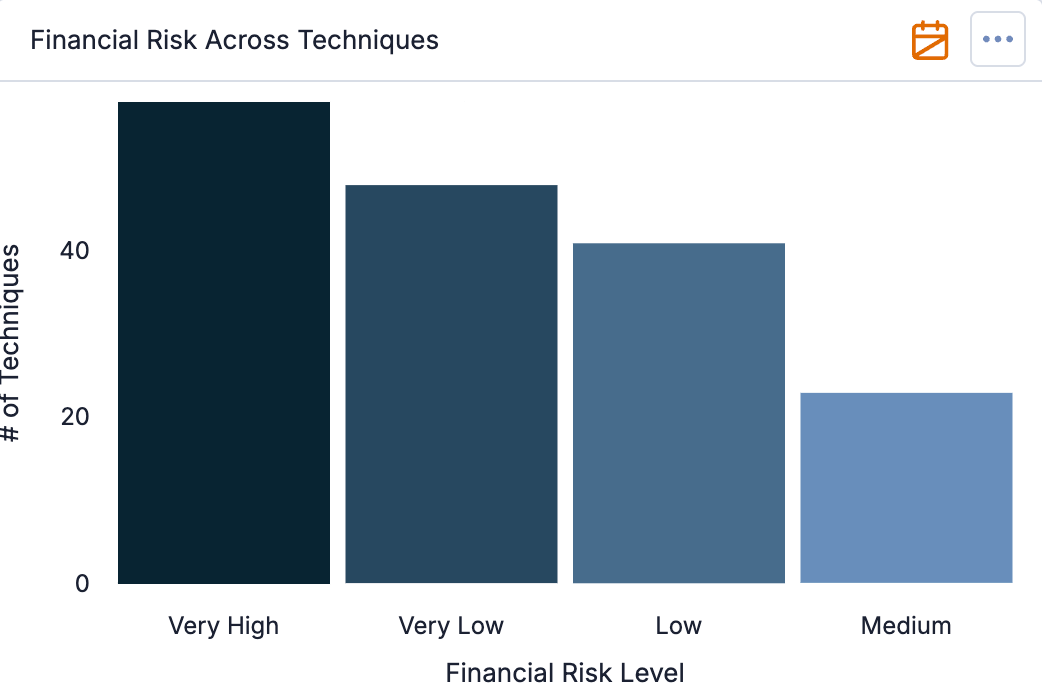
When creating the Query card, configure the Query By and Group By options as follows:
- Query By: Select Tags.
- Group By: Select Financial Impact.
ThreatConnect® is a registered trademark of ThreatConnect, Inc.
MITRE ATT&CK® and ATT&CK® are registered trademarks of The MITRE Corporation.
20151-09 v.01.A