Overview
The Dataminr Cyber Pulse Limited feed unlocks the power of real-time alerting in ThreatConnect® by delivering Dataminr Pulse Cyber Alerts with Urgent and Flash severity levels directly into ThreatConnect every five minutes, creating corresponding objects with select Dataminr Pulse metadata and AI-powered context:
- Alerts are created as Event Groups in ThreatConnect. Intel Agent and Live Brief AI content from Dataminr Pulse are included as AI insights for the Event Group in ThreatConnect, with Intel Agent and Live Brief Tags added to Event Groups that have those respective AI content types.
- Discovered Entities for Alerts are created as Indicators (Address, Host, or URL) or Groups (Intrusion Set, Malware, or Vulnerability) associated to the Event Group corresponding to the delivered Alert.
- Key Points for Alerts are created as Indicators (Address, ASN, File, Host, or URL) or Groups (Intrusion Set, Malware, or Vulnerability) associated to the Event Group corresponding to the delivered Alert.
The Cyber Alerts delivered to ThreatConnect are from the Threat Actor Alerts, Vulnerability Alerts, and Malware Alerts Alert Lists in Dataminr Pulse.
This free feed is available for all ThreatConnect customers on instances running ThreatConnect version 7.12.1 or later and does not require a Dataminr Pulse account. If you are a Dataminr Pulse customer, you should use the Dataminr Pulse Alerts Engine app instead, as the app ingests data from your curated Cyber Alert Lists.
The Dataminr Cyber Pulse Limited feed uses the same data mappings as the Dataminr Pulse Alerts Engine app.
Before You Start
User Roles
- To activate the Dataminr Cyber Pulse Limited feed, your user account must have a System role of Administrator.
- To add an Organization to the Dataminr Cyber Pulse Limited Source, your user account must have a System role of Administrator, Operations Administrator, or Accounts Administrator.
Prerequisites
- To be able to activate the Dataminr Pulse Cyber Limited feed, your ThreatConnect instance must be on version 7.12.1 or later.
- To be able to access data in the Dataminr Pulse Cyber Limited Source, your Organization must be a member of the Source. Your user account’s Community role determines the specific permissions you have in the Dataminr Pulse Cyber Limited Source.
Activate the Dataminr Cyber Pulse Limited Feed
Follow these steps to activate the Dataminr Cyber Pulse Limited feed on a ThreatConnect instance:
- From the Settings
 menu, select TC Exchange Settings.
 - Select the Feeds tab on the TC Exchange™ Settings screen.
- Locate the row for the Dataminr Cyber Pulse Limited feed.
- Turn on the toggle in the Active column.
After you activate the Dataminr Cyber Pulse Limited feed, a Source named Dataminr Cyber Pulse Limited is added to your ThreatConnect instance.
Add an Organization to the Dataminr Cyber Pulse Limited Source
Follow these steps to add an Organization as a member of the Dataminr Cyber Pulse Limited Source:
- From the Settingsmenu, select Account Settings.
- Select the Communities/Sources tab.
- Locate the row for the Dataminr Cyber Pulse Limited Source.
- Click Community Membership
 in the Options column.
 - Fill out the fields in the Community/Source Membership window (Figure 1) as follows:
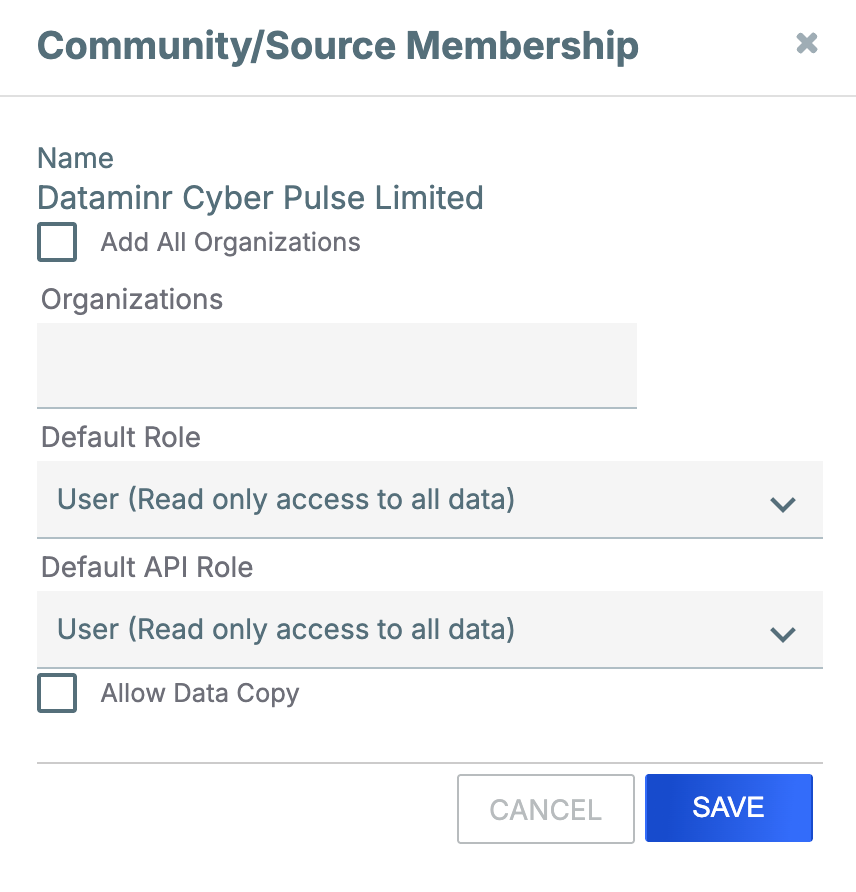
- Add All Organizations: Select this checkbox to add all Organizations on your ThreatConnect instance as members of the Dataminr Cyber Pulse Limited Source.
- Organizations: Enter and select Organizations to add them as members of the Dataminr Cyber Pulse Limited Source.NoteIf you selected the Add All Organizations checkbox, this field will not be available.
- Select the default Community role for all user accounts in the Organizations being added as members of the Dataminr Cyber Pulse Limited Source.ImportantThe recommended default Community role is User, which provides read-only access to all data in the Source. Note that this dropdown’s default selection is Banned. If you do not change the selection, then users in the Organizations being added as members of the Dataminr Cyber Pulse Limited Source will not be able to access any data in the Source.
- Select the default Community role for all API user accounts in the Organizations being added as members of the Dataminr Cyber Pulse Limited Source.ImportantThe recommended default Community role is User, which provides read-only access to all data in the Source. Note that this dropdown’s default selection is Banned. If you do not change the selection, then API users in the Organizations being added as members of the Dataminr Cyber Pulse Limited Source will not be able to access any data in the Source.
- Allow Data Copy: Select this checkbox to allow users in the Organizations being added as members of the Dataminr Cyber Pulse Limited Source to copy Groups, their associated Groups, and select metadata (Tags, attributes, and security labels) from the Dataminr Cyber Pulse Limited Source to their Organization or another Community or Source that their Organization is a member of.
- Click SAVE.
Frequently Asked Questions (FAQ)
What is the difference between the Dataminr Cyber Pulse Limited feed and the Dataminr Pulse Alerts Engine app?
The Dataminr Cyber Pulse Limited feed and the Dataminr Pulse Alerts Engine app deliver the same types of data into a designated Source on a ThreatConnect instance. The key differences are as follows:
- The Dataminr Cyber Pulse Limited feed is available and free for all ThreatConnect customers and does not require a Dataminr Pulse account, while the Dataminr Pulse Alerts Engine app requires a paid Dataminr Pulse account.
- The Dataminr Cyber Pulse Limited feed delivers data from three Dataminr Pulse Alert Lists (Threat Actor Alerts, Vulnerability Alerts, and Malware Alerts), while the Dataminr Pulse Alerts Engine app ingests data from your curated Dataminr Pulse Alert Lists.ImportantTo receive customized Alerts and metadata from Dataminr Pulse, please request a demo about Dataminr Pulse for Cyber Risk.
- The Dataminr Cyber Pulse Limited feed is configured as a free feed through TC Exchange, while the Dataminr Pulse Alerts Engine app is a feed API service app. The end result—data delivered to a Source in ThreatConnect—is the same.
Can I use the Dataminr Cyber Pulse Limited feed on a ThreatConnect instance running a version earlier than 7.12.1?
The Dataminr Cyber Pulse Limited feed can be turned on for ThreatConnect instances running versions earlier than 7.12.1. However, certain context-enriching elements captured in attributes will be limited or unavailable. In addition, AI insights (i.e., the Intel Agent and Live Brief summaries) for Event Groups delivered by the Dataminr Cyber Pulse Limited feed may be missing or not populated correctly in the ThreatConnect UI and in ThreatConnect API responses on instances running versions earlier than 7.11.2-M1218R.
When does the Dataminr Cyber Pulse Limited feed start delivering data to ThreatConnect?
The Dataminr Cyber Pulse Limited feed starts delivering data to ThreatConnect once the feed is turned on, with a “lookback window” of 24 hours. This means that the Dataminr Cyber Pulse Limited Source will include Events and related data for Alerts created up to 24 hours before the time the feed is turned on. If the feed is turned off and then turned back on at a later time, the feed will include Alerts created up to 24 hours before the time the feed is turned back on, but will not include Alerts created between the time the feed was turned off and 24 hours before it was turned back on.
Why did some of the information in an object in the Dataminr Cyber Pulse Limited Source change from when I last looked at it?
The Dataminr Cyber Pulse Limited feed fetches updates for each object it creates in ThreatConnect twice:
- 30 minutes after creation
- 24 hours after creation
Updates may include additions or changes to AI insights (Event Groups only), associations, attributes, and other information in an object. On ThreatConnect instances running version 7.12.2 or later, you can refer to an object’s Last Modified field to determine when the object was last modified. This field is updated when the Dataminr Cyber Pulse Limited feed fetches these two scheduled updates, as well as when other changes are made to the object.
How can I filter my ThreatConnect data to show only Alerts from select Alert Lists from Dataminr Pulse?
Use a ThreatConnect Query Language (TQL) query to filter ingested Dataminr Pulse Alerts by Alert List (Threat Actor Alerts, Vulnerability Alerts, and Malware Alerts) . For example, the following query returns only Alerts that belong to the Vulnerability Alerts Alert List (that is, the query returns only Event Groups that have an Alert List attribute with a value of Vulnerability Alerts):
typeName in ("Event") and attributeAlert_List in ("Vulnerability Alerts")- Select only the Dataminr Cyber Pulse Limited Source from the owners dropdown on the Search: Groups screen or in My Intel Sources on the Legacy Browse screen.
- Add the following to the TQL query:
and (ownerName in ("Dataminr Cyber Pulse Limited"))
How can I filter my ThreatConnect data to show only Alerts with a particular priority from Dataminr Pulse?
Use a TQL query to filter ingested Dataminr Pulse Alerts by priority. For example, the following query returns only Alerts whose priority is Flash (that is, the query returns only Event Groups that have a Priority attribute with a value of Flash):
typeName in ("Event") and attributePriority in ("Flash")- Select only the Dataminr Cyber Pulse Limited Source from the owners dropdown on the Search: Groups screen or in My Intel Sources on the Legacy Browse screen.
- Add the following to the TQL query:
and (ownerName in ("Dataminr Cyber Pulse Limited"))
How can I filter my ThreatConnect data to show only Alerts with AI content from Dataminr Pulse?
Use a TQL query to filter ingested Dataminr Pulse Alerts for Alerts that have AI content. For example, the following query returns only Alerts that have Intel Agent or Live Brief AI content (that is, the query returns only Event Groups that have a Tag with a value of Intel Agent or Live Brief):
typeName in ("Event") and tag in ("Intel Agent", "Live Brief")Similarly, the following query returns only Alerts with AI content provided by Dataminr and containing the text Microsoft Server Message Block (that is, the query returns only Event Groups which have AI insights that are provided by Dataminr and that contain the text Microsoft Server Message Block):
typeName in ("Event") and aiProvider="Dataminr" and insights contains "microsoft server message block"- Select only the Dataminr Cyber Pulse Limited Source from the owners dropdown on the Search: Groups screen or in My Intel Sources on the Legacy Browse screen.
- Add the following to the TQL query:
and (ownerName in ("Dataminr Cyber Pulse Limited"))
ThreatConnect® is a registered trademark, and TC Exchange™ is a trademark, of ThreatConnect, Inc.
20182-01 v.03.A