Overview
This article is a user guide for the Dataminr CTTI for Splunk app, which integrates Dataminr Client Tailored Threat Intelligence (CTTI) with Splunk Enterprise, Splunk Cloud and Splunk Enterprise Security.
CTTI is Dataminr's single-tenant threat intelligence product. Your CTTI tenant matches alerts against the saved searches your team has set up, so the feed is already scoped to your organisation, your suppliers and your tech stack. This app brings that matched feed into Splunk, where it can be searched alongside your own telemetry, shown on dashboards built for the SOC, and, if you run Enterprise Security, turned into notables, risk scores and threat-intel matches.
The app collects data from the CTTI Public API v1 (/api/public/v1) using three modular inputs:
- Alert Backfill runs a one-time pull of historical alerts (
POST /alerts/search). - Alert Stream continuously follows new and updated matched alerts (
GET /alerts/stream). - Entities Stream continuously follows changes to cyber entities (
GET /entities/stream).
Each CTTI object type is written to its own Splunk sourcetype:
- CTTI Alert becomes
dataminr:ctti:alert - Vulnerability becomes
dataminr:ctti:vulnerability - Malware becomes
dataminr:ctti:malware - Threat Actor becomes
dataminr:ctti:threat_actor - IP Address becomes
dataminr:ctti:ip - URL becomes
dataminr:ctti:url - Hash Value becomes
dataminr:ctti:hash - AS Org becomes
dataminr:ctti:asorg - Any other entity type becomes
dataminr:ctti:entity(fallback)
Cyber entities nested on an alert are written out as standalone entity events as well, so you can search and correlate them on their own without unpacking the alert.
For Splunk Enterprise Security customers, the app ships 7 correlation searches with Risk-Based Alerting scores, 4 threat-intelligence population searches for the ES threat-intel collections, and an adaptive response action that enriches a notable with live CTTI real-time intelligence. All ES content ships disabled.
Dependencies
Splunk Dependencies
| Component | Requirement |
|---|---|
| Splunk Enterprise | 10.4.x, 10.2.x, 10.0.x, 9.4.x |
| Splunk Cloud | Classic and Victoria |
| Deployment types | Standalone, distributed, search head cluster |
| Python | Python 3 (inputs and alert action declare python.required = 3.13) |
| KV Store | Must be enabled on the instance running the inputs. Collection checkpoints are stored there. |
| Splunk Common Information Model (CIM) | Supported CIM 5.x to 8.x. Required to map alert and vulnerability events to CIM data models |
| Splunk Enterprise Security | Optional. Needed only for the content in Enterprise Security Integration. |
Dataminr CTTI Dependencies
- A Dataminr CTTI tenant, with its Tenant URL (for example
https://api.yourtenant.dataminr.com). - A CTTI API Key. To create one, sign in to CTTI as an admin and go to /admin/server-configuration/api-keys. The key is shown only once, so copy it straight away.
- Saved searches enabled for the Public API alerts stream. On the same API keys screen, enable each saved search you want the integration to follow on the "Public API alerts stream" card. A saved search that is not stream-enabled will never produce alerts, and this is the most common reason for an empty feed.
- A service account to own the key. API keys are scoped to the user who creates them, and that user's saved searches are the ones returned. If that person leaves and is deprovisioned, the integration stops working.
A saved search that is not stream-enabled will never produce alerts, and this is the most common reason for an empty feed.
Application Setup and Configuration
The app installs on Splunk like any other add-on. You configure a CTTI account once, then create one or more data inputs that use it. Searches, dashboards, and ES content all run on the search head and read whichever index the inputs write to.
Install the Dataminr CTTI App
- Log in to Splunk Web and download the app
- Go to Apps > Manage Apps.
- Click Install app from file.
- Click Choose file and select the Dataminr CTTI package (
.splor.tgz). - Click Upload.
- Restart Splunk if prompted.
The app works without a restart, but app icons only show up after Splunk has been restarted once following installation.
Deployment topology
| Deployment | Where to install | Where to configure |
|---|---|---|
| Standalone | Single instance | Everything on that instance |
| Distributed | Search Head and Heavy Forwarder | Account, Proxy, Logging and Inputs on the Heavy Forwarder. Additional Settings on the Search Head. Make sure the input index exists and is searchable from the Search Head. |
| Search Head Cluster | All members, via the deployer | Configure on one search head only. Account and settings replicate across the cluster. |
| Splunk Cloud | Search Head, plus an IDM or on-prem Heavy Forwarder for inputs | Inputs on the IDM or Heavy Forwarder. Splunk Support can help provision the IDM. |
Configure the Dataminr CTTI App
As a Splunk admin, go to Dataminr CTTI > Configuration. There are four tabs.
Account
Enter Account Name, CTTI Tenant URL and API Key, then click Add.
The API Key is checked against the tenant when you save (GET {Tenant URL}/api/public/v1/alerts/filters with Authorization: Bearer <API Key>), so a wrong URL or key is caught at save time rather than at collection time. The key is masked and stored encrypted, and you have to re-enter it if you edit the account.
| Field | Type | Required | Description | Default |
|---|---|---|---|---|
| Account Name | Text | Yes | Unique name. Must start with a letter and contain only letters, numbers and underscores. | None |
| CTTI Tenant URL | Text | Yes | Tenant API URL. Must start with https://. |
None |
| API Key | Password | Yes | CTTI API Key. | None |
Proxy
Fill this in only if the instance needs a proxy for outbound HTTPS.
| Field | Type | Description | Default |
|---|---|---|---|
| Enable | Checkbox | Turns on proxy support. | Unchecked |
| Proxy Type | Dropdown | Proxy type. http is the only option. |
http |
| Host | Text | Proxy hostname or IP, without a scheme. | None |
| Port | Text | Proxy port, 1 to 65535. | None |
| Username | Text | Optional. If set, Password must also be set. | None |
| Password | Password | Optional. If set, Username must also be set. | None |
Logging
| Field | Type | Description | Default |
|---|---|---|---|
| Log Level | Dropdown | Log level for every input and script in the app. Options are DEBUG, INFO, WARNING, ERROR and CRITICAL. | INFO |
Additional Settings
Set these on the Search Head.
| Field | Type | Description | Default |
|---|---|---|---|
| CTTI Index | Multiselect | The index or indexes that hold CTTI data. Saving this rewrites the dataminr_ctti_index macro used by every CTTI search. |
dataminr_ctti |
| Enable Correlation Searches | Checkbox | Enables all 7 ES correlation searches and all 4 threat-intelligence population searches. The save is rejected if Enterprise Security is not installed on this instance. Unchecking disables all 11 again. | Unchecked |
Configure Data Inputs
Go to Dataminr CTTI > Inputs, click Create New Input and pick the input type.
For a new deployment, run the Alert Backfill first so you have history, then create the Alert Stream. The stream is forward-only. Its first call only sets a starting point and returns no alerts, so anything older than the moment the stream starts has to come from the backfill.
Alert Backfill
Pulls past alerts once, either for a time window or for a single saved search. It saves its position after each page, so an interrupted run carries on where it stopped. The input disables itself when the backfill is complete.
| Field | Type | Required | Description | Default |
|---|---|---|---|---|
| Name | Text | Yes | Unique input name. | None |
| Dataminr CTTI Account | Dropdown | Yes | The account to collect with. | None |
| Interval | Text | Yes | Run interval in seconds, 60 to 86400. | 3600 |
| Index | Dropdown | Yes | Destination index. | dataminr_ctti |
| Backfill Type | Dropdown | Yes | Using Backfill Window, or Using Saved Search ID. | Using Backfill Window |
| Backfill Window | Dropdown | When Backfill Type is Backfill Window | Last 1 hour, Last 24 hours, Last 7 days, Last 14 days, Last 30 days, or Absolute Date. Limited by your tenant's retention. | Last 7 days |
| Backfill Date | Text | When Backfill Window is Absolute Date | UTC start time in ISO 8601, for example 2026-06-01T00:00:00.000Z. |
None |
| Saved Search ID | Dropdown | When Backfill Type is Saved Search ID | A single CTTI saved search, selected by name. The list fills in once an account is selected. | None |
| Page Limit | Text | No | Alerts per API call, 1 to 1000. | 500 |
| Force Full Backfill | Checkbox | No | Ignores saved progress on the next run and collects the whole window again. | Unchecked |
Alert Stream
Polls continuously for new and updated alerts, carrying on from the last alert collected.
| Field | Type | Required | Description | Default |
|---|---|---|---|---|
| Name | Text | Yes | Unique input name. | None |
| Dataminr CTTI Account | Dropdown | Yes | The account to collect with. | None |
| Interval | Text | Yes | Poll interval in seconds, 60 to 3600. | 300 |
| Index | Dropdown | Yes | Destination index. | dataminr_ctti |
| Alert Types | Dropdown | Yes | New Matched Alerts only, or Both - New & Updated Matched Alerts. | Both - New & Updated |
| Saved Search IDs | Multiselect | No | Limits the stream to specific saved searches. Leave it empty to follow every stream-enabled saved search. | None |
| Page Limit | Text | No | Alerts per API call, 1 to 100. | 100 |
Entities Stream
Polls continuously for changes to cyber entities and writes each one to the sourcetype for its type.
| Field | Type | Required | Description | Default |
|---|---|---|---|---|
| Name | Text | Yes | Unique input name. | None |
| Dataminr CTTI Account | Dropdown | Yes | The account to collect with. | None |
| Interval | Text | Yes | Poll interval in seconds, 300 to 3600. | 900 |
| Index | Dropdown | Yes | Destination index. | dataminr_ctti |
| Entity Types | Multiselect | Yes | Vulnerability, Malware, Threat Actor, IP Address, URL, Hash Value, AS Org. | Vulnerability, Malware, Threat Actor, IP Address |
| Exclude Fields | Text | No | Comma-separated entity fields to drop. Use this to cut indexed volume and licence cost. | None |
| Page Limit | Text | No | Entities per API call, 1 to 100. | 100 |
Index, Macros, Lookups and KV Store
Index. The package creates dataminr_ctti, and all three inputs use it unless you choose another index.
Macros (Settings > Advanced Search > Search Macros):
| Macro | Purpose |
|---|---|
dataminr_ctti_index |
The index or indexes searched by every CTTI dashboard and search. Default index IN ("dataminr_ctti"). Updated automatically from Additional Settings. |
dataminr_ctti_summariesonly |
Used by every tstats query against the DataminrCTTI data model. Ships as summariesonly=true. See Data Model. |
dataminr_ctti_critical_infra_categories, dataminr_ctti_industry_threats_categories, dataminr_ctti_threat_actors_categories, dataminr_ctti_policy_and_legal_categories, dataminr_ctti_outages_and_service_disruptions_categories |
Topic lists behind individual Digital Risk and Third Party Risk panels. Edit one to change what that panel covers. |
dataminr_ctti_attack_vectors_topics, dataminr_ctti_data_security_topics, dataminr_ctti_vulnerabilities_topics |
Topics treated as cyber attacks, data breaches and vulnerabilities on the Cyber Threat Overview and Vulnerability Intel dashboards. |
dataminr_ctti_alert_overview_base, dataminr_ctti_risk_alerts_base, dataminr_ctti_vuln_base, dataminr_ctti_malware_base, dataminr_ctti_actor_base |
Shared base searches that deduplicate to one row per alertId, CVE, malware or threat actor id. |
Lookups:
ctti_severity_map.csvmaps the CTTI severity level to a label and notable severity (see Alert).country_code_mapping.csvmaps 2-letter country codes to country names for the flag rendering on the dashboards.
KV Store collections:
dataminr_ctti_splunk_siem_checkpointerstores collection progress for each input. It is created on the first run.dataminr_ctti_seen_iocsis the dedup store for the CTTI - New IOCs search.dataminr_ctti_saved_alertsbacks the Monitored Alerts dashboard. It is shared by every user of the app.
Dataminr CTTI UI
All UI is inside the Splunk app. Open Apps > Dataminr CTTI. Setup pages live under Setup (Inputs, Configuration). Dashboards are under Overview Dashboards or directly on the app bar. Every dashboard has a time range picker.
Wherever a panel lists alerts, clicking a headline opens the full alert. From there you can save it to Monitored Alerts or open it in CTTI.
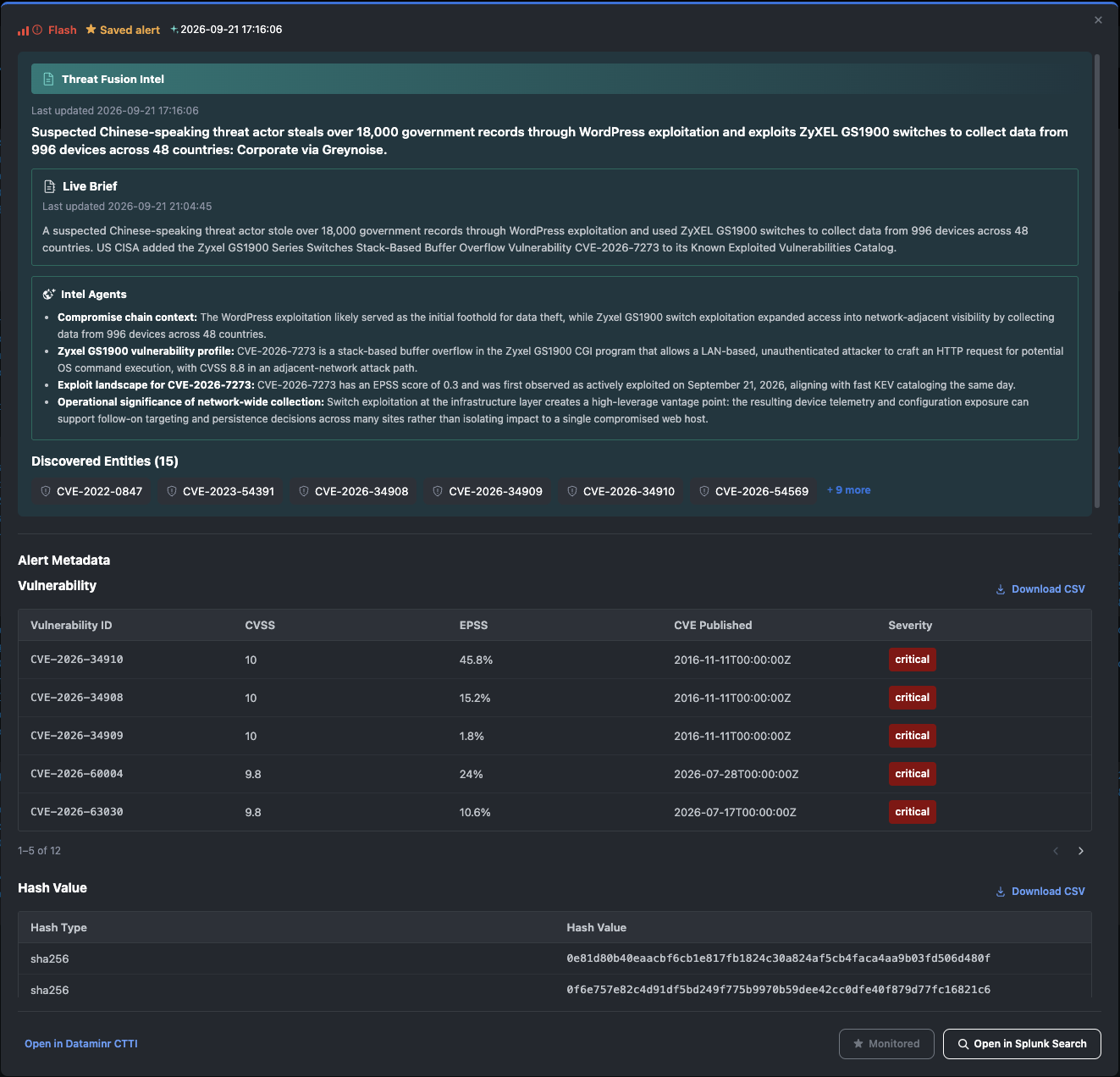
Full Alert Dialogue
Dataminr Alert Overview
Overview Dashboards > Dataminr Alert Overview. The triage view for the CTTI alert feed, and the app's default landing page.
Panels: Total Alerts, Flash / Critical / High Severity Alerts, Distinct Matched Saved Searches, Distinct Sources, Alert Volume Over Time by Severity, Occurrence by Severity, Occurrence by Company, Top 10 Classification Topics, Top 10 Matched Saved Searches, Last 250 Alerts.
| Filter | Type | Description |
|---|---|---|
| Select Time Range | Time | Time range for the dashboard. |
| Saved Searches | Multiselect | Matched CTTI saved searches. |
| Severity | Multiselect | Alert severity. |
| Topics | Multiselect | Classification topics. |
| Sources | Multiselect | Alert source (coreAlert.source.name). |
| Company Name | Multiselect | Classified companies. |
Cyber Threat Overview
Overview Dashboards > Cyber Threat Overview. Cyber alerts grouped into threat actor activity, cyber attacks, data breaches and vulnerabilities.
Panels: count, trend line and day-on-day change for each of the four categories (a rise shows as adverse), Trending Topics for each category, and a recent-alerts table for each category.
| Filter | Type | Description |
|---|---|---|
| Select Time Range | Time | Time range for the dashboard. |
| Saved Searches | Multiselect | Matched CTTI saved searches. |
| Threat Actor | Multiselect | Threat actors. |
| Threat Actor Country | Multiselect | Threat actor country of origin. |
| Topics | Multiselect | Classification topics. |
IOC Overview
Overview Dashboards > IOC Overview. Recent IPs, URLs, hashes and AS orgs, with drilldown and geo and ASN breakdowns.
Panels: Unique IPs, Unique URLs, Unique Hashes and Unique ASN/Orgs (each with a trend and day-on-day change), Top 10 IP, File Hash, URL and ASN/Org IOCs (click to drill down), Latest IP, URL and File Hash Indicators, Hash Type Distribution, Top 10 ASN Organizations (IP Feed), Top 10 Countries (IP Feed), ASN Reference Catalog.
| Filter | Type | Description |
|---|---|---|
| Select Time Range | Time | Time range for the dashboard. |
Malware Intelligence
Overview Dashboards > Malware Intelligence. Malware-related alerts and the indicators associated with them.
Panels: Malware by Attack Vector, Top Malware (in Alerts), Most Recent Malware Alerts, Top Vulnerabilities, IP Addresses and URLs Associated with Malware Alerts.
| Filter | Type | Description |
|---|---|---|
| Select Time Range | Time | Time range for the dashboard. |
| Saved Searches | Multiselect | Matched CTTI saved searches. |
| Malware | Multiselect | Malware families. |
| Attack Vector | Multiselect | Malware attack vector. |
| Threat Actor | Multiselect | Threat actors. |
| Threat Actor Country | Multiselect | Threat actor country of origin. |
| Topics | Multiselect | Classification topics. |
Triggered Alerts
Overview Dashboards > Triggered Alerts. Trigger history for every CTTI - * saved search and correlation search.
Panels: Total Triggered Alerts, Distinct Saved Searches Triggered, Most Recent Trigger, Triggered Alerts by Saved Search, Triggered Alerts by Severity, Recent Triggered Alerts.
| Filter | Type | Description |
|---|---|---|
| Select Time Range | Time | Time range for the dashboard. |
| Saved Searches | Multiselect | Splunk saved searches that triggered. |
| Severity | Multiselect | Triggered alert severity. |
Digital Risk
Dataminr CTTI > Digital Risk. Alerts about risk to your own organisation: exposures, impersonation, fraud, attacks, outages and threats to your sector.
Panels: Top Companies, Top 10 Threat Actors, then a recent-alerts table for each of the following: Data Exposures and Breaches, Deep and Dark Web Exposures, Doxxing and Leaked Credentials, Domain Impersonations, Account Impersonations, Outages and Service Disruptions, Fraud, Network Exposures, Phishing, Malware, DDoS Attacks, Defacements, Policy and Legal Actions, Threat Actors, Industry Threats, Critical Infrastructure.
| Filter | Type | Description |
|---|---|---|
| Select Time Range | Time | Time range for the dashboard. |
| Saved Searches | Multiselect | Matched CTTI saved searches. |
| Severity | Multiselect | Alert severity. |
| Company Name | Multiselect | Classified companies. |
| Threat Actor | Multiselect | Threat actors. |
| Threat Actor Country | Multiselect | Threat actor country of origin. |
| Sources | Multiselect | Alert source. |
| Topics | Multiselect | Classification topics. |
Third Party Risk
Dataminr CTTI > Third Party Risk. The same layout as Digital Risk, aimed at suppliers and third parties tracked through your CTTI saved searches.
Panels: Top Companies, Top 10 Threat Actors, then a recent-alerts table for each of: Data Exposures and Breaches, Doxxing and Leaked Credentials, Domain Impersonations, Outages and Service Disruptions.
The filters are the same as Digital Risk.
Vulnerability Intel
Dataminr CTTI > Vulnerability Intel. CVE tracking, prioritised by exploitability, EPSS and KEV status.
Panels: Unique CVEs Tracked, Actively Exploited, Currently Exploitable, Avg EPSS Score, Number of CVEs by Vendor, CVEs by CVE Severity, Exploitable CVEs by CVE Severity, Most Recent Trending Vulnerabilities, Most Recent Emerging Vulnerabilities, Top 10 Vendors/Products Affected, CVEs Most Likely to be Exploited (EPSS), Recently Added to KEV (Top 20), Top Vulnerable Software, Most Recent Vulnerability Alerts, Top CVEs (click a row to fill the next panel), Alerts Associated with the selected CVE.
| Filter | Type | Description |
|---|---|---|
| Select Time Range | Time | Time range for the dashboard. |
| Saved Searches | Multiselect | Matched CTTI saved searches. |
| Subtopics | Multiselect | Vulnerability subtopics. |
| CVE Severity | Multiselect | CVSS severity band. |
| Vendor | Multiselect | Affected vendor. |
| Product | Multiselect | Affected product. |
| Version | Multiselect | Affected product version. |
| Exploitable | Dropdown | All, Yes, No. |
| Actively Exploited | Dropdown | Known exploited (KEV). All, Yes, No. |
| Include / Exclude subtopics | Checkbox | Exclude Network Scans, Exclude Network Exposures. |
Monitored Alerts
Dataminr CTTI > Monitored Alerts. Alerts analysts have saved for follow-up. The list is held in the dataminr_ctti_saved_alerts KV Store collection and is shared by all users.
Panels: Monitored Alerts, a table of saved alerts showing time, severity, headline and source. Click a headline to open the alert or remove it from the list.
Data Mappings
Each sourcetype is JSON (KV_MODE = json), so every field from the API response is extractable by its original CTTI name. CIM fields are added on top as aliases and calculated fields, and no original field is renamed. Entity event time is the entity's updatedAt. Alert event time comes from the stream entry's updatedAt (Alert Stream) or the alert's alertTimestamp (Alert Backfill).
CIM tagging:
| CIM data model | Sourcetype | Event type | Tags |
|---|---|---|---|
| Alerts | dataminr:ctti:alert |
dataminr_ctti_alert |
alert |
| Vulnerabilities | dataminr:ctti:vulnerability |
dataminr_ctti_vulnerability |
vulnerability, report |
Alert
CTTI alerts map to dataminr:ctti:alert, CIM Alerts.
| CTTI field | CIM field | Notes |
|---|---|---|
alertId |
id |
Unique alert key. Dashboards and searches dedup on it. |
coreAlert.headline |
description, signature |
|
coreAlert.severity.level |
severity_id |
1 Low, 2 Medium, 3 High, 4 Critical, 5 Flash |
coreAlert.severity.label |
severity |
Lowercased. Flash maps to critical. |
| (constant) | type = alert, app = Dataminr CTTI |
|
coreAlert.subHeadline.content{} |
Used as notable description | |
coreAlert.source.name |
Alert source | |
classification.topics{}.name |
Topics, used by dashboards and correlation searches | |
classification.companies{}.name |
Companies referenced | |
matchedSavedSearches{}.id, .name |
CTTI saved searches that matched | |
realTimeIntelligence.* |
Agentic context and predictive intelligence, when present | |
cyberEntities.<type>{} |
Nested entities, also written out to the entity sourcetypes | |
schemaVersion |
Must be 1.0. Anything else raises error_type=schema_version_mismatch. |
Severity mapping (ctti_severity_map.csv, editable):
severity_level |
ctti_severity_label |
notable_severity |
|---|---|---|
| 5 | Flash | critical |
| 4 | Critical | critical |
| 3 | High | high |
| 2 | Medium | medium |
| 1 | Low | low |
Vulnerability
Maps to dataminr:ctti:vulnerability, CIM Vulnerabilities.
| CTTI field | CIM field | Notes |
|---|---|---|
id |
cve |
The CVE ID, for example CVE-2026-50522 |
description |
signature, description |
|
cvss or cvssScore |
cvss |
|
(derived from cvss) |
severity |
9 and above critical, 7 high, 4 medium, 0.1 low, 0 none |
| (constant) | vendor_product = Dataminr CTTI |
|
epssScore, exploitable, knownExploitedDate |
Exploit and KEV indicators | |
products{}.productVendor, .productName, .productVersion |
products.zipped |
Affected products |
cwes{}.id, .description |
cwes.zipped |
|
dataSourceReferences{}.reference |
reference_links |
Malware
Maps to dataminr:ctti:malware.
| CTTI field | Splunk field | Notes |
|---|---|---|
id |
Normalised slug, for example xtremerat |
|
name |
Display name | |
attackVector |
Optional | |
description |
description |
|
yaraRules{} |
yaraRules |
|
dataSourceReferences{}.reference |
reference_links |
Threat Actor
Maps to dataminr:ctti:threat_actor.
| CTTI field | Splunk field | Notes |
|---|---|---|
id, name |
||
aliases{} |
aliases |
|
ttps{}.tacticName, .techniqueId, .techniqueName, .description |
ttp_zipped |
MITRE ATT&CK techniques |
description |
description |
|
dataSourceReferences{}.reference |
reference_links |
IP Address
Maps to dataminr:ctti:ip. Key fields are id and ip (the same value), plus CAL{}.classifiers{} (CTTI asset classification). Feeds ES ip_intel.
URL
Maps to dataminr:ctti:url. Key fields are id and url (the same value), cal{}.status, cal{}.classifiers{}, domainRegistration.* (WHOIS), screenshotHref, and certificate.* when present. Feeds ES http_intel and certificate_intel.
Hash Value
Maps to dataminr:ctti:hash. Key fields are id, hashType and hashValue. id and hashValue are not always equal, so don't treat them as interchangeable. Feeds ES file_intel.
AS Org
Maps to dataminr:ctti:asorg. Key fields are id, asn (formatted like as25019) and asOrg (organisation name, lowercased).
Data Model: DataminrCTTI
The DataminrCTTI data model gives a flattened, tstats-friendly view, with one root dataset per sourcetype: Alert, ThreatActor, Malware, Vulnerability, IP, URL, Hash, ASOrg.
Acceleration is off by default (acceleration = false, acceleration.earliest_time = -1mon). Whether to turn it on is an operational decision. Size earliest_time against your real data volume and keep an eye on tsidx storage. The dataminr_ctti_summariesonly macro ships as summariesonly=true, which reads only from accelerated summaries. Until acceleration is on and the summary has built, set the macro to summariesonly=false so dashboards query raw events.
To enable acceleration:
- Go to Settings > Data models, select Dataminr CTTI and edit the acceleration settings, or set
acceleration = trueindatamodels.conf. - Once the summary has built and you've checked it, set
dataminr_ctti_summariesonlyback tosummariesonly=true.
Workflow/Use Cases
Alerting on core Splunk
These saved searches ship enabled and do not need Enterprise Security. You can disable any of them from Settings > Searches, reports, and alerts, filtered to the Dataminr CTTI app.
| Saved search | Trigger | Schedule |
|---|---|---|
| CTTI - Flash & Critical Alerts | Alert with severity level 4 or above | Every 15 min |
| CTTI - Exploitable CVEs | Vulnerability with exploitable=true or a knownExploitedDate |
Every 15 min |
| CTTI - New IOCs | IPs, URLs and hashes first seen in the last 24h, deduped via dataminr_ctti_seen_iocs |
Daily |
| CTTI - Ingestion Health | An enabled Alert Stream or Entities Stream has produced no data for more than 3x its interval | Every 15 min |
| CTTI - Schema Version Mismatch | Alert received with a missing or unexpected schemaVersion, which points to an upstream API change |
Every 15 min |
Enterprise Security Integration
This section needs Splunk Enterprise Security. All 11 searches below ship disabled. Turn them on with Enable Correlation Searches on the Additional Settings tab.
Correlation searches
Each one creates an ES notable and adds a Risk-Based Alerting score.
| Correlation search | Trigger | Schedule | Risk object / type / score |
|---|---|---|---|
| CTTI - Ransomware Activity Detected | Topic "Threat Actors - Ransomware" and severity High or above | Every 5 min | alertId / system / 60 |
| CTTI - Exploitable CVE Affecting Known Product | Vulnerability with exploitable=true or a knownExploitedDate |
Every 5 min | id / system / 60 |
| CTTI - Threat Actor Targeting Customer Sector | Topic in Data Exposure & Breaches, DDoS Attacks, Initial Access Threats, Threat Actors - APT, Hacktivists or Ransomware, and severity Critical or Flash | Every 5 min | alertId / other / 40 |
| CTTI - Credential or Data Leaks Referencing Customer | Topic in Data Exposure & Breaches, Leaked Credentials & Doxxing, or Cyber Anomalies - Deep & Dark Web Exposure, and severity High or above | Every 5 min | alertId / system / 60 |
| CTTI - Critical Alert on Monitored Asset | Any alert at Critical or Flash | Every 5 min | alertId / system / 60 |
| CTTI - Predictive Intel High Probability Next Action | Alert with a tactical predictive-intelligence report of probability High | Every 15 min | alertId / other / 60 |
| CTTI - Multi-Alert Event Escalation | A CTTI event (eventId) with 3 or more distinct alerts in 24 hours |
Daily at 00:00 | ctti_event_id / other / 60 |
Threat Intelligence population searches
These 4 searches copy CTTI indicators into ES's built-in threat-intel collections, so the stock ES threat-matching correlation searches (for example, Threat Activity Detected) can match CTTI indicators against your own telemetry. They don't create notables or risk scores themselves. All 4 run every 15 minutes over the last 15 minutes of data.
| Search | ES collection | Source |
|---|---|---|
| CTTI - Populate ip_intel Threat Intelligence | ip_intel |
dataminr:ctti:ip |
| CTTI - Populate http_intel Threat Intelligence | http_intel |
dataminr:ctti:url |
| CTTI - Populate file_intel Threat Intelligence | file_intel |
dataminr:ctti:hash |
| CTTI - Populate certificate_intel Threat Intelligence | certificate_intel |
dataminr:ctti:url with certificate data |
New rows are merged with what is already in the collection and deduplicated on threat_key (the CTTI entity id). Rows are not removed automatically when an indicator ages out of CTTI.
Adaptive response: Dataminr CTTI - Enrich with Real-Time Intelligence
Calls CTTI's real-time intelligence API (GET /api/public/v1/real-time-intelligence/{event_id}) for a notable's event and posts the result back to the notable as a comment, so the analyst sees current intelligence at triage time and not just what was known at ingest.
Run it from Incident Review > Response Actions, or attach it to any of the 7 correlation searches so it fires automatically whenever a notable is created.
| Field | Type | Required | Description |
|---|---|---|---|
| Dataminr CTTI Account | Dropdown | Yes | Configured CTTI account. |
| Event ID | Text | No | Leave blank to use the event ID from the notable. |
The comment will contain one of the following:
- Agentic Context, Predictive Intelligence, and Recommended Mitigations, when content exists.
- A "no intelligence available" message, on a 404 or an empty response.
- A failure message, if the API call could not complete.
Troubleshooting
General Checks
- Search the logs with
index=_internal source=*dataminr-ctti-splunk-siem*.log*. AddERRORto see only errors. - Each input writes its own log,
dataminr-ctti-splunk-siem_<input_name>.log, under$SPLUNK_HOME/var/log/splunk/. - Set Log Level to DEBUG on the Logging tab for more detail, and set it back to INFO when you're done.
- If app icons are missing, restart Splunk once after installation.
Configuration
- Account won't save. The key is checked against the tenant at save time. Check that the Tenant URL is right and reachable from this instance, that the key is valid, and that the proxy is set up if the instance needs one.
- Saved Search ID or Saved Search IDs dropdown is empty. Select an account first. Then check that the tenant has saved searches and that the user who owns the API key has access to them. See
dataminr-ctti-splunk-siem_search_ids.log.
Data Collection
- No data from any input. Check that the input is enabled, that KV Store is running on the instance with the input, and that the account, index and proxy settings are correct.
- Alert Stream returns nothing. Check in CTTI that the saved searches are enabled on the "Public API alerts stream" card. A saved search that isn't stream-enabled never produces alerts. If Saved Search IDs is set, check that those specific searches are stream-enabled, or leave it empty to follow them all. Also check the Alert Types setting.
- Alert Backfill collected nothing or stopped. It disables itself once the backfill is complete. To run it again, tick Force Full Backfill, save and re-enable the input.
- Entities Stream is falling behind. Entities change a lot. Lower the Interval, select fewer Entity Types, or use Exclude Fields to cut payload size.
- Data is collected but not searchable. Check that the input's index exists and your role can search it, and that
dataminr_ctti_indexpoints at the index you're actually using. - Collection stopped after a staff change. The API key may have been created by a user who has since been deprovisioned. Create a new key under a service account and update the account.
Dashboards
- Most panels are empty, but raw searches return data. Check
dataminr_ctti_summariesonly. With data model acceleration off, set it tosummariesonly=false(see Data Model). - Dataminr Alert Overview. Check that
dataminr_ctti_indexis set and thatdataminr:ctti:alertevents exist in the time range. Occurrence by Company and the Company Name filter stay empty if the alerts carry noclassification.companies{}.name. - Cyber Threat Overview. Check that the Entities Stream is enabled with Threat Actor selected and that
dataminr:ctti:threat_actorevents exist. - Malware Intelligence. Check that the Entities Stream is enabled with Malware selected and that
dataminr:ctti:malwareevents exist. - Vulnerability Intel. Check that the Entities Stream is enabled with Vulnerability selected and that
dataminr:ctti:vulnerabilityevents exist in the time range. - IOC Overview. Check that the Entities Stream has IP Address, URL, Hash Value and AS Org selected. URL, Hash Value and AS Org are off by default.
- Triggered Alerts. This dashboard reports on every
CTTI - *search. Check that at least one is enabled and has fired in the time range. History follows each search's own fired-alert retention. - Digital Risk or Third Party Risk. If one panel is empty and the others aren't, check the alert topics against the relevant
dataminr_ctti_*_categoriesmacro. If every panel is empty, checkdataminr_ctti_indexand thatdataminr:ctti:alertevents exist. - Monitored Alerts. An empty list means nothing has been saved yet, so save an alert from Alert Overview. If a saved alert is missing, its event has aged out of the index even though its ID is still in
dataminr_ctti_saved_alerts.
Enterprise Security Integration
- Additional Settings save fails with "Splunk Enterprise Security is not installed". Install ES on this instance first. All 11 searches stay disabled until then.
- Correlation searches are enabled but no notables appear. Check that the CTTI Index on Additional Settings matches the index the Alert Stream and Backfill inputs write to, and that there are alerts that meet the trigger conditions (most CTTI alerts are Low severity).
- Risk Analysis shows no risk events. Check that the correlation searches are enabled and have fired at least once, and that the dashboard's time range covers a period after they ran.
- Adaptive response fails or does nothing. The Dataminr CTTI Account parameter is required. Check
dataminr-ctti-splunk-siem_ctti_enrich_real_time_intelligence.logand the notable's Response Actions history.
Frequently Asked Questions (FAQ)
Why is my Alert Stream empty when I can see alerts in CTTI?
The stream only returns alerts for saved searches that are enabled for the Public API alerts stream, and only those owned by the user who created the API key. Turn on stream access for those saved searches in CTTI under /admin/server-configuration/api-keys.
Why didn't the Alert Stream pick up older alerts?
The stream is forward-only. On its first run, it sets a starting point and returns nothing. Use Alert Backfill to load history, ideally before you start the stream.
Why didn't an alert update come through in Splunk?
CTTI only streams updates for alerts raised in the last 7 days. Changes to older alerts are not delivered.
Can I run this without Enterprise Security?
Yes. Inputs, dashboards and the core saved searches all run on standard Splunk. ES content stays disabled and the Enable Correlation Searches setting can't be saved without ES.
Does the app write anything back to CTTI?
No. The CTTI Public API is read-only. The app only reads alerts, entities, saved searches and real-time intelligence.
How do I keep licence usage down?
Select only the Entity Types you need, use Exclude Fields on the Entities Stream, and choose specific Saved Search IDs on the Alert Stream rather than following every stream-enabled search.
Is the API key safe?
It is stored in Splunk's encrypted credential store, masked in the UI, never shown again after you save it, and sent only over HTTPS. Create it under a service account so it doesn't stop working when someone leaves.