Start with certificate and CA-chain checks when an SSL connection or Integration Store operation fails. Inspect the presented chain visually, or use the optional strict checks for a pass/fail result on trust and identity.
Applies To
Standard Polarity Server v5 Docker installations under /app, using container names polarity_web and polarity_platform. Confirm names, ports, available tools, and proxy settings against your installation. Run docker commands on the host using the normal Docker administration account.
Troubleshooting Flow
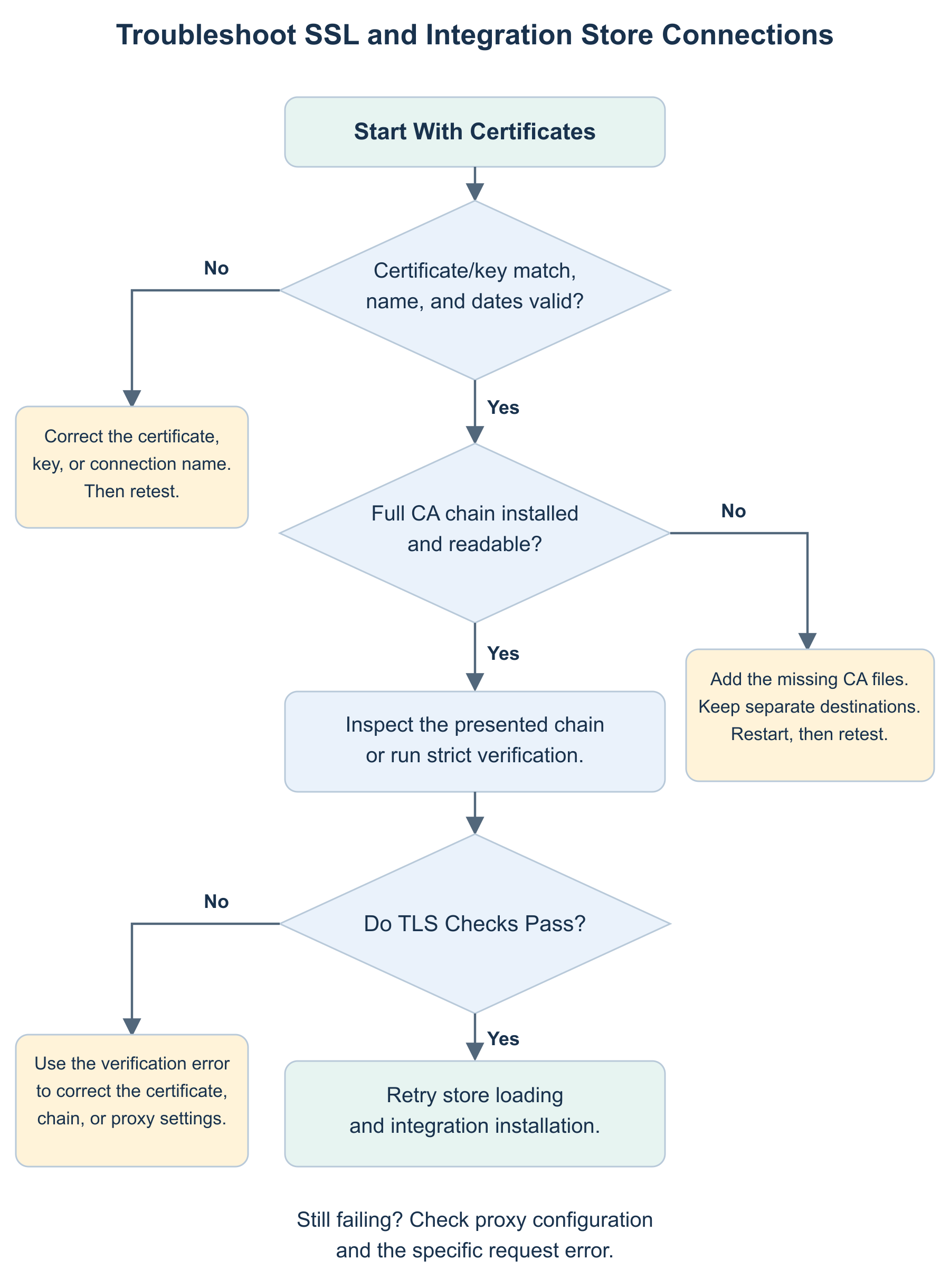
Open the troubleshooting flowchart at full size. The checks below provide the commands for each stage.
Match the Symptom to the Check
| Symptom | First Check | Next Action |
|---|---|---|
| Private key does not match certificate | Compare public components for the exact installed pair | Use the correct matching pair; do not regenerate unrelated keys |
| Browser or client reports a hostname mismatch | Compare the connection name with the certificate SANs | Obtain a certificate for the intended name or correct the configured endpoint |
| Certificate expired or not yet valid | Inspect certificate dates and system time | Correct time or install a currently valid certificate |
| Unable to get issuer or verify chain | Inspect sent intermediates and the connecting process's trust roots | Correct the served intermediate chain or add the applicable approved root |
| Web service does not start after replacement | Inspect startup errors, file paths, key passphrase, and access permissions | Correct the failed prerequisite or restore the previous pair |
| Integration Store fails to load | Check certificate validity, the full CA chain, and configured proxy access | Correct missing chain material or the observed proxy issue |
| Store loads but integration installation fails | Recheck that every CA certificate in the required chain is installed | Correct the chain first; if it is complete and valid, inspect the specific install error |
Check the Installed Certificate and Key
Use the preparation checks with the actual installed paths. Check both the web and platform certificate/key pair. A valid private key can still belong to the wrong certificate; a matching pair can still be expired, untrusted, or invalid for the requested name.
Do not paste private-key contents into tickets, chat, or diagnostic reports. Certificate subjects, issuers, validity dates, and fingerprints are usually enough to identify the public certificate under review.
Optional Strict Verification for Client Facing TLS
From the affected client network, replace polarity.example.test with the real server name. Use the applicable trust bundle in root-ca.pem.
openssl s_client -connect polarity.example.test:443 \
  -servername polarity.example.test \
  -verify_hostname polarity.example.test \
  -verify_return_error -CAfile root-ca.pem -showcerts </dev/null
-servername selects the intended TLS virtual host; -verify_hostname checks identity; -verify_return_error makes certificate verification failure fatal. -showcerts displays the certificates sent by the peer and does not establish a verified chain by itself. Require successful verification and exit status, then test the browser and Polarity Client. See the OpenSSL TLS client reference.
Visually Inspect Internal TLS From a Container
Use -showcerts to inspect the chain presented by each service. Run the following host-issued commands one at a time; each invokes OpenSSL inside the named container. Replace the SNI example with the configured service identity.
From the platform container to the web container's standard internal listener:
docker exec polarity_platform openssl s_client \
  -connect polarity_web:8443 -servername polarity.example.test \
  -showcerts </dev/null
From the web container to the platform's standard internal listener:
docker exec polarity_web openssl s_client \
  -connect polarity_platform:4001 -servername polarity.example.test \
  -showcerts </dev/null
The internal Docker service name need not be a SAN in the certificate. Choose the identity expected by the service's actual TLS configuration rather than treating the Docker DNS name as automatically valid. If openssl is absent from an image, use an approved diagnostic method for that environment rather than installing packages into a running production container.
Integration Store Connection Failures
If the store fails to load, first verify the server certificates and required CA files using Configure CA Certificate Chains. Check the configured global proxy when the environment requires one.
Inspect the chain presented to the web container by the Integration Store.
docker exec polarity_web openssl s_client \
  -connect integration-store.polarity.io:443 \
  -servername integration-store.polarity.io -showcerts </dev/null
Then test the documented store request.
docker exec polarity_web curl --verbose --connect-timeout 10 --max-time 30 \
  https://integration-store.polarity.io/api/repos
Inspect the certificate verification and HTTP status in the output. If the store loads but installation fails, recheck that the full CA chain has been installed in the required locations. This is a common cause in Polarity deployments. If the chain checks pass and the error remains, capture the failed installation request and service log for further diagnosis.
These direct probes may use a different proxy or CA configuration from the application. For a required HTTP proxy, use Configure Proxies to check the actual route. Redact credentials, tokens, and sensitive headers before sharing verbose output.
Optional Strict Verification of an Internal Connection
To turn visual inspection into an explicit trust and identity check, supply the applicable CA chain file, the expected certificate name, and -verify_return_error. Use the path of the CA bundle configured for the connecting process; the example name approved-ca-chain.pem must be replaced with its actual path inside the container.
docker exec polarity_platform openssl s_client \
  -connect polarity_web:8443 -servername polarity.example.test \
  -verify_hostname polarity.example.test -verify_return_error \
  -CAfile approved-ca-chain.pem -brief </dev/null
Replace polarity.example.test with the configured server identity. A successful check exits zero and reports successful verification. The connection address remains the Docker service name; the expected certificate identity can be the configured FQDN.
Collect Evidence for Support
Record the Polarity version and image identifiers, affected action, timestamp, certificate issuer and expiry, observed verification error, and relevant redacted logs. State which command ran on the host and which ran inside a container. Keep private keys, full environment files, and credentials out of the report.