Overview
The Google® Threat Intelligence (Google TI) built-in enrichment in ThreatConnect® lets you access the extensive scanning and analysis capabilities of Google Threat Intelligence directly within ThreatConnect, providing you with contextual information about a given file, domain, IP address, or URL and enabling you to make faster and more well-informed decisions about potential threats to your organization.
This article describes how to enable the Google Threat Intelligence Indicator enrichment service in ThreatConnect, view data retrieved from Google Threat Intelligence on the Enrichment tab of an Indicator’s Details screen, and import related Indicators from Google Threat Intelligence into ThreatConnect.
Before You Start
User Roles
- To enable and configure the Google Threat Intelligence enrichment, your user account must have a System role of Administrator.
- To view and retrieve Google Threat Intelligence data on the Enrichment tab of an Indicator’s Details screen for an Indicator in your home Organization, your user account can have any Organization role.
- To view and retrieve Google Threat Intelligence data on the Enrichment tab of an Indicator’s Details screen for an Indicator in any Organization on your ThreatConnect instance, your user account must have a System role of Super User.
- To view and retrieve Google Threat Intelligence data on the Enrichment tab of an Indicator’s Details screen for an Indicator in a Community or Source, your user account can have any Community role except Banned in that Community or Source.
- To import related Indicators from the Google Threat Intelligence Indicator enrichment service into an enriched Indicator’s Organization, your user account must have an Organization role of Standard User, Sharing User, Organization Administrator, or App Developer in that Organization.
- To import related Indicators from the Google Threat Intelligence Indicator enrichment service into any Organization on your ThreatConnect instance, your user account must have a System role of Super User.
- To import related Indicators from the Google Threat Intelligence Indicator enrichment service into a Community or Source, your user account must have a Community role of Contributor, Editor, or Director for that Community or Source.
Prerequisites
- To enable the Google Threat Intelligence Indicator enrichment service on your ThreatConnect instance, you must have a valid Google Threat Intelligence API key.
- To view Google Threat Intelligence enrichment data for Address, File, Host, and URL Indicators, the Google Threat Intelligence enrichment must be enabled for that Indicator type on your ThreatConnect instance (must be a System Administrator to perform this action).
Enabling the Google Threat Intelligence Enrichment
Follow these steps to enable and configure the Google Threat Intelligence enrichment on your ThreatConnect instance:
- From the Settings
 menu on the top navigation bar, select System Settings.
- Select the Indicators tab.
- Select Enrichment Tools from the left sidebar.
- Click Edit
 in the Options column for VirusTotal / Google TI and fill out the fields on the Edit Vendor window (Figure 1) as follows:
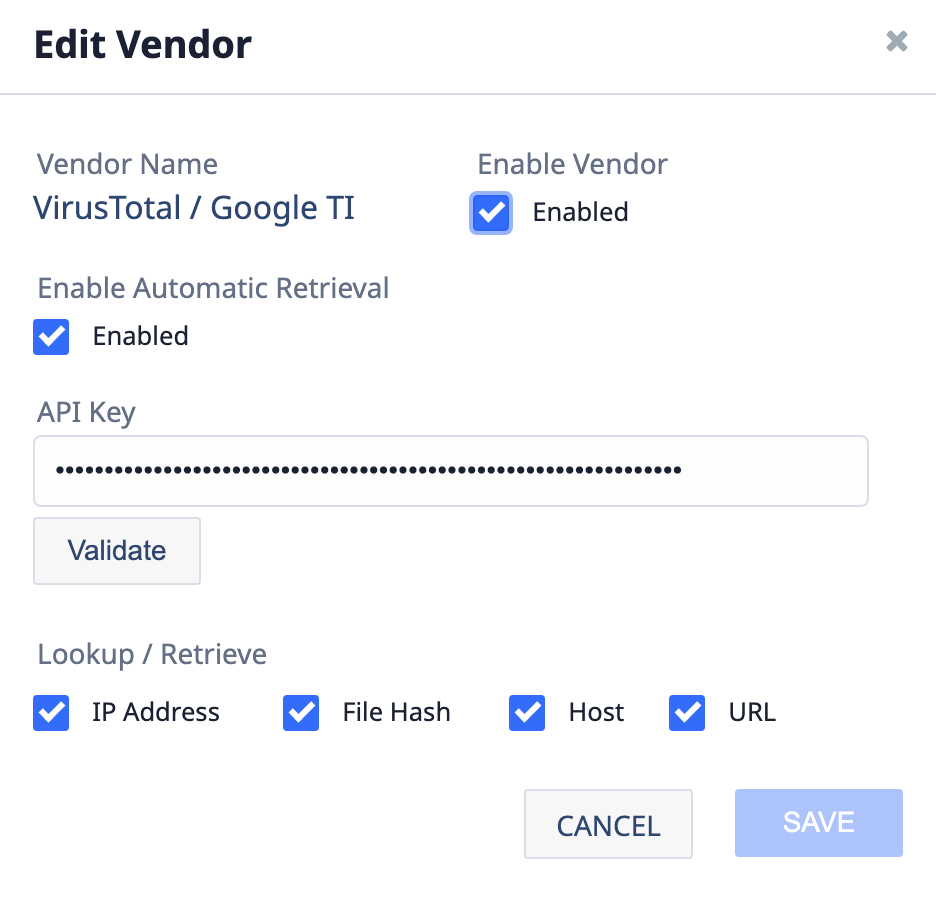
- Enable Vendor: Select this checkbox to enable Google Threat Intelligence.
- Enable Automatic Retrieval: Select this checkbox to enable automatic data retrieval for Google Threat Intelligence. If automatic data retrieval is enabled, Google Threat Intelligence data automatically populate when a user opens an Address, File, Host, or URL Indicator’s Enrichment tab for the first time.ImportantThe API key entered in the next field is used each time data are retrieved from Google Threat Intelligence for an Indicator. To limit API key usage to manual retrieval only, clear this checkbox.
- API Key: Enter the API key to retrieve data from Google Threat Intelligence.
- VALIDATE: Click this button to validate the Google Threat Intelligence API key. If the API key is accepted, the VALIDATE button’s label changes to VALID.
- Lookup/Retrieve: Select one or more types for which to retrieve data from Google Threat Intelligence.
- Click SAVE.
Data Overview
The Overview section of the Google Threat Intelligence card (Figure 2) on the Enrichment tab of an Address, File, Host, or URL Indicator’s Details screen provides a summary of data retrieved from Google Threat Intelligence for the Indicator and the date and time the data were last retrieved.
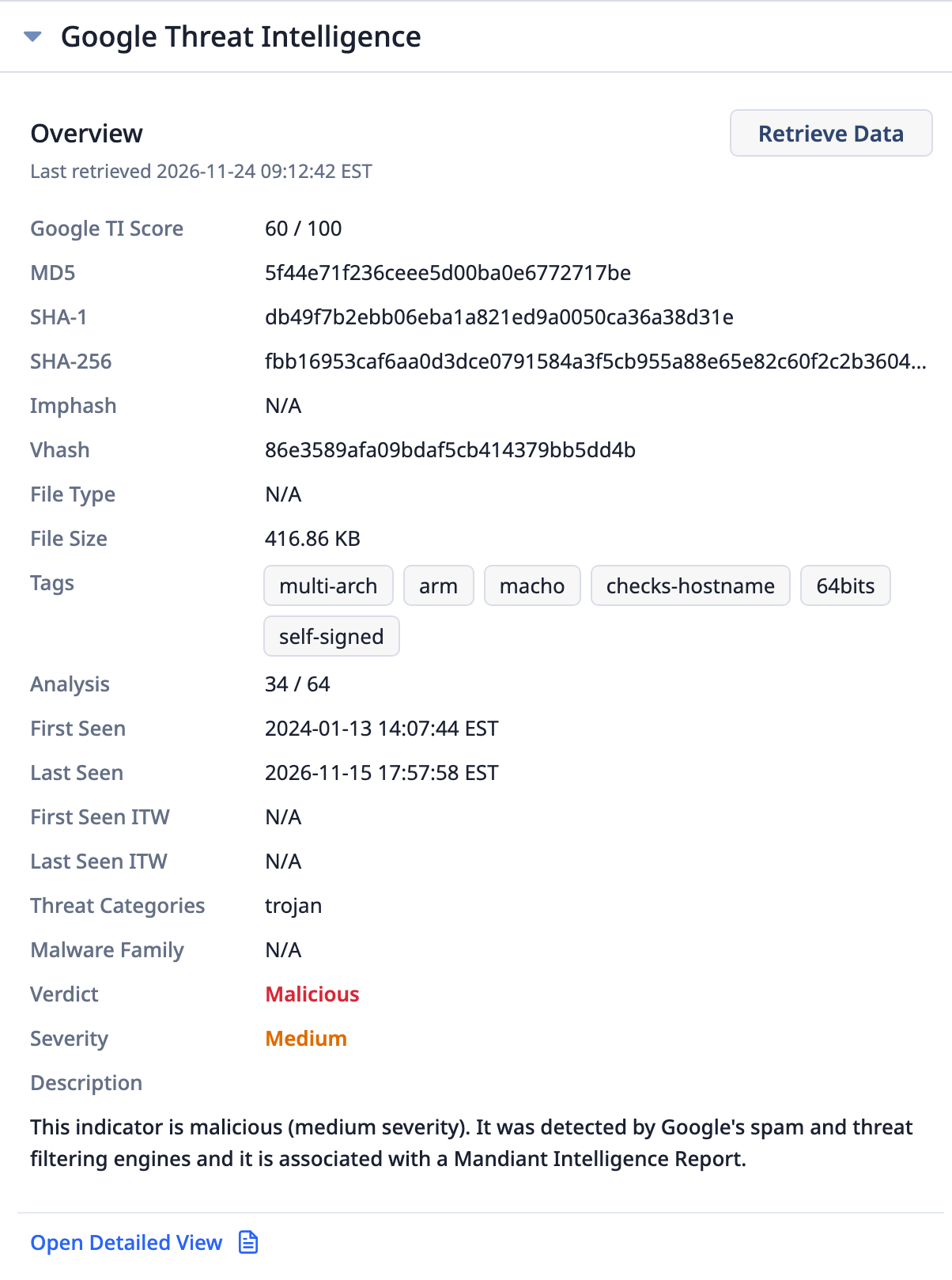
Depending on the type of Indicator you are viewing, the Overview section displays the following information:
- Address Indicator
- Google TI Score: The Address’s Google Threat Intelligence Threat Score.
- ASN: The autonomous system number (ASN) to which the Address belongs.
- Country: The country where the Address is placed.
- Last Seen ITW: The most recent date and time when the Address was actively seen in real-world attacks.
- Last Analysis Date: The last time the Address was scanned.
- Analysis: The number of security vendors out of the total number of security vendors that flagged the Address as malicious.
- Verdict: The analytical confidence regarding whether an Indicator is associated with malicious activity.
- Severity: A measure of the potential impact or damage an Indicator could cause to an organization.
- Tags: The tags applied to the Address in Google Threat Intelligence.
- Description: A description of the factors contributing to the verdict and severity classification.
- File Indicator
- Google TI Score: The File’s Google Threat Intelligence Threat Score.
- MD5: The File’s MD5 file hash.
- SHA-1: The File’s SHA1 file hash.
- SHA-256: The File’s SHA256 file hash.
- Imphash: The File’s import hash.
- Vhash: The value of the in-house similarity clustering algorithm for finding similar files.
- File Type: The File’s type.
- File Size: The File’s size in kilobytes (KB).
- Tags: The tags applied to the File in Google Threat Intelligence.
- Analysis: The number of security vendors out of the total number of security vendors that flagged the File as malicious.
- First Seen: The date and time when the File was first seen in Google Threat Intelligence.
- Last Seen: The date and time when the File was most recently scanned.
- First Seen ITW: The earliest date and time when the File was actively seen in real-world attacks.
- Last Seen ITW: The most recent date and time when the File was actively seen in real-world attacks.
- Threat Categories: The File’s known threat categories.
- Malware Family: The malware families associated with the File.
- Verdict: The analytical confidence regarding whether an Indicator is associated with malicious activity.
- Severity: A measure of the potential impact or damage an Indicator could cause to an organization.
- Description: A description of the factors contributing to the verdict and severity classification.
- Host Indicator
- Google TI Score: The Host’s Google Threat Intelligence Threat Score.
- Last DNS Record: The Host’s DNS records on its last scan.
- Registrar: The company that registered the domain.
- Tags: The tags applied to the Host in Google Threat Intelligence.
- Last Seen ITW: The most recent date and time when the Host was actively seen in real-world attacks.
- Last Analysis Date: The last time Host was scanned.
- Analysis: The number of security vendors out of the total number of security vendors that flagged the Host as malicious.
- Verdict: The analytical confidence regarding whether an Indicator is associated with malicious activity.
- Severity: A measure of the potential impact or damage an Indicator could cause to an organization.
- Categories: A mapping that relates categorization services with the category it assigns the domain to.
- Description: A description of the factors contributing to the verdict and severity classification.
- URL Indicator
- Google TI Score: The URL’s Google Threat Intelligence Threat Score.
- Final URL: The URL the most recent visit landed on after following all redirects.
- Tags: The tags applied to the URL in Google Threat Intelligence.
- First Seen ITW: The earliest date and time when the URL was actively seen in real-world attacks.
- Last Seen ITW: The most recent date and time when the URL was actively seen in real-world attacks.
- Last Analysis Date: The time of the last analysis performed for the URL.
- Analysis Score: The number of security vendors out of the total number of security vendors that flagged the URL as malicious.
- Verdict: The analytical confidence regarding whether an Indicator is associated with malicious activity.
- Severity: A measure of the potential impact or damage an Indicator could cause to an organization.
- Description: A description of the factors contributing to the verdict and severity classification.
/ 100 and other incomplete or missing data fields, the Google Threat Intelligence API key used to configure the enrichment service has expired, causing the service to return a limited dataset from VirusTotal instead. To return data from Google Threat Intelligence, your System Administrator must enter and validate a new Google Threat Intelligence API key for the enrichment service.Google Threat Intelligence Detailed View
Click Open Detailed View on the Google Threat Intelligence card to open the Google Threat Intelligence Detailed View drawer (Figure 3), which displays cards with additional data retrieved from Google Threat Intelligence.
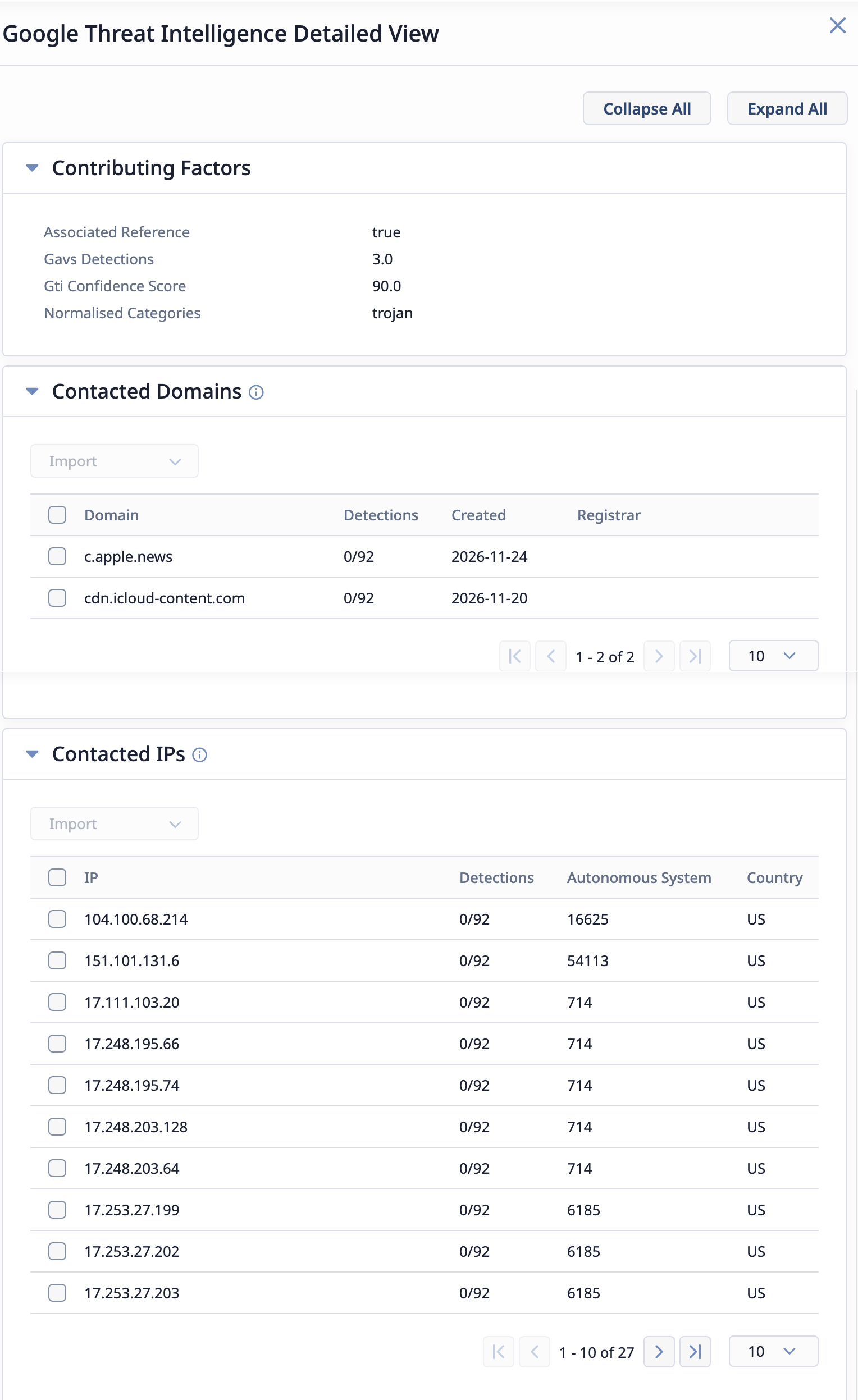
Depending on the type of Indicator you are viewing, the Google Threat Intelligence Detailed View drawer displays the following cards:
- Address Indicator
- Contributing Factors: The signals that contributed to the verdict and severity classification.
- Passive DNS Replication: The domains to which the Address resolves.
- Last HTTPS Certificate: The certificate details observed when attempting a standard HTTPS connection to the Address.
- URLs: The URLs to which the Address resolves.
- File Indicator
- Contributing Factors: The signals that contributed to the verdict and severity classification.
- Contacted URLs: The URLs contacted by the File.
- Contacted Domains: The domains contacted by the File.
- Contacted IPs: The IP addresses contacted by the File.
- Host Indicator
- Contributing Factors: The signals that contributed to the verdict and severity classification.
- Categories: The categories provided by URL sandboxing engines to which the URL or domain content belongs.
- Passive DNS Replication: The IP addresses to which the Host resolves.
- URLs: The URLs to which the Host resolves.
- URL Indicator
- Contributing Factors: The signals that contributed to the verdict and severity classification.
- Categories: The categories provided by URL sandboxing engines to which the URL or domain content belongs.
- Contacted Domains: The domains from which the URL loads some type of resource.
- Contacted IPs: The IP addresses from which the URL loads some type of resource.
Importing Indicators From Google Threat Intelligence Into ThreatConnect
You may import Indicators displayed on the Contacted Domains, Contacted IPs, Contacted URLs, Passive DNS Replication, and URLs cards into ThreatConnect and associate them to a new or existing Group. You may also import Indicators displayed on these cards into ThreatConnect and associate them directly to the enriched Indicator (i.e., the Indicator whose Details screen you are viewing) via a custom association.
Follow these steps to import Indicators from Google Threat Intelligence into ThreatConnect:
- Expand one of the following cards on the Google Threat Intelligence Detailed View drawer (Figure 3) to view Indicators retrieved from Google Threat Intelligence that are related to the enriched Indicator:
- Contacted Domains: (Available for File and URL Indicators only) Indicators on this card will be imported as Host Indicators.
- Contacted IPs: (Available for File and URL Indicators only) Indicators on this card will be imported as Address Indicators.
- Contacted URLs: (Available for File Indicators only) Indicators on this card will be imported as URL Indicators.
- Passive DNS Replication: (Available for Address and Host Indicators only) If the enriched Indicator is an Address, Indicators on this card will be imported as Host Indicators. If the enriched Indicator is a Host, Indicators on this card will be imported as Address Indicators.
- URLs: (Available for Address and Host Indicators only) Indicators on this card will be imported as URL Indicators.
- Select the checkbox for each Indicator to import into ThreatConnect, or select the checkbox in the table’s header to import all Indicators displayed on the current page in the table.ImportantIf a selected Indicator already exists in the ThreatConnect owner into which you are importing data, that copy of the Indicator will be updated based on the information entered and options configured during the import.
- Expand the Import dropdown at the top left of the card and select one of the following import options:
- To New Group: Select this option to import the selected Indicators and associate them to a new Group created during the import.
- To Existing Group: Select this option to import the selected Indicators and associate them to an existing Group.
- As an Indicator: Select this option to import the selected Indicators and associate them directly to the enriched Indicator via a custom association.
Importing Indicators Into a New Group
Follow these steps to import Indicators from Google Threat Intelligence and associate them to a new Group created during the import:
- Follow Steps 1–3 in the “Importing Indicators From Google Threat Intelligence Into ThreatConnect” section and select To New Group from the Import dropdown.
- Proceed through the steps on the Create screen to create the Group and configure the Indicators selected for import.
- Follow the instructions in the “Step 1: Enter Details About the Group” section of Creating Groups to fill out the fields on the Details step.Important
- By default, Event is selected for the Type field.
- By default, the Tags field includes a VirusTotal Enrichment Tag. If you select the Apply Tags To Associations checkbox, it is recommended that you remove this Tag. Otherwise, this Tag will be applied to the enriched Indicator (that is, the Indicator whose Enrichment tab you are importing Google Threat Intelligence data from), as this Indicator will be added as an association to the new Group. Alternatively, if you want to apply the VirusTotal Enrichment Tag to all associations except for the enriched Indicator, select Apply Tags To Associations, leave the VirusTotal Enrichment Tag in the Tags field, and then, after completing the import, navigate to the enriched Indicator’s Details screen and remove the Tag from the Indicator manually. If you keep the Tag, it is recommended to change it to Google Threat Intelligence Enrichment.
- Follow the instructions in the “Step 2: Create Associations for the Group (Optional)” section of Creating Groups to fill out the fields on the Associations step.Important
- The Indicator Type card is not displayed because the Indicators to be associated are already selected from the card on the Google Threat Intelligence Detailed View drawer.
- All information added in this section is applied to the enriched Indicator (that is, the Indicator from whose Enrichment tab you are importing Google Threat Intelligence data), because the enriched Indicator is always added as an association to the new Group, along with the Indicators selected on the card on the Google Threat Intelligence Detailed View drawer. If the enriched Indicator has a default Description, a threat rating, or a confidence rating and you enter a value for one of these fields, then that value will replace the existing value for the enriched Indicator. Tags entered in this section will be applied in addition to the enriched Indicator’s existing Tags.
- Follow the instructions in the “Step 3: Upload File Attachments to the Group (Optional)” section of Creating Groups to fill out the fields on the Attachments step.
- Follow the instructions in the “Step 1: Enter Details About the Group” section of Creating Groups to fill out the fields on the Details step.
Importing Indicators Into an Existing Group
Follow these steps to import Indicators from Google Threat Intelligence and associate them to an existing Group:
- Follow Steps 1–3 in the “Importing Indicators From Google Threat Intelligence Into ThreatConnect” section and select To Existing Group from the Import dropdown.
- On the Select Group step of the Import to Existing Group screen, select an existing Group to associate to the imported Indicators.
- Follow the instructions in the “Step 2: Create Associations for the Group (Optional)” section of Creating Groups to fill out the fields on the Associations step.Important
- The Indicator Type card is not displayed because the Indicators to be associated are already selected from the card on the Google Threat Intelligence Detailed View drawer.
- All information added in this section is applied to the enriched Indicator (that is, the Indicator whose Enrichment tab you are importing Google Threat Intelligence data from), because the enriched Indicator is always added as an association to the existing Group, along with the Indicators selected on the card on the Google Threat Intelligence Detailed View drawer. If the enriched Indicator has a default Description, a threat rating, or a confidence rating and you enter a value for one of these fields, then that value will replace the existing value for the enriched Indicator. Tags entered in this section will be applied in addition to the enriched Indicator’s existing Tags.
Importing Indicators as Indicators
Follow these steps to import Indicators from Google Threat Intelligence and associate them directly to the enriched Indicator via a custom association:
- Follow Steps 1–3 in the “Importing Indicators From Google Threat Intelligence Into ThreatConnect” section and select As an Indicator from the Import dropdown.
- On the Import Indicators window, review the list of Indicators and click Import Indicators to import and associate them directly to the enriched Indicator via a custom association.
Retrieving Data Manually
When you open an Indicator’s Enrichment tab for the first time, data are automatically retrieved from Google Threat Intelligence and displayed on the Google Threat Intelligence card if your System Administrator enabled automatic data retrieval for Google Threat Intelligence. If no data are displayed, click Retrieve Data on the card to retrieve data manually. Once data are retrieved, they are cached for a period of time configured by your System Administrator. Each time you revisit that Indicator’s Enrichment tab, the cached Google Threat Intelligence data are displayed until this period of time has passed. You can click Retrieve Data to update the displayed data at any time.
Enriching Indicators Using the ThreatConnect API
You can use the ThreatConnect v3 API to enrich Address, File, Host, and URL Indicators with data from Google Threat Intelligence. For instructions on using the ThreatConnect v3 API to enrich Indicators, see Indicator Enrichment Overview.
ThreatConnect® is a registered trademark of ThreatConnect, Inc.
Google® is a registered trademark, and VirusTotal™ is a trademark, of Google, Inc.
20146-10 v.01.A